 Discord Chat Exporter
Servers get deleted and channels get cleared out. If a server’s history matters to you, export it so you have your own copy.
In this guide
What “archiving” means on Discord
| Message history | Roles, settings, permissions | |
|---|---|---|
| Exporting channels | Yes, with images | No |
| Server templates | No | Yes, structure only |
| Hiding a channel in the server | Kept on Discord, can still be deleted | Yes |
For a copy of the conversations themselves, export each channel. Server templates (Server Settings → Server Template) copy the structure but no messages.
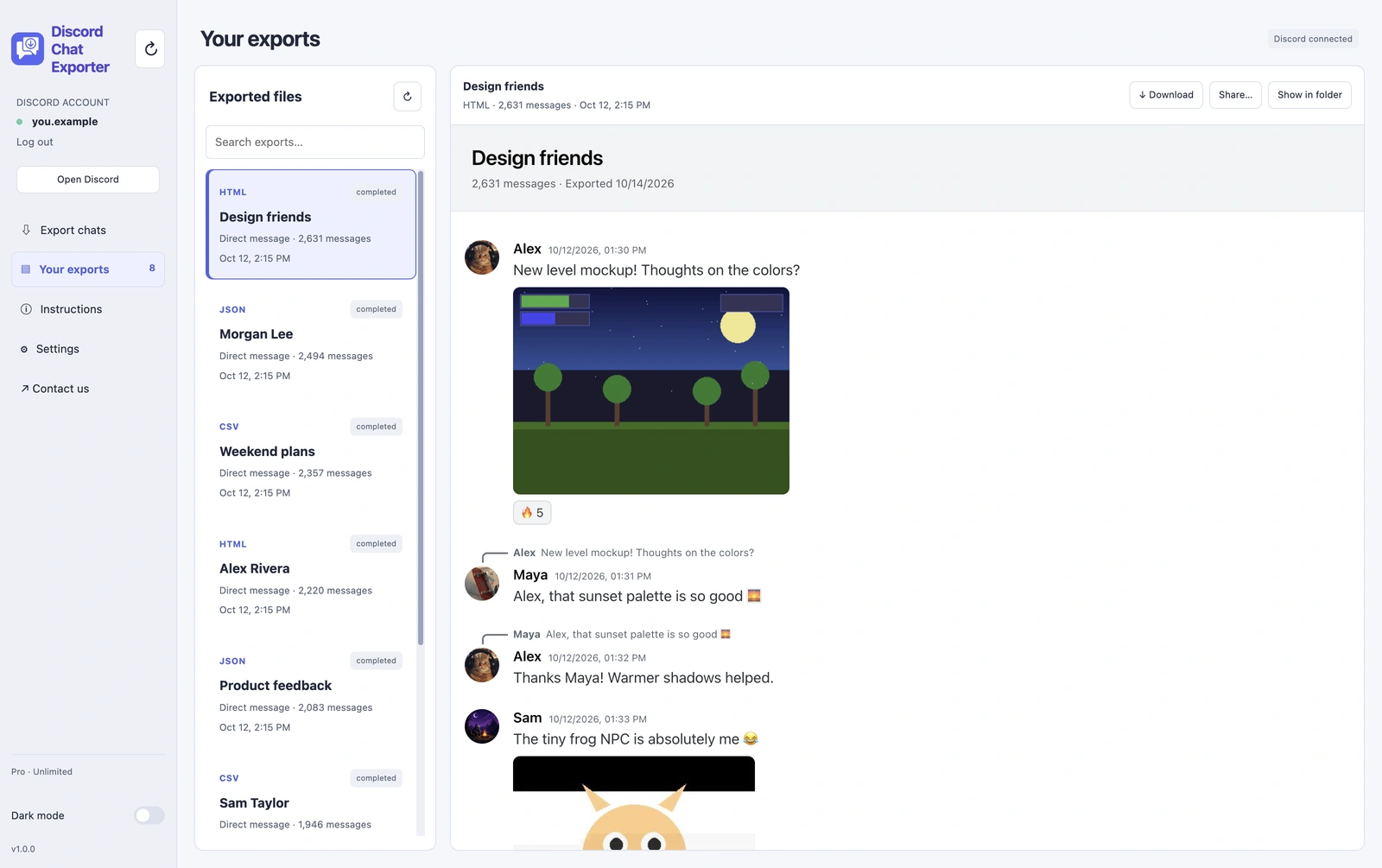
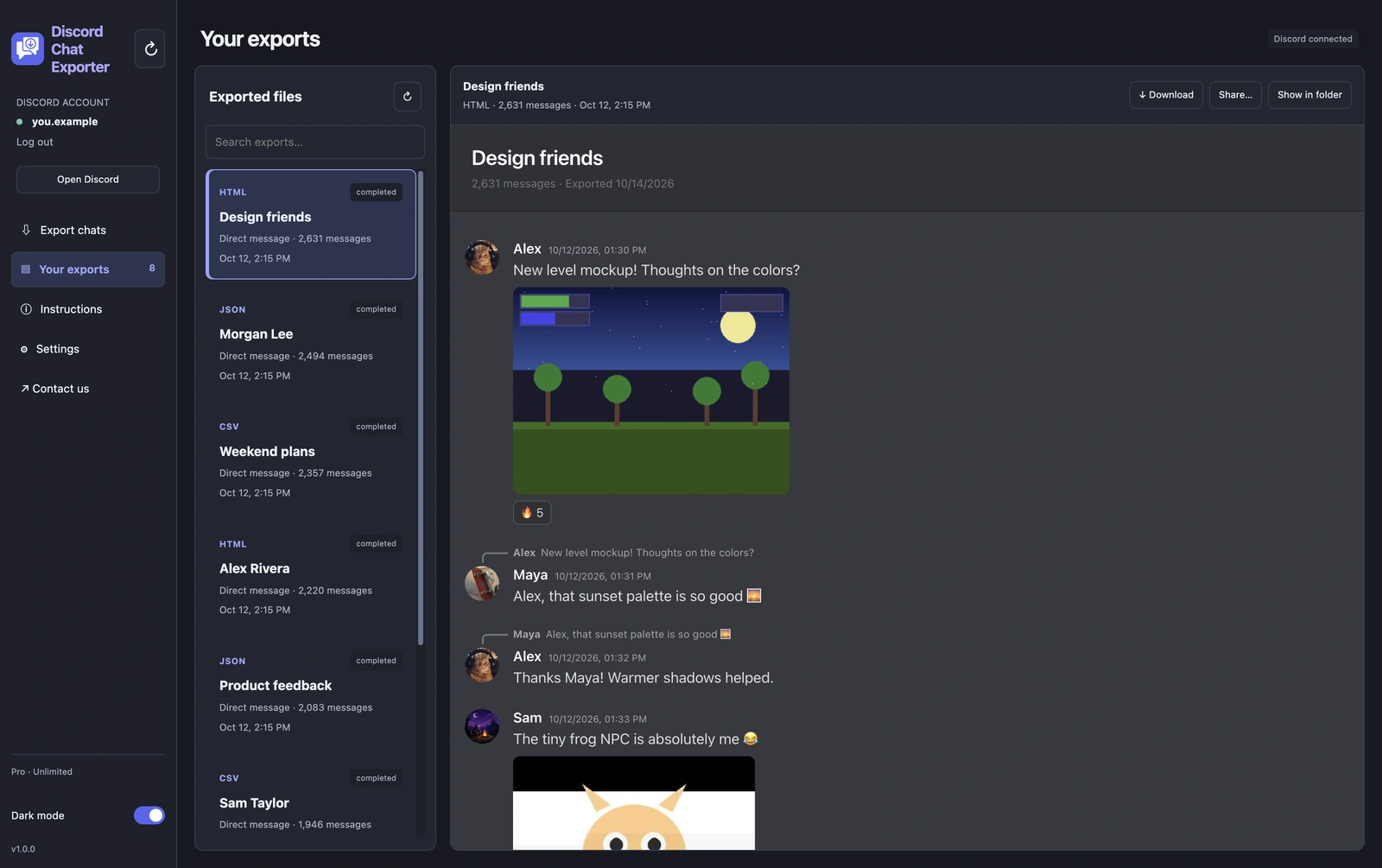
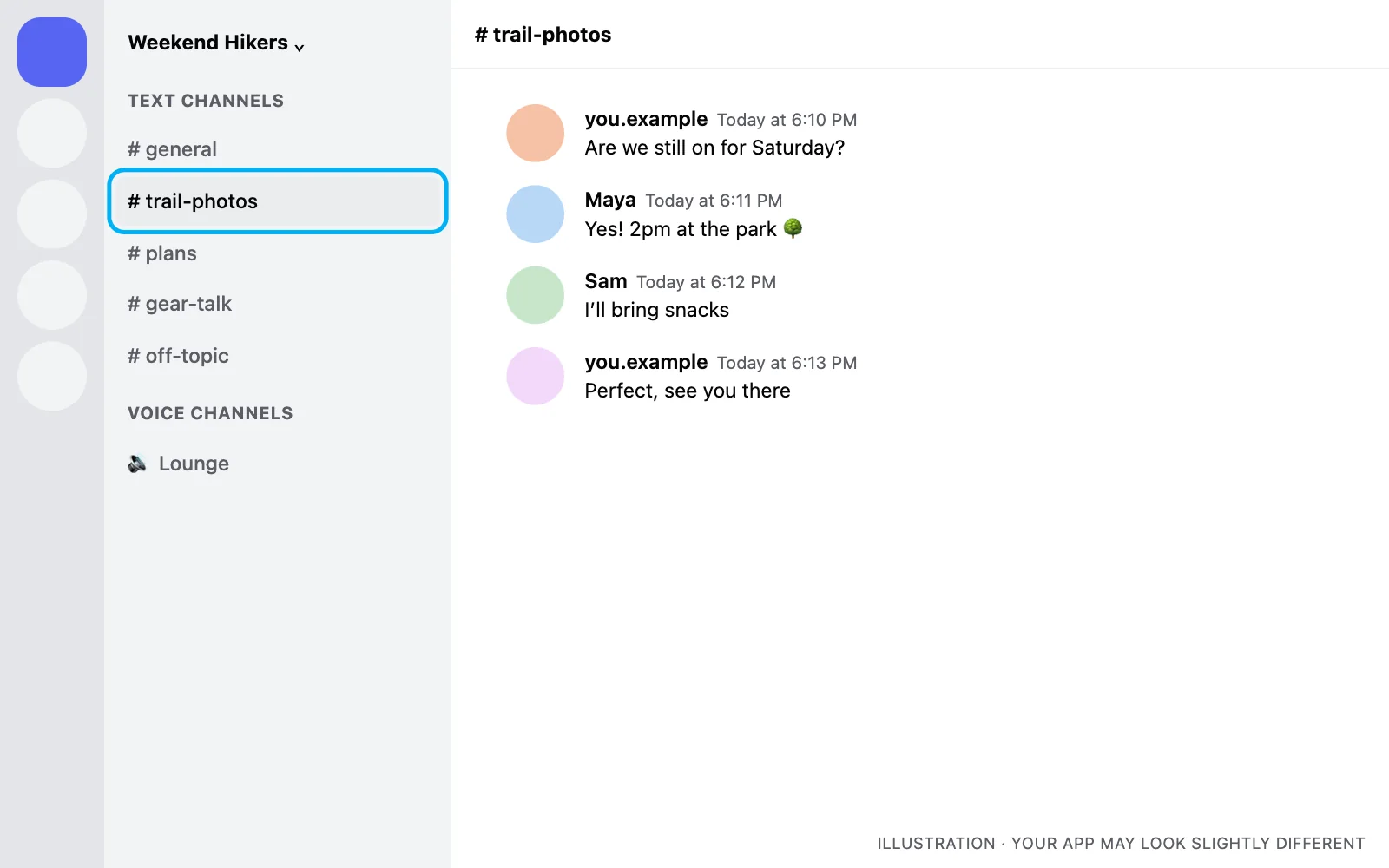
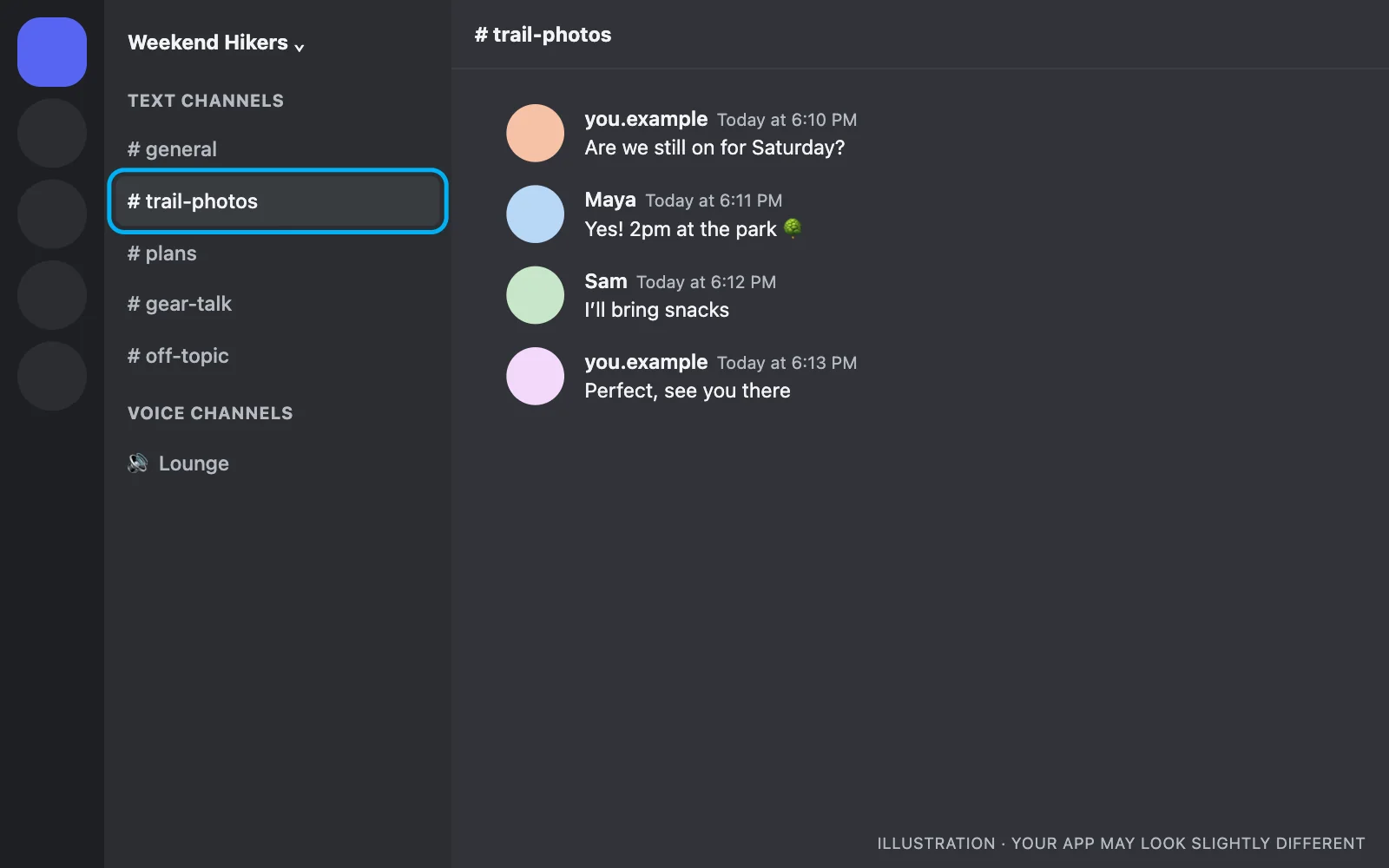
An exported channel opens in any browser and looks just like Discord:
How to archive a channel
On iPhone & Android
Step 1 Open Discord Chat Exporter
Install Discord Chat Exporter from the App Store or Google Play and open it. The app guides you through setup.
Step 2 Choose a chat
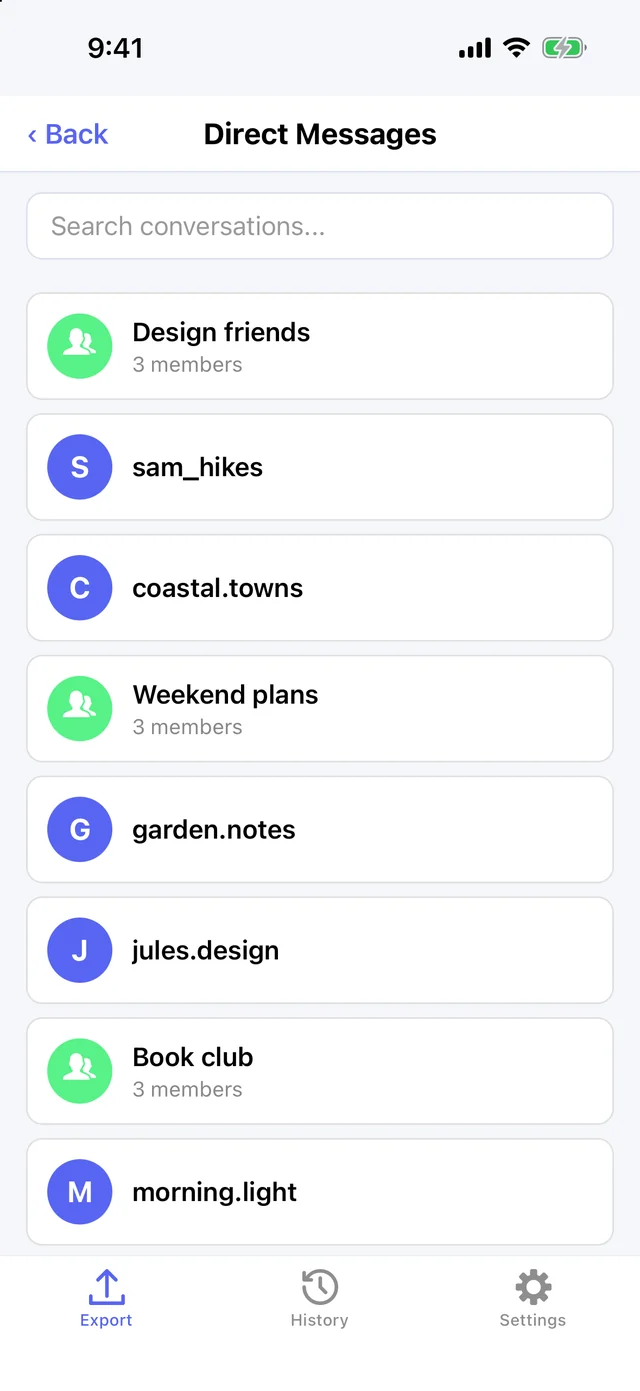
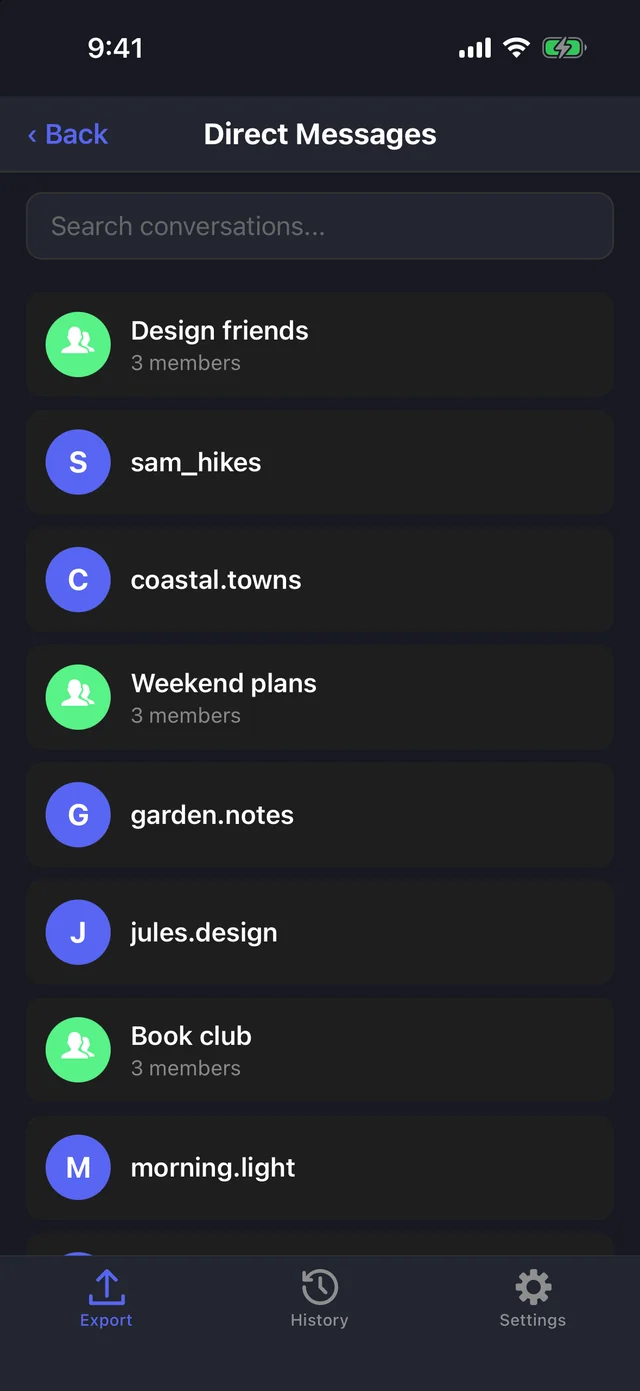
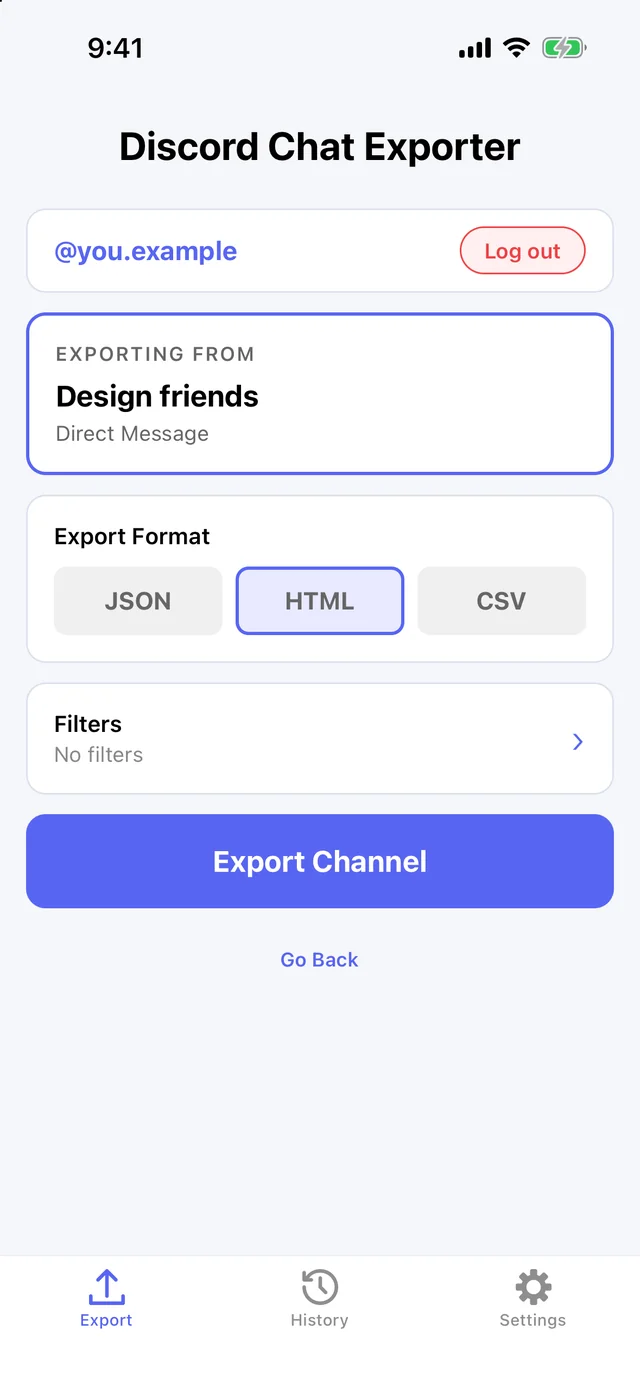
Tap Direct Messages or Servers and pick the server channel you want to keep.
Step 3 Choose a format
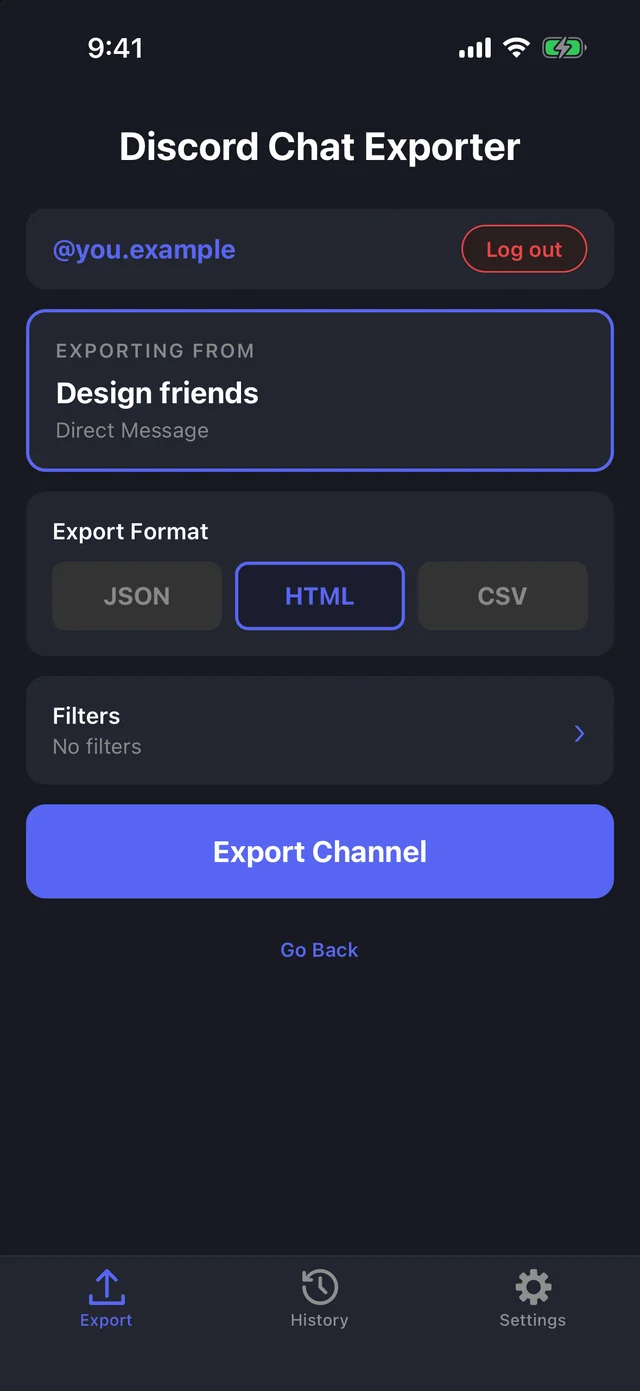
Pick HTML, JSON, or CSV.
Step 4 Add filters (optional)
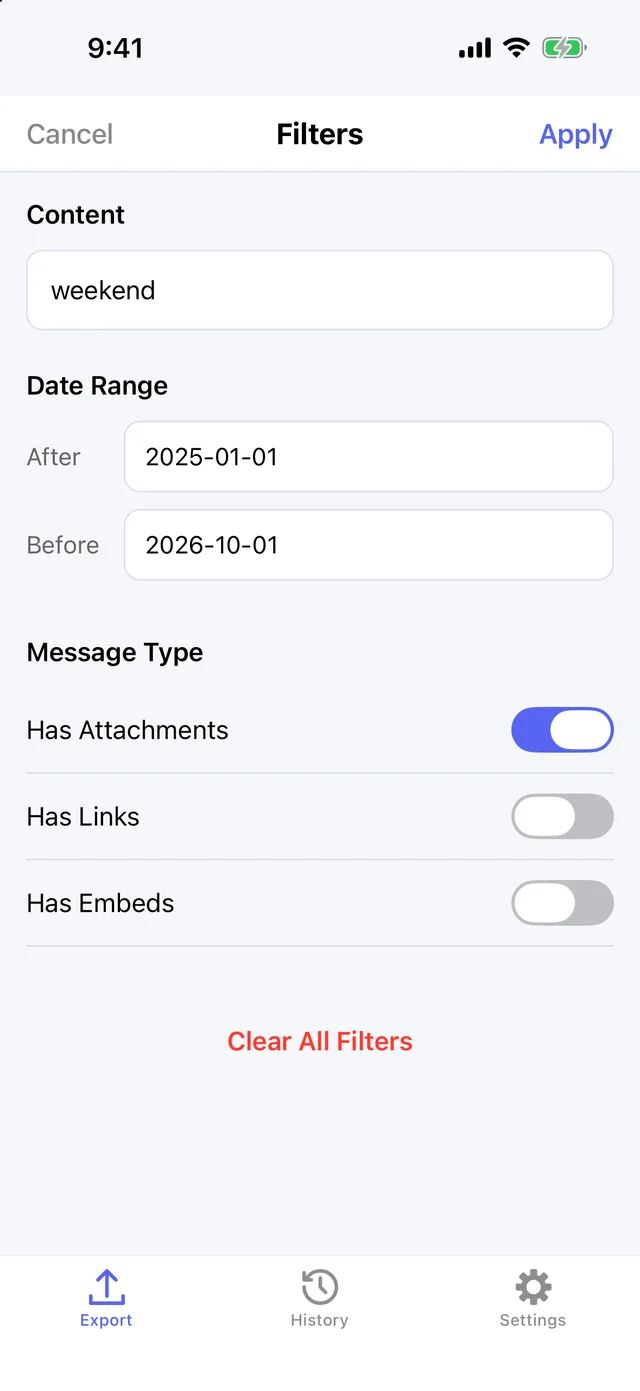
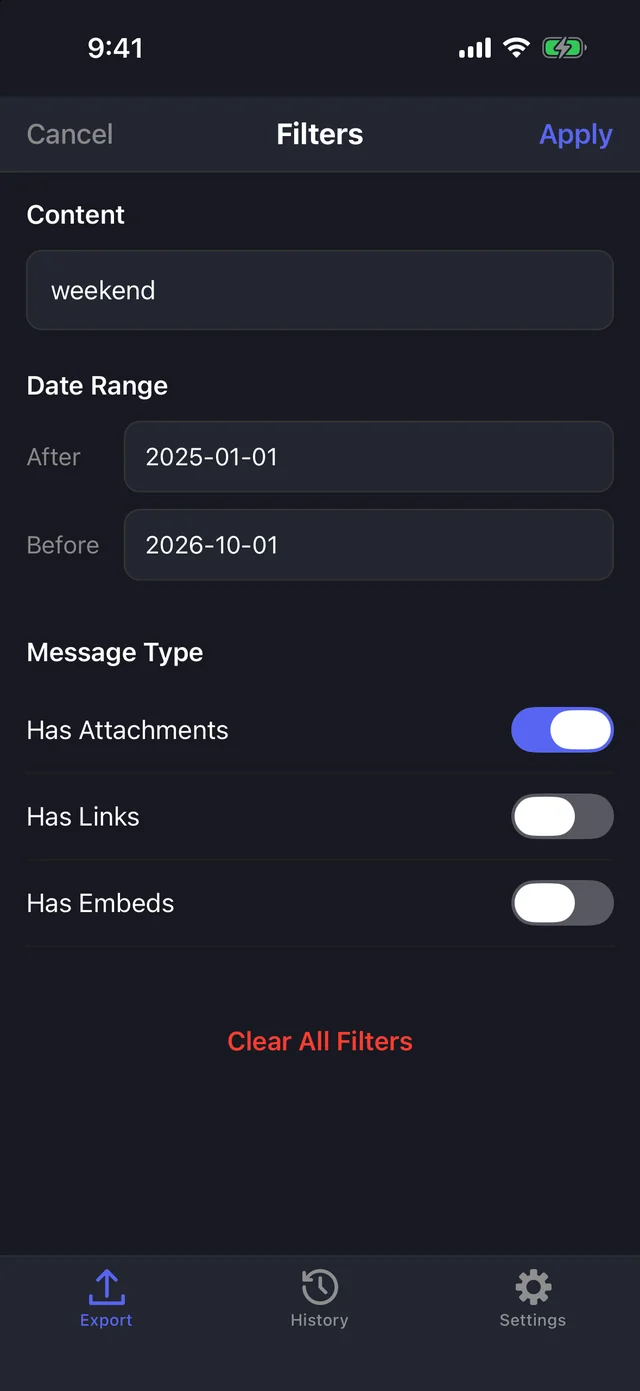
Tap Filters to export only messages containing a word, from a date range, or with attachments, links, or embeds.
Step 5 Export
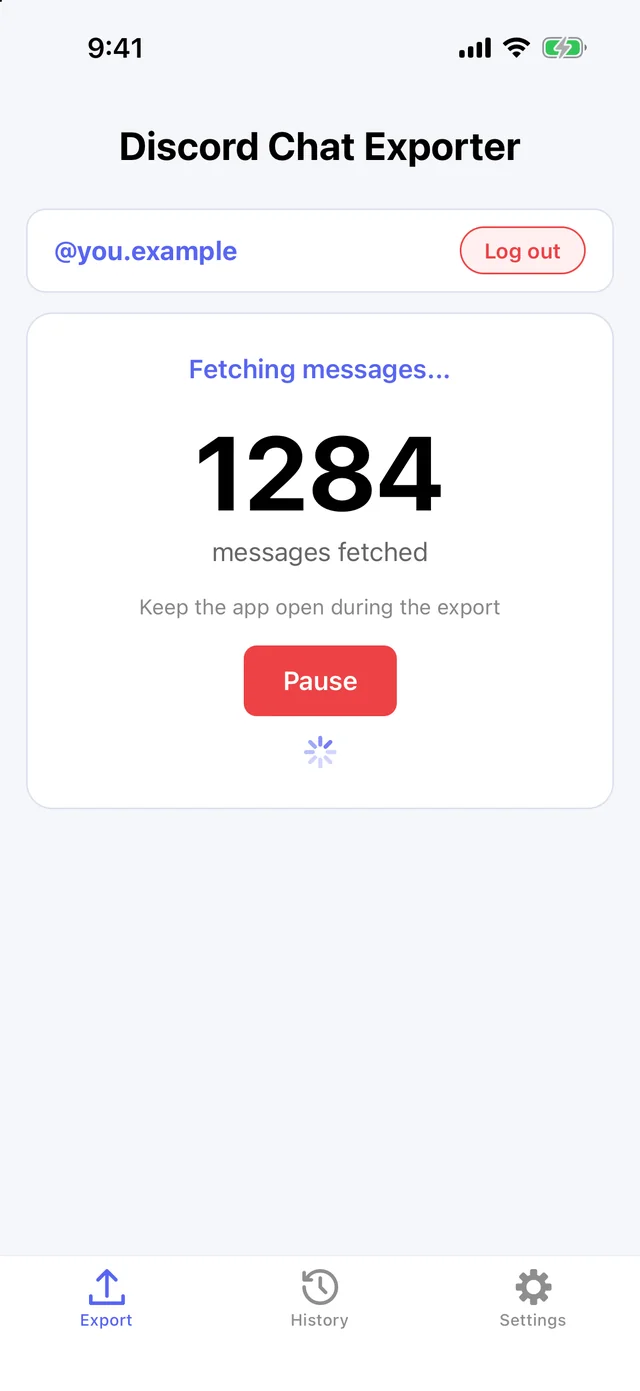
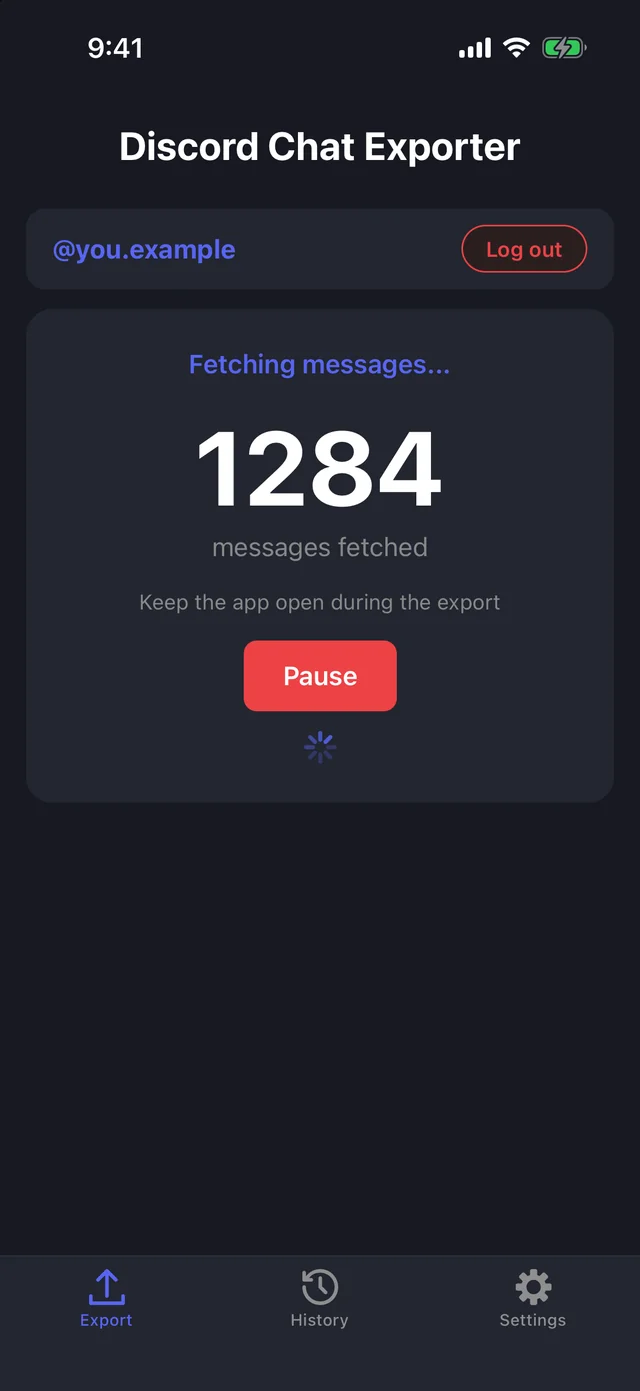
Tap Export. Keep the app open while it fetches every message from every person in the chat. Pause any time.
Step 6 Share or preview it
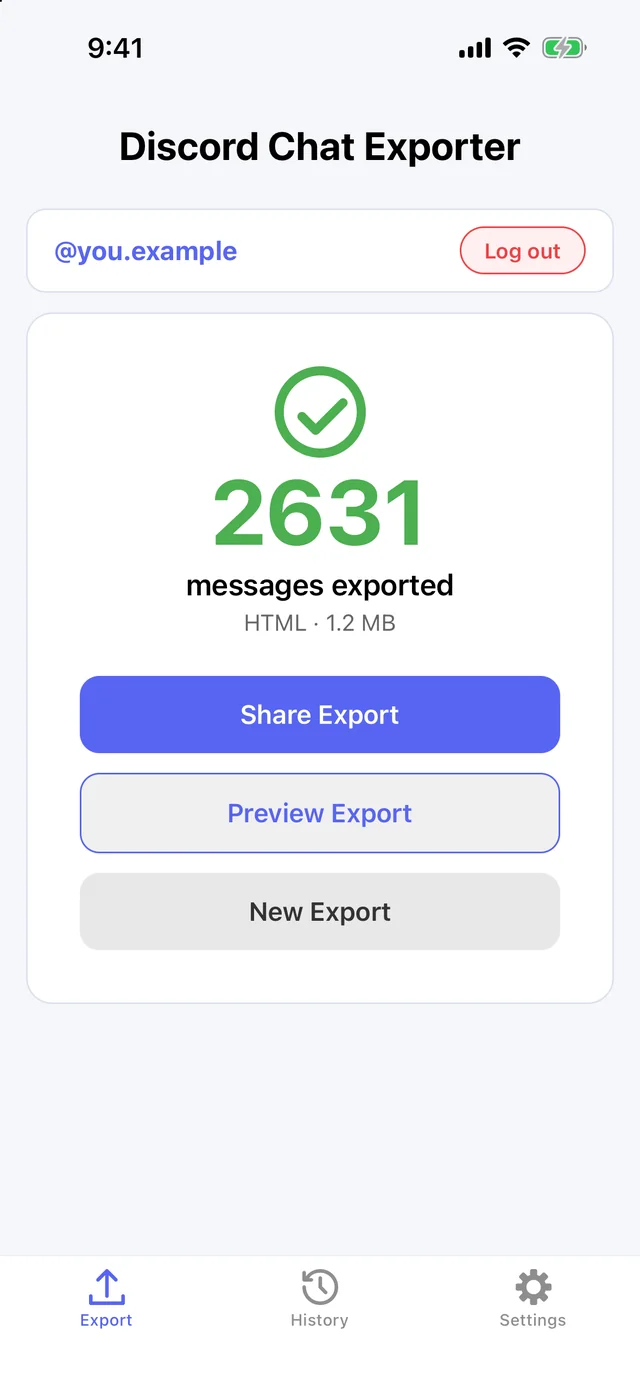
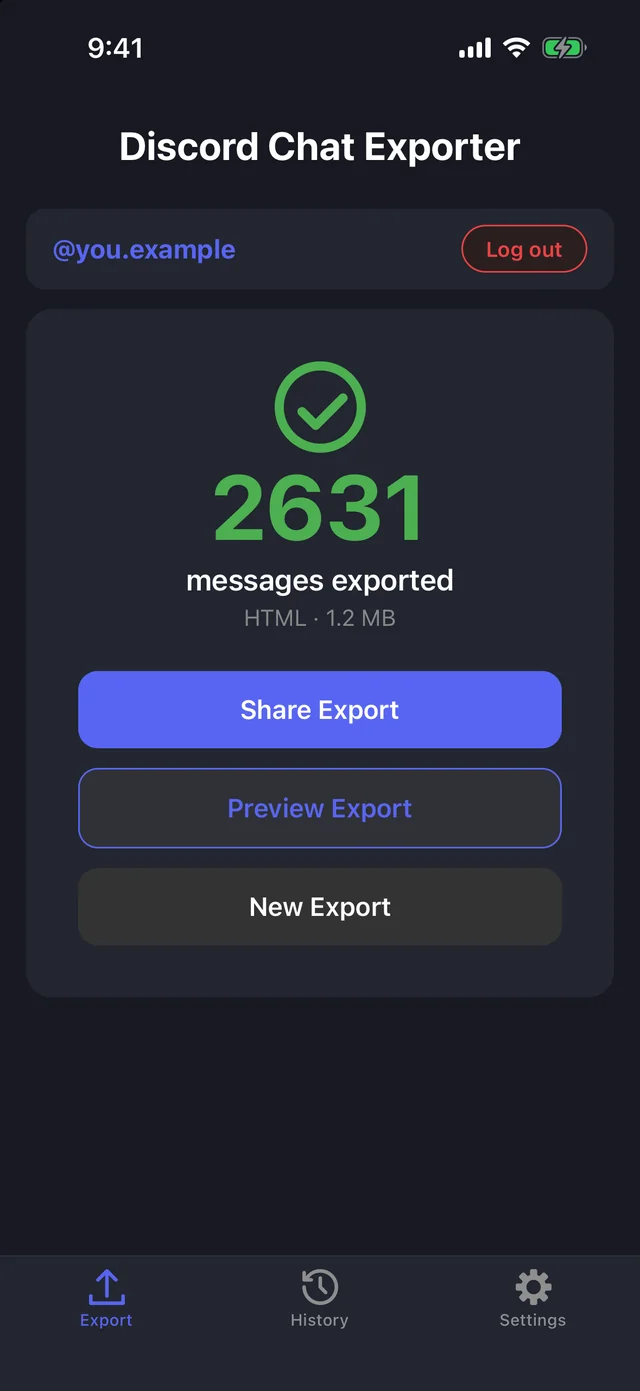
When it’s done, share the file or preview it. Every export is also saved in History.
On Mac & Windows
Step 1 Open Discord Chat Exporter
Get Discord Chat Exporter Desktop for Mac or Windows, open it, and enter the license key from your purchase email.
Step 2 Choose your chats
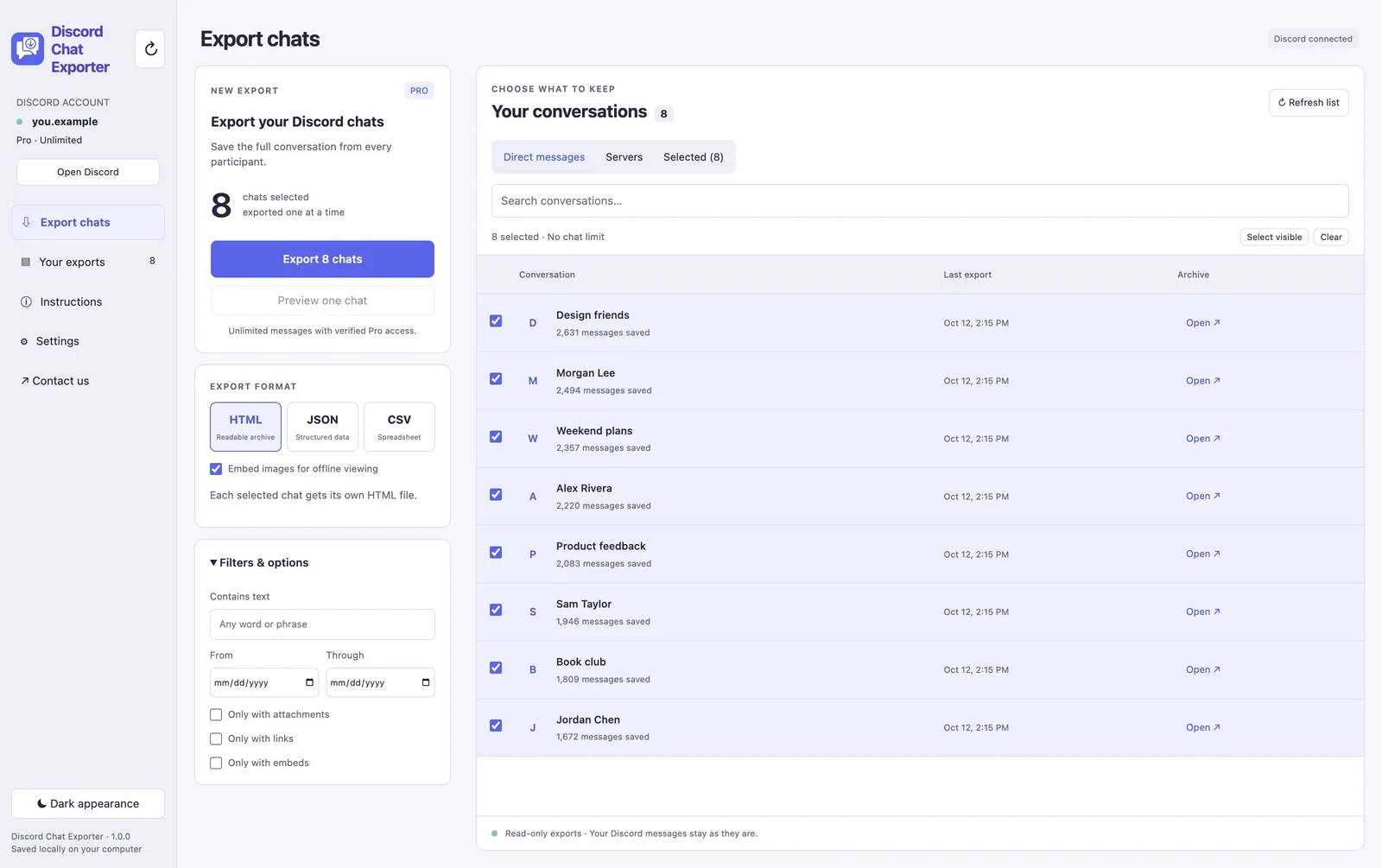
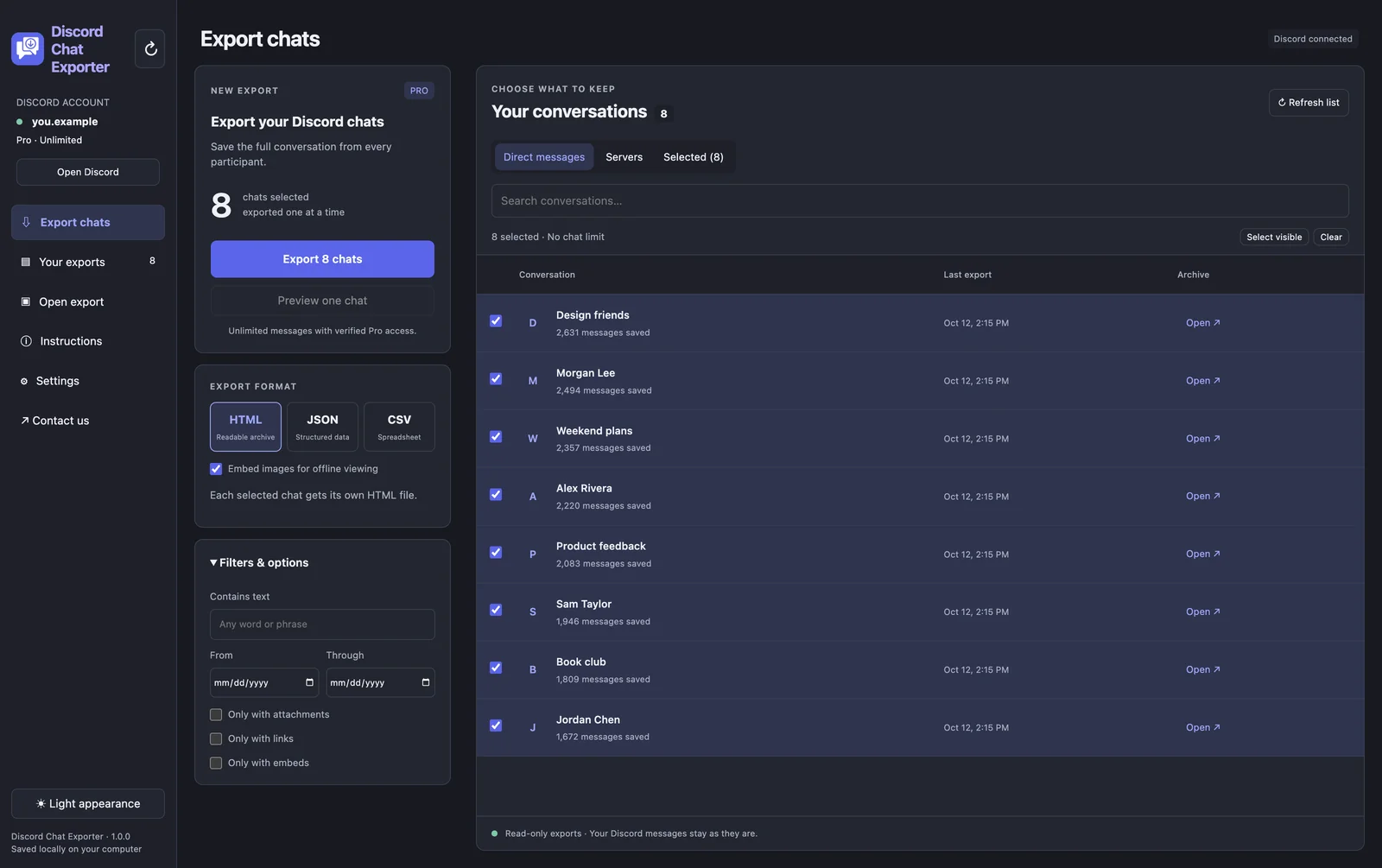
Under Direct messages or Servers, tick the chats you want. To export everything, click Select visible to select every chat in the list.
Step 3 Choose a format and filters
Pick HTML, JSON, or CSV. Under Filters & options, optionally keep only messages containing a word, from a date range, or with attachments, links, or embeds.
Step 4 Click Export
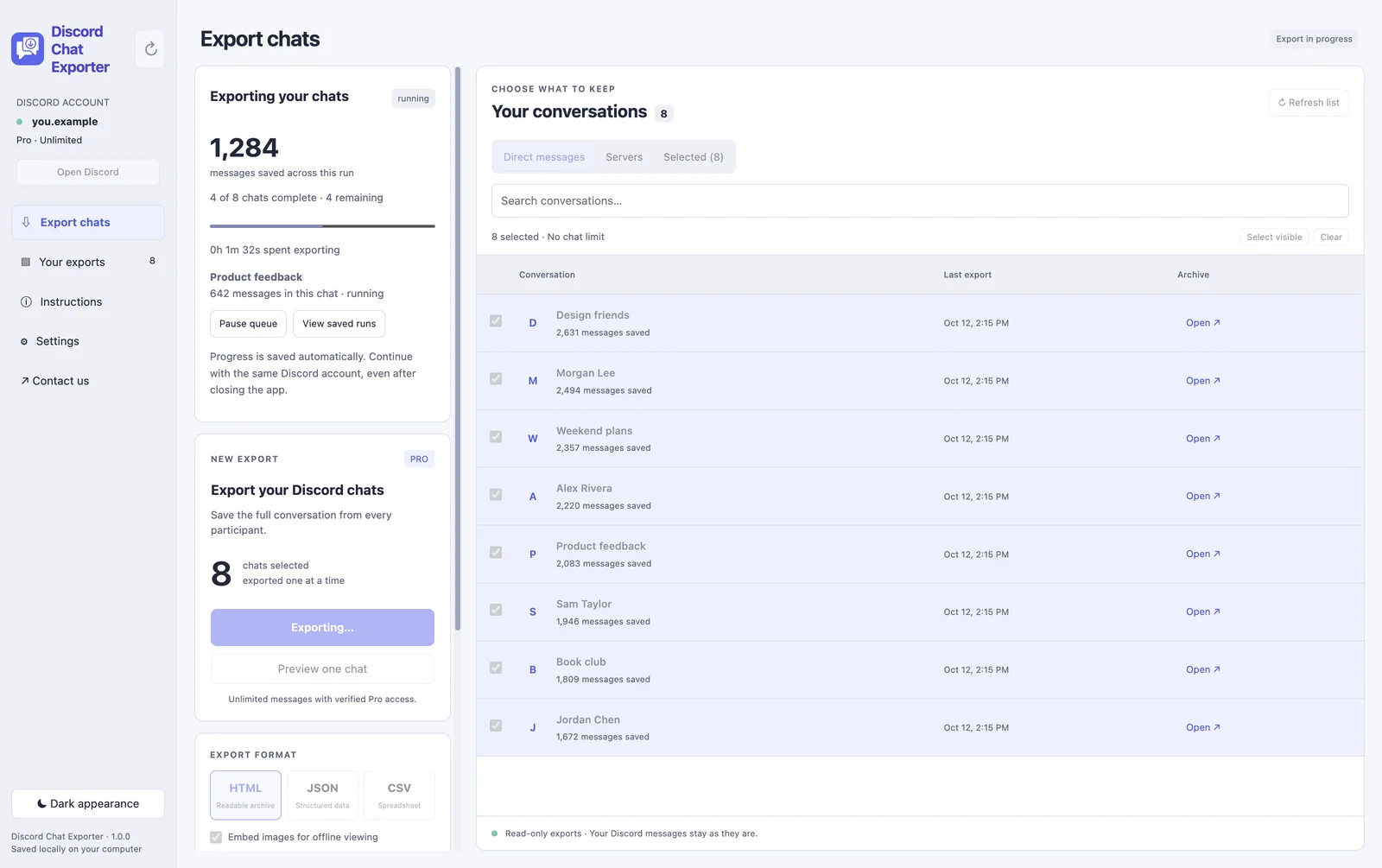
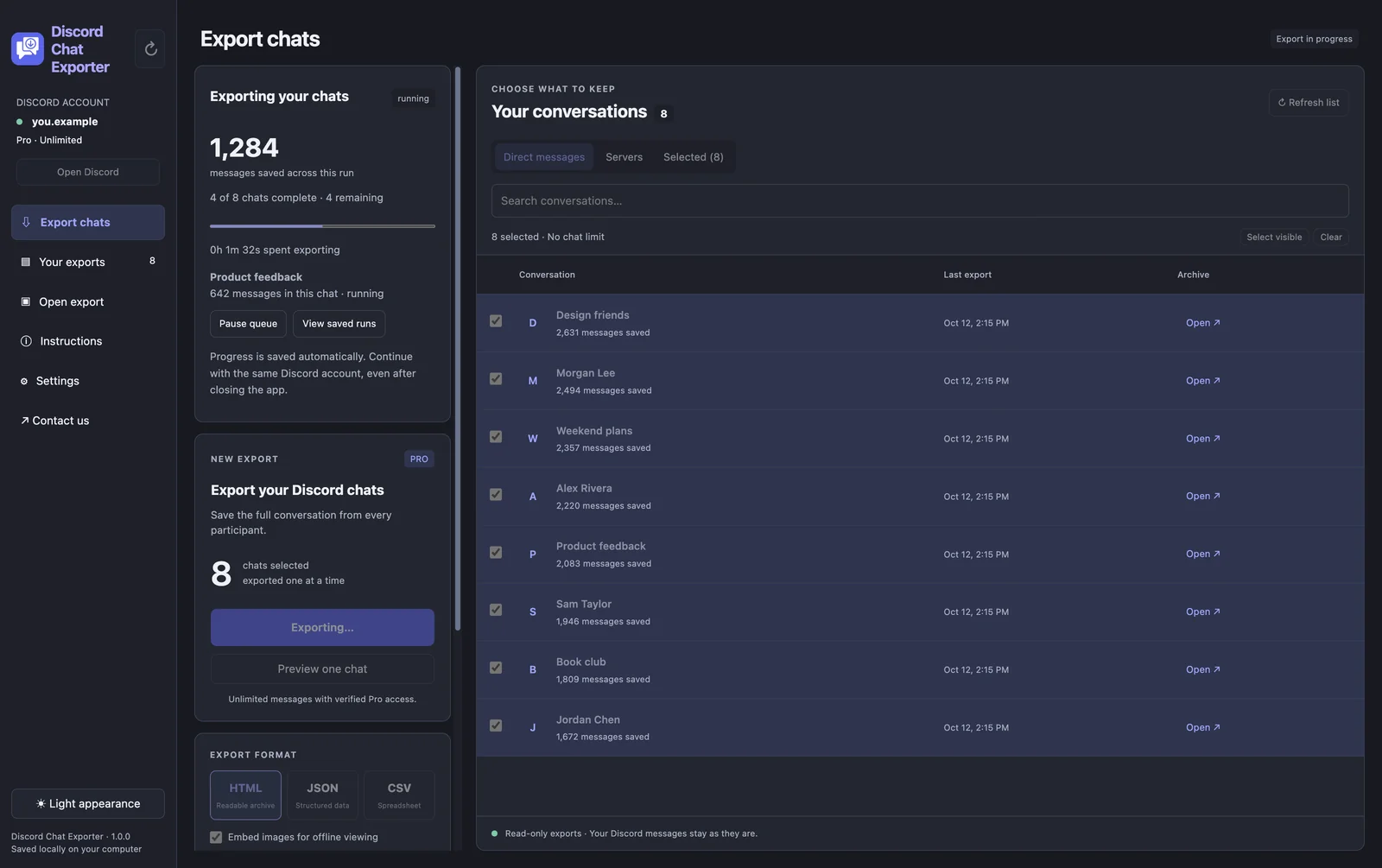
Click Export. Each chat is exported one after another, with a live message count. Pause the queue any time; progress is saved, even if you close the app.
Step 5 Open your exports
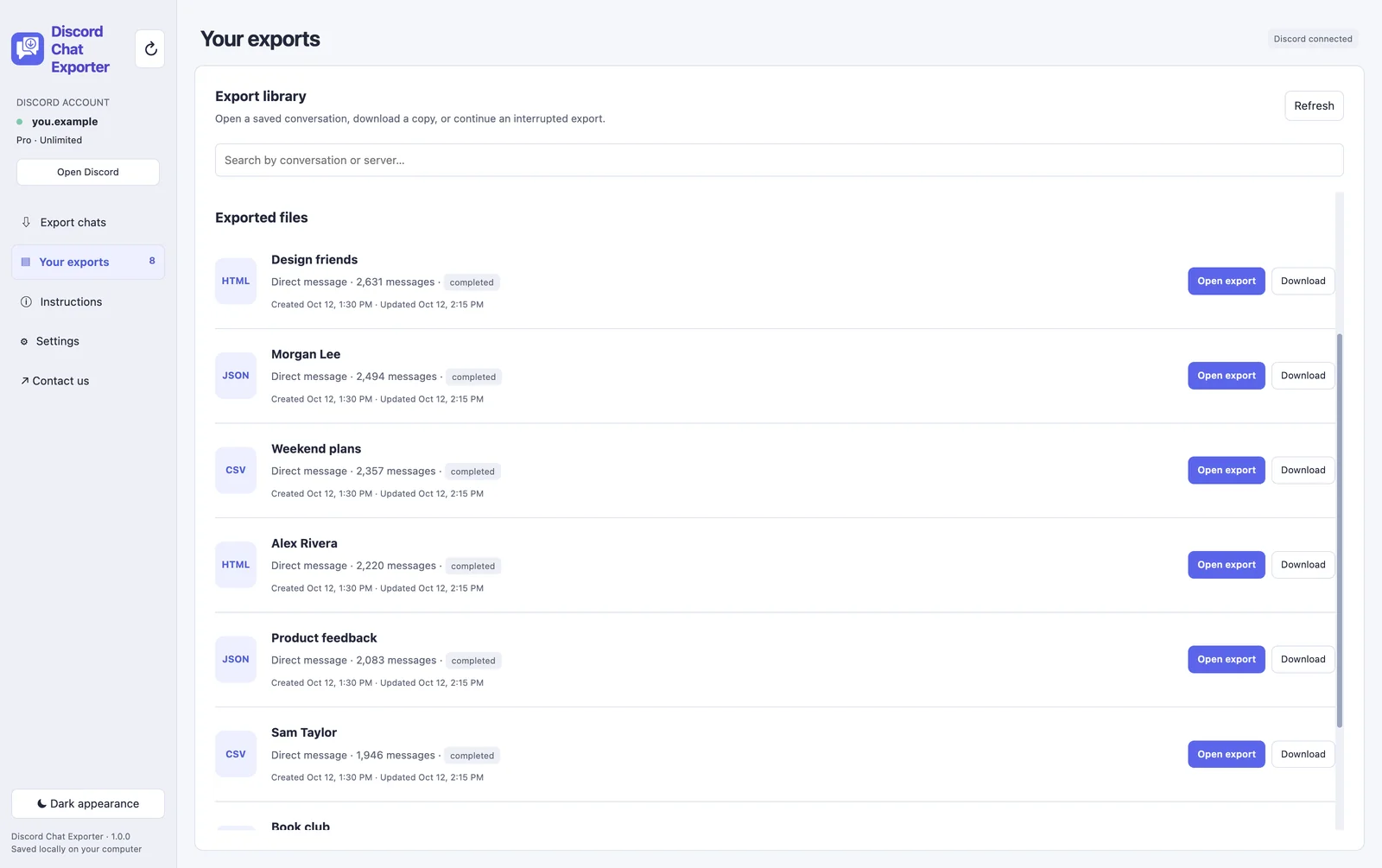
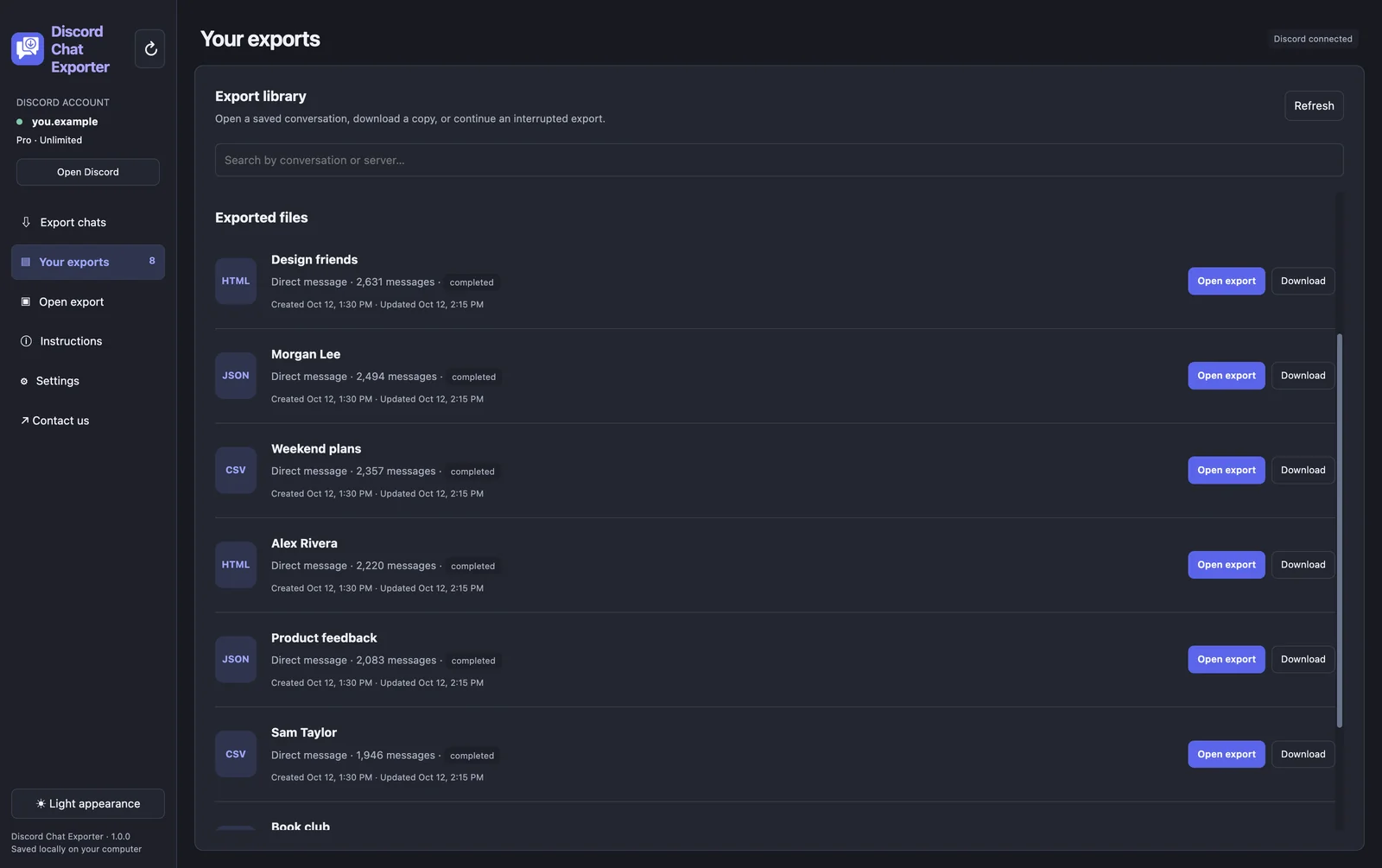
Every finished chat is listed under Your exports. Open it in the built-in viewer or download a copy.
Archiving a whole server
Export each text channel you want to keep. HTML is best for reading later; JSON is best if you might re-import or process the data.
Keep archives private
Archives contain other members’ messages. Store them securely and ask before sharing.
For server owners
To keep a channel readable on Discord without new messages, move it to an archive category and remove send-message permission. Exporting it as well protects against accidental deletion.
Export your Discord chats with Discord Chat Exporter
Export all your Discord chats in one click, to HTML, JSON, or CSV with images. On iPhone, Android, Mac, and Windows.


Frequently asked questions
Can I back up a whole Discord server?
You can export every channel’s messages, and save the structure with a server template, but there’s no one-click full backup.
Can I archive a server I don’t own?
You can export channels you can read for your own records.
What format is best for archiving?
HTML for reading later, JSON for long-term data backups.