 Discord Chat Exporter
Discord lets you download a copy of the data it has about your account. It’s useful, but it’s not a chat export: it only includes your side of every conversation.
In this guide
How to request your data
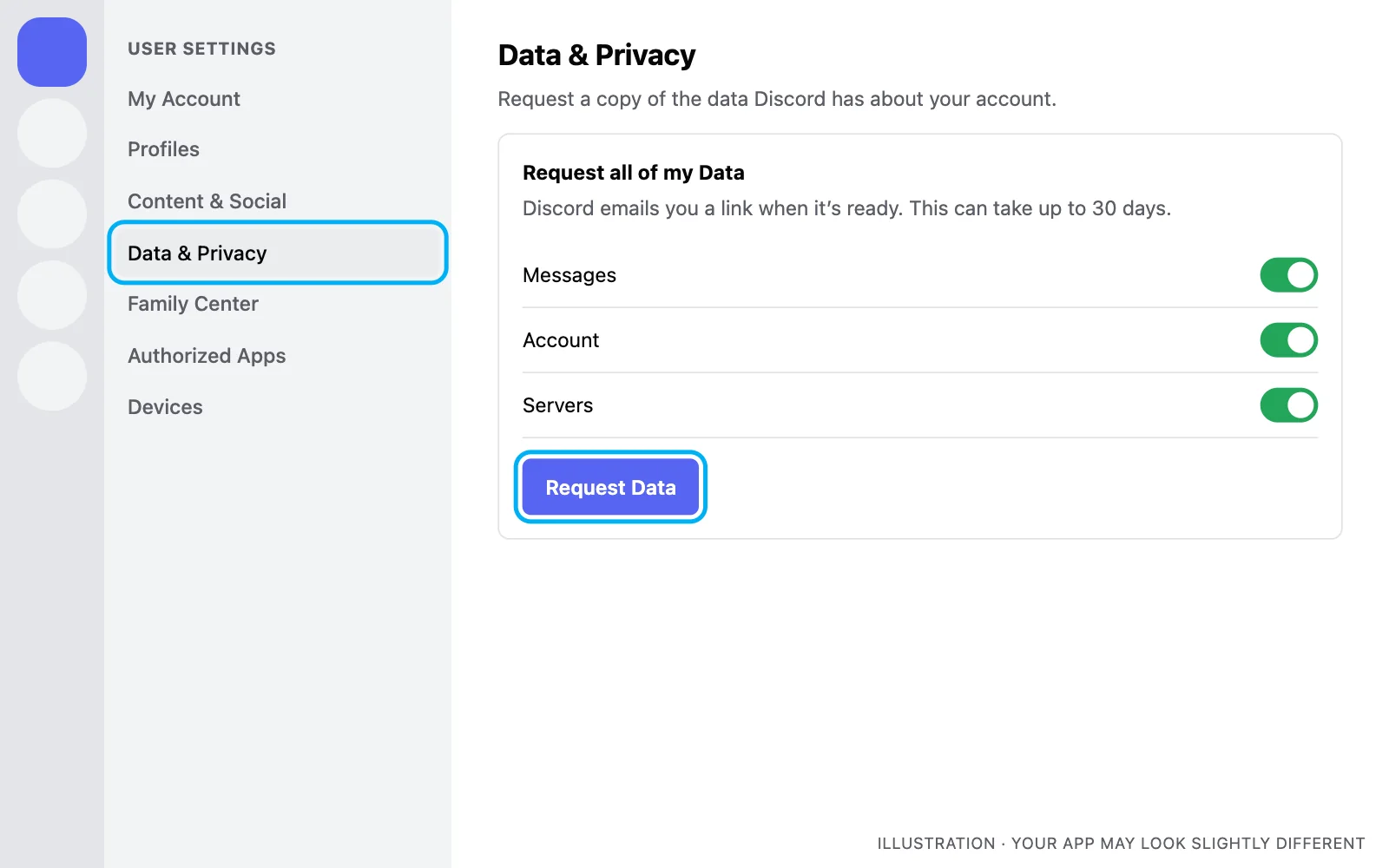
Step 1 Open Data & Privacy
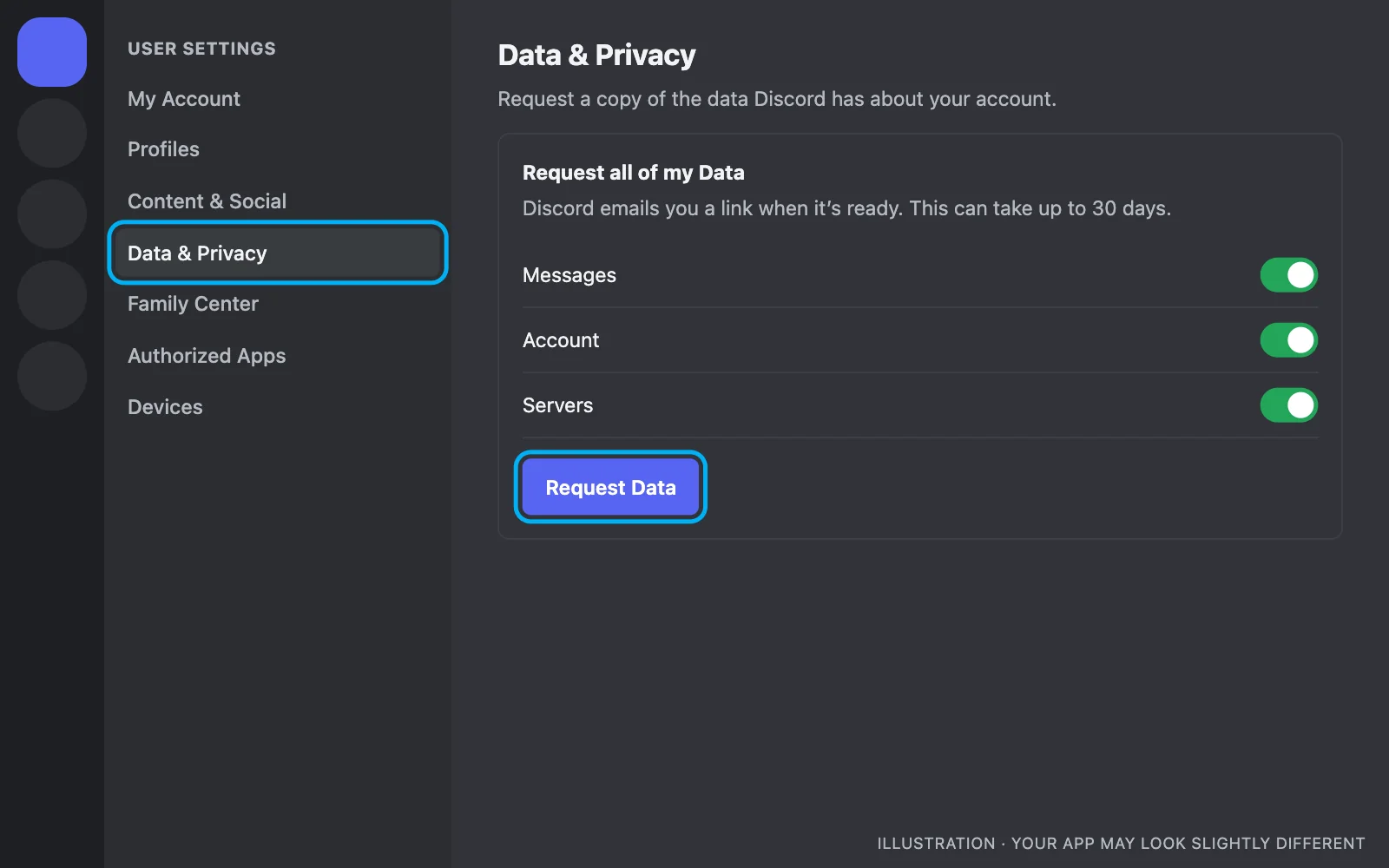
Open Discord, go to User Settings, then Data & Privacy.
Step 2 Request all of my data
Choose what to include, then click Request Data.
Step 3 Wait for the email
Discord emails you a download link when it’s ready. It can take up to 30 days.
What’s in the package
| Included | Not included |
|---|---|
| Messages you sent, organized by channel and DM | Messages other people sent |
| Your account details and settings | Images from the chats |
| Servers you’re in | Messages you deleted |
| Activity and analytics data | A readable, Discord-style view |
What it’s good for
- Finding every server and DM you’ve messaged in.
- Seeing what data Discord has about you.
- Planning a cleanup. DMDeleter Desktop can use it to find your old messages. See how to delete old Discord messages with your data package.
Need the whole conversation?
To save both sides of a chat, with images, export it instead. See how to export a Discord chat.
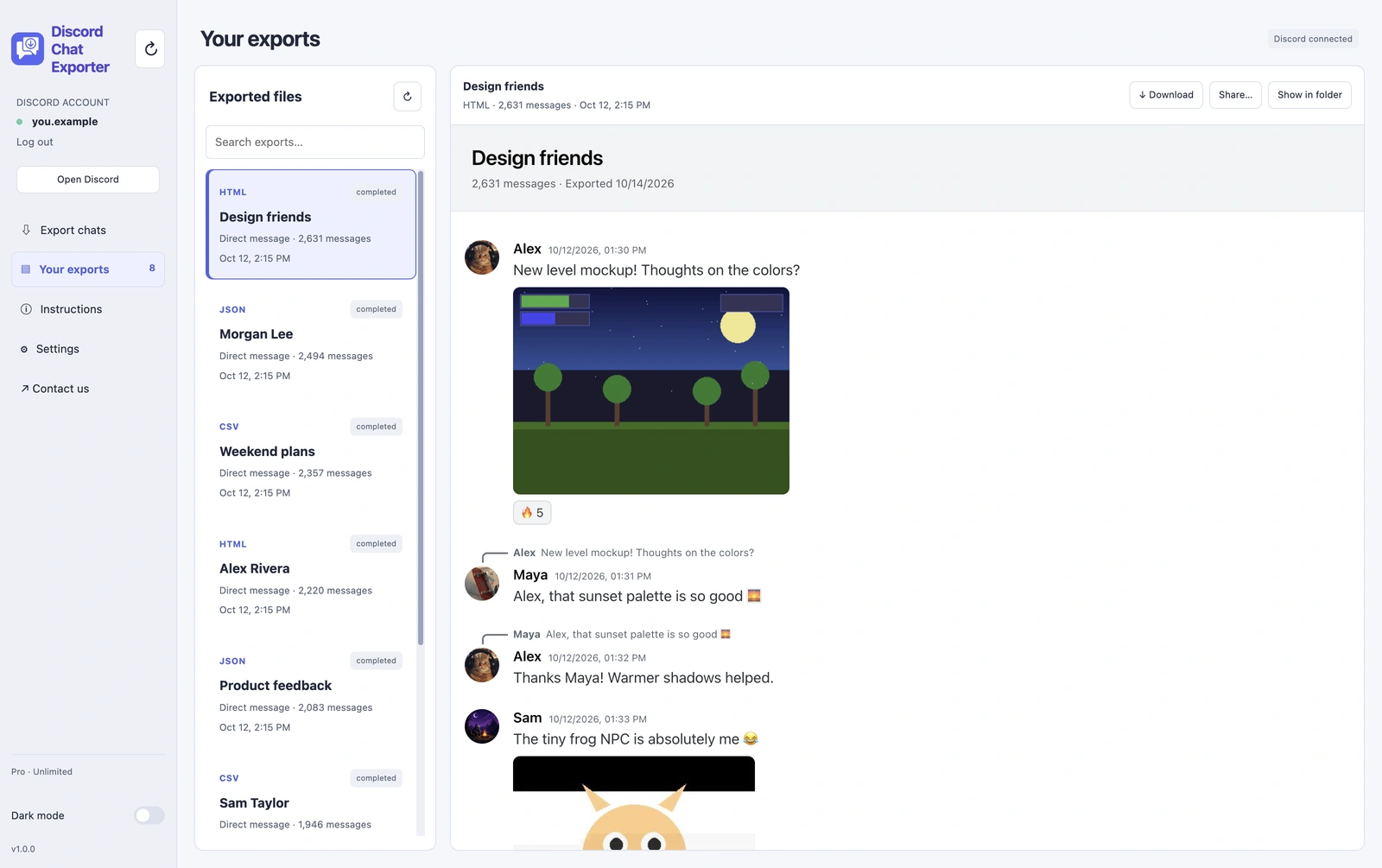
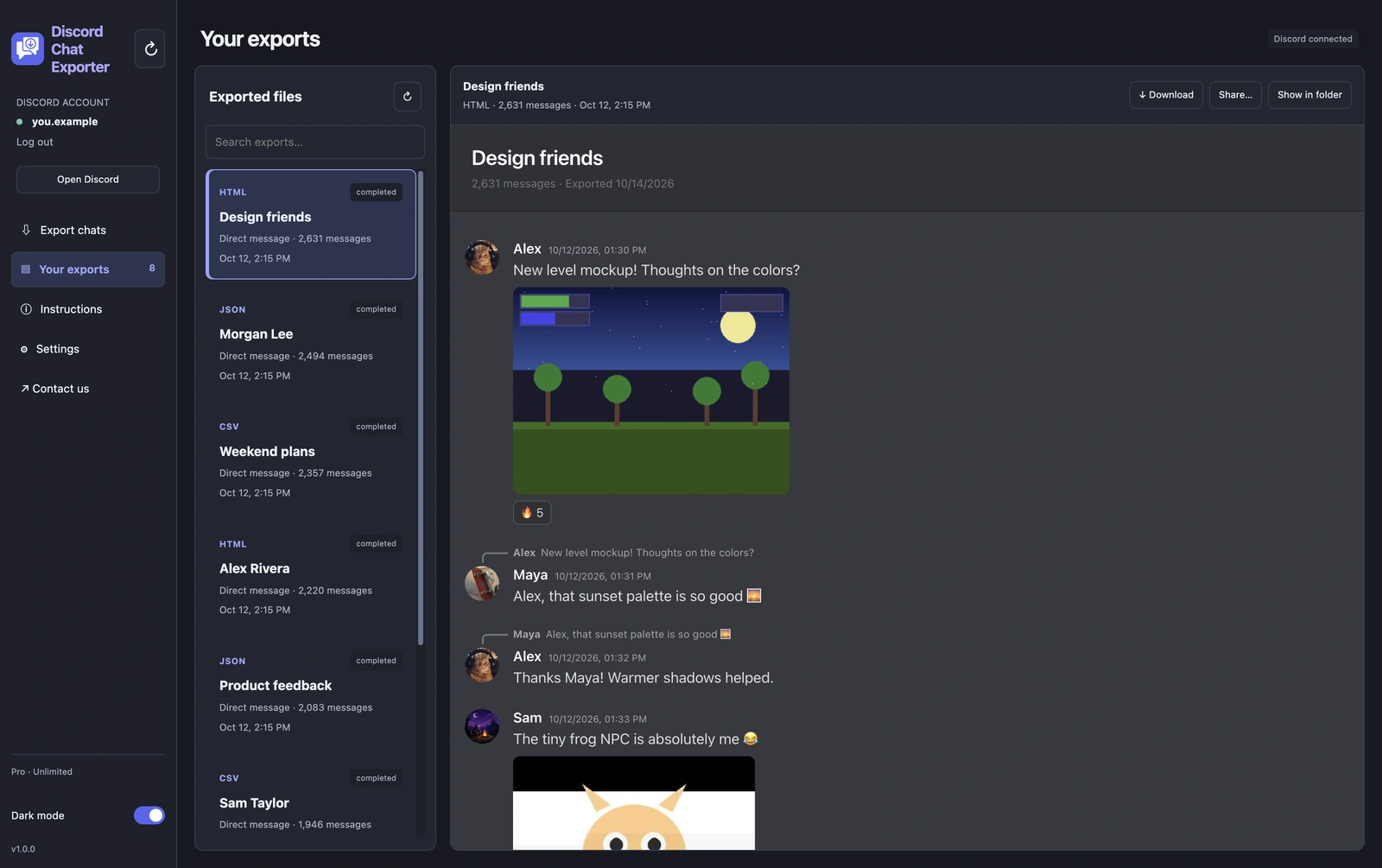
Export your Discord chats with Discord Chat Exporter
Export all your Discord chats in one click, to HTML, JSON, or CSV with images. On iPhone, Android, Mac, and Windows.


Frequently asked questions
How long does a Discord data request take?
Up to 30 days. It’s often sooner.
Does the data package include other people’s messages?
No. Only messages you sent.
How often can I request my data?
Discord limits how often you can request it, usually once every 30 days.