 Discord Chat Exporter
Discord has no “export chat” button. Its data download only includes messages you sent, so there’s no built-in way to save a whole conversation with everyone’s messages. This guide covers the options, from copy-paste to a full export with images, and which format to choose.
Quick answer: Discord has no export button, and its data download only includes your own messages. To export a whole chat:
- Install Discord Chat Exporter on iPhone, Android, Mac, or Windows.
- Choose a DM, group chat, or channel.
- Pick HTML, JSON, or CSV and export.
In this guide
- Why Discord has no export button
- Your options
- Method 1: Copy individual messages
- Method 2: Export the whole chat with Discord Chat Exporter
- Export all your chats at once
- Which format should you choose?
- Exporting DMs and group chats
- Exporting server channels
- Exporting only part of a chat
- Phone or computer: which should you use?
- After you export
- FAQ
Why Discord has no export button
Discord lets you copy a single message or request a copy of your own data, but neither saves a whole conversation. The data package only includes messages you sent, not replies from others. See what’s in your Discord data package.
Your options
| Method | Everyone’s messages? | Images? | Effort |
|---|---|---|---|
| Copy and paste | Yes | No | High, a screen at a time |
| Screenshots | Yes | Yes | High, and not searchable |
| Discord data package | No, only yours | No | Low, but takes up to 30 days |
| Discord Chat Exporter | Yes | Yes, downloaded | Low, one click on desktop |
Method 1: Copy individual messages
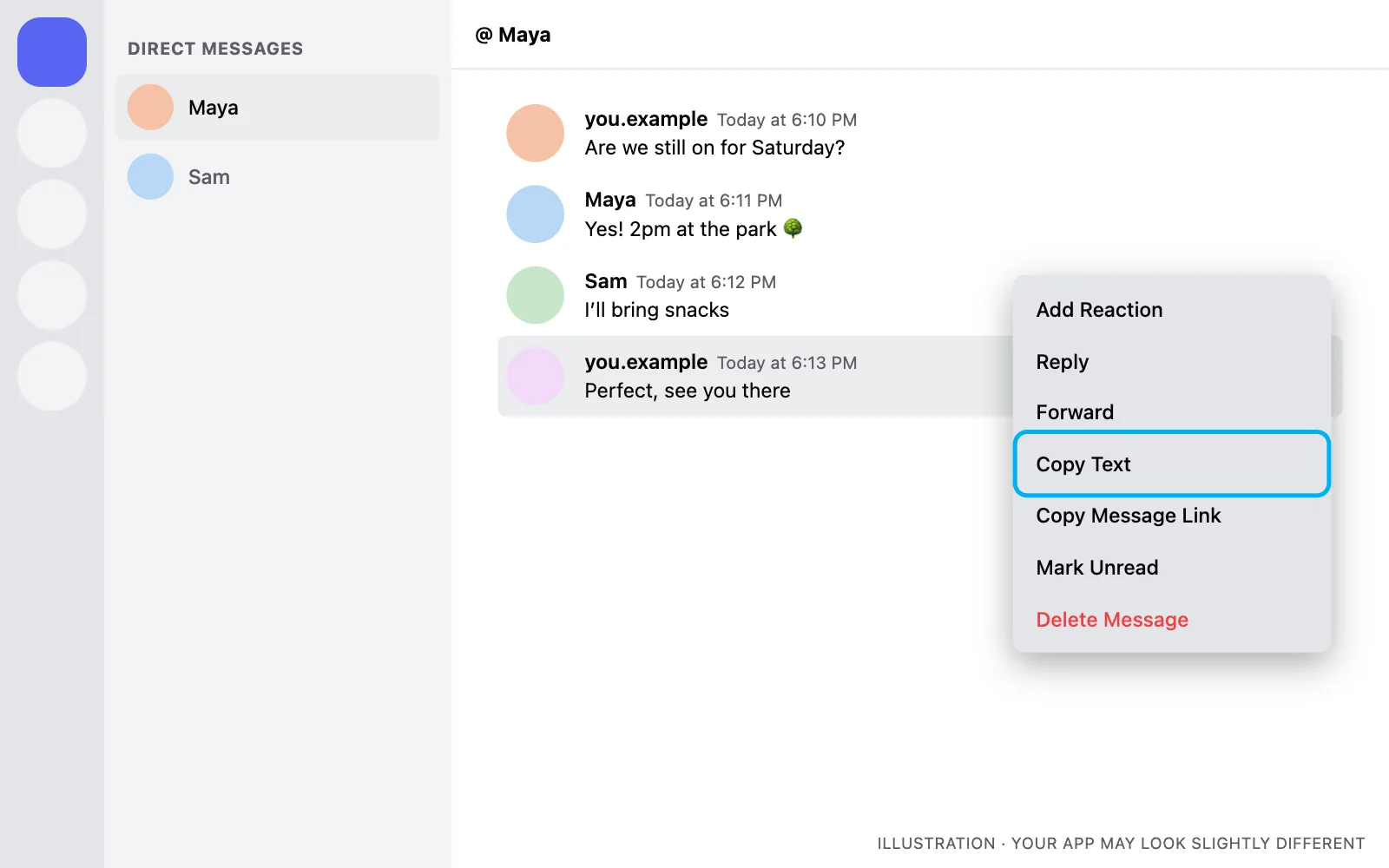
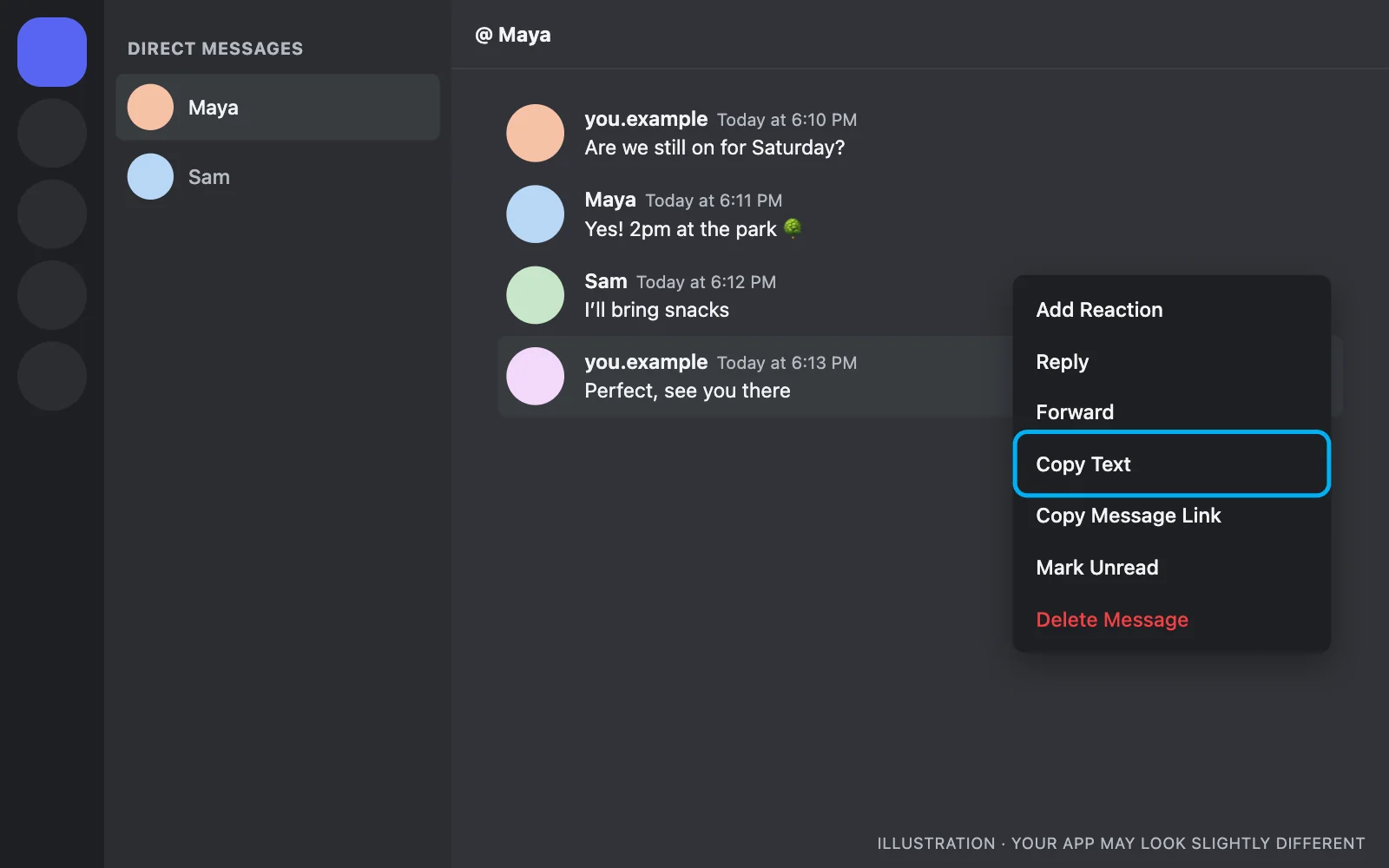
Hover over a message (or press and hold on your phone), open the ⋯ menu, and choose Copy Text. Fine for a few messages; tedious for a whole chat.
Method 2: Export the whole chat with Discord Chat Exporter
Discord Chat Exporter is an app for iPhone, Android, Mac, and Windows that saves entire Discord conversations, every message from every person, with images and embeds. Pick your app for the steps:
On iPhone & Android
Step 1 Open Discord Chat Exporter
Install Discord Chat Exporter from the App Store or Google Play and open it. The app guides you through setup.
Step 2 Choose a chat
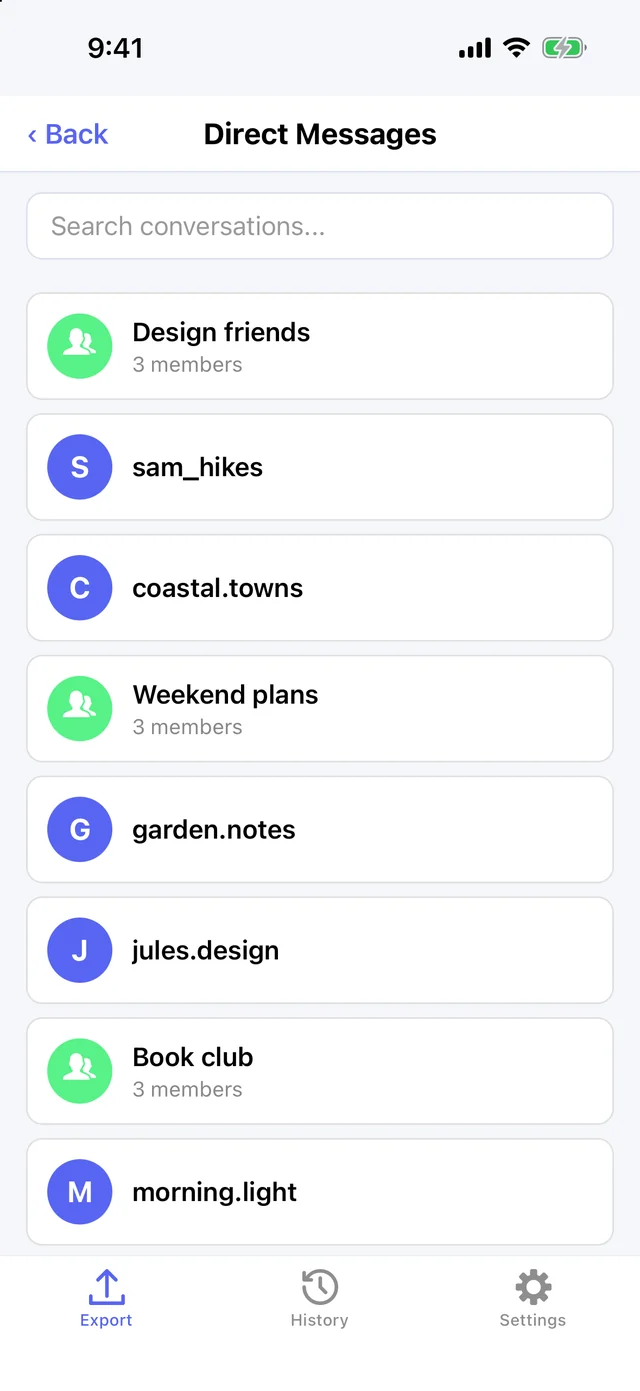
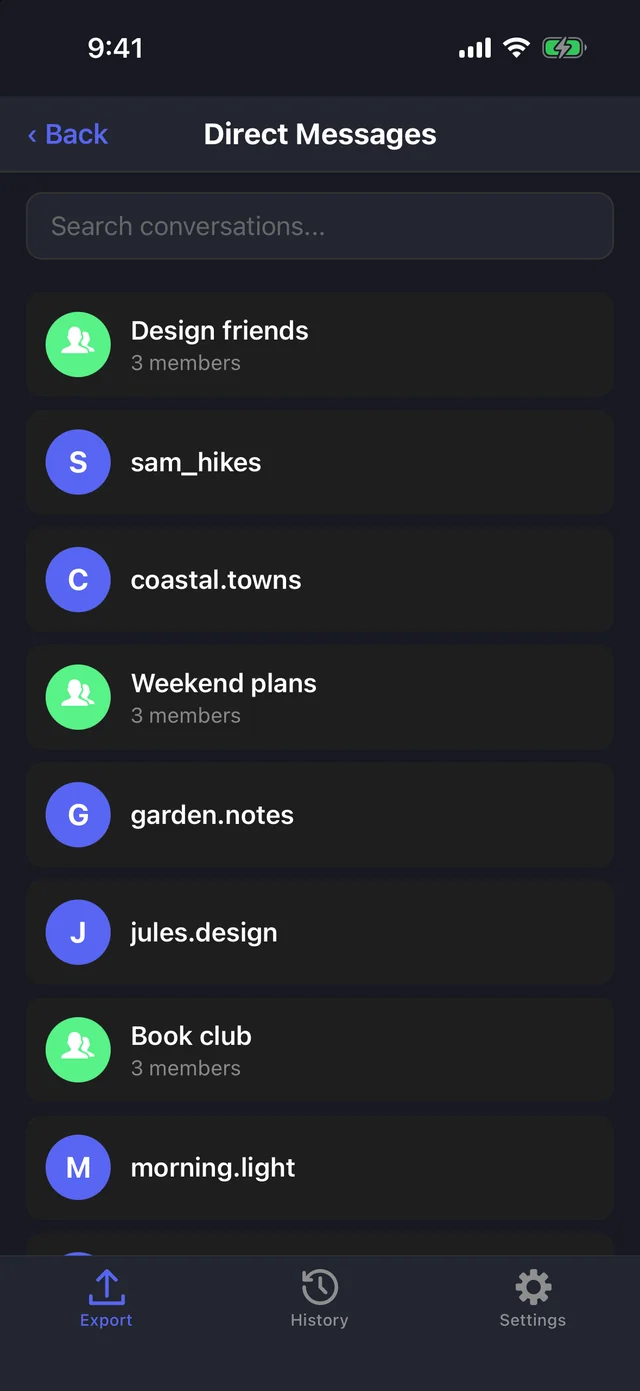
Tap Direct Messages or Servers and pick a DM, group chat, or server channel.
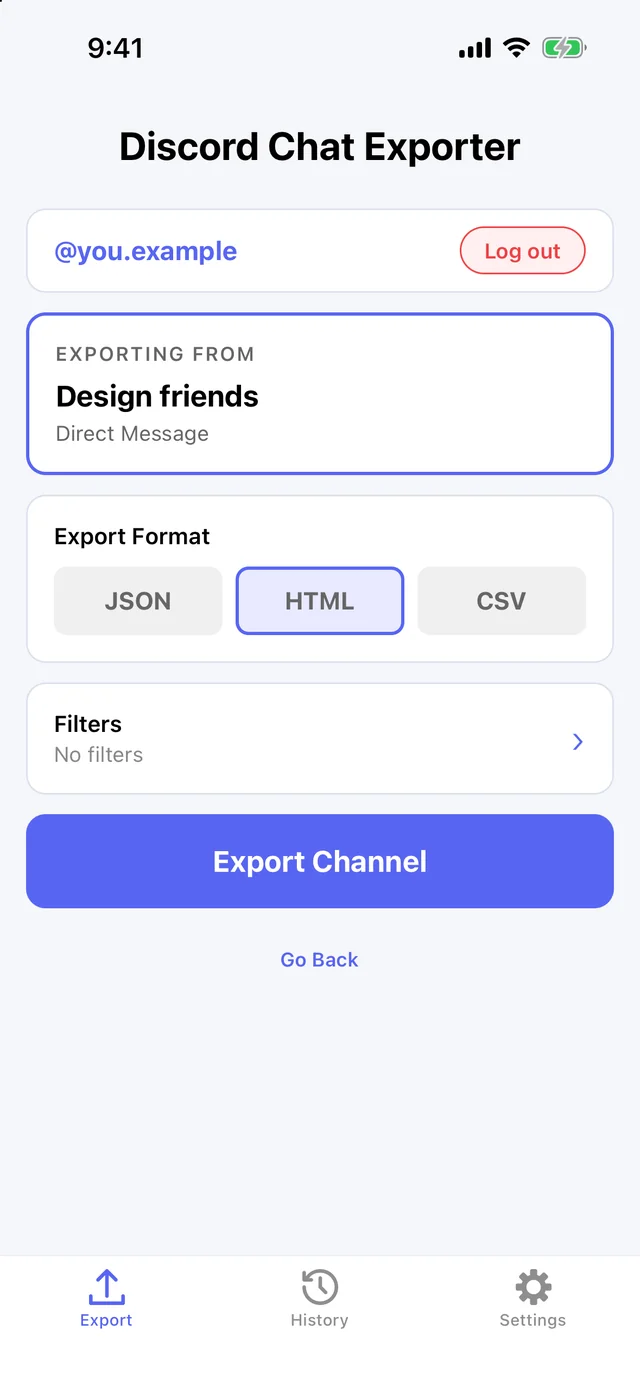
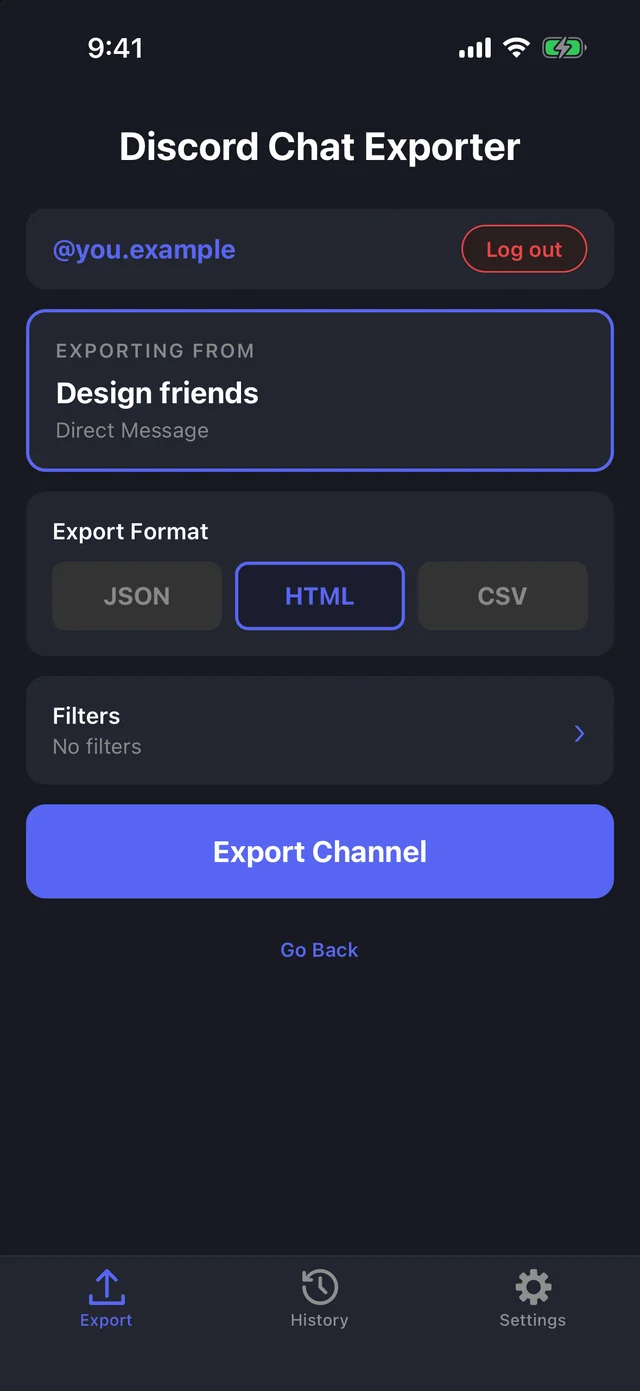
Step 3 Choose a format
Pick HTML, JSON, or CSV.
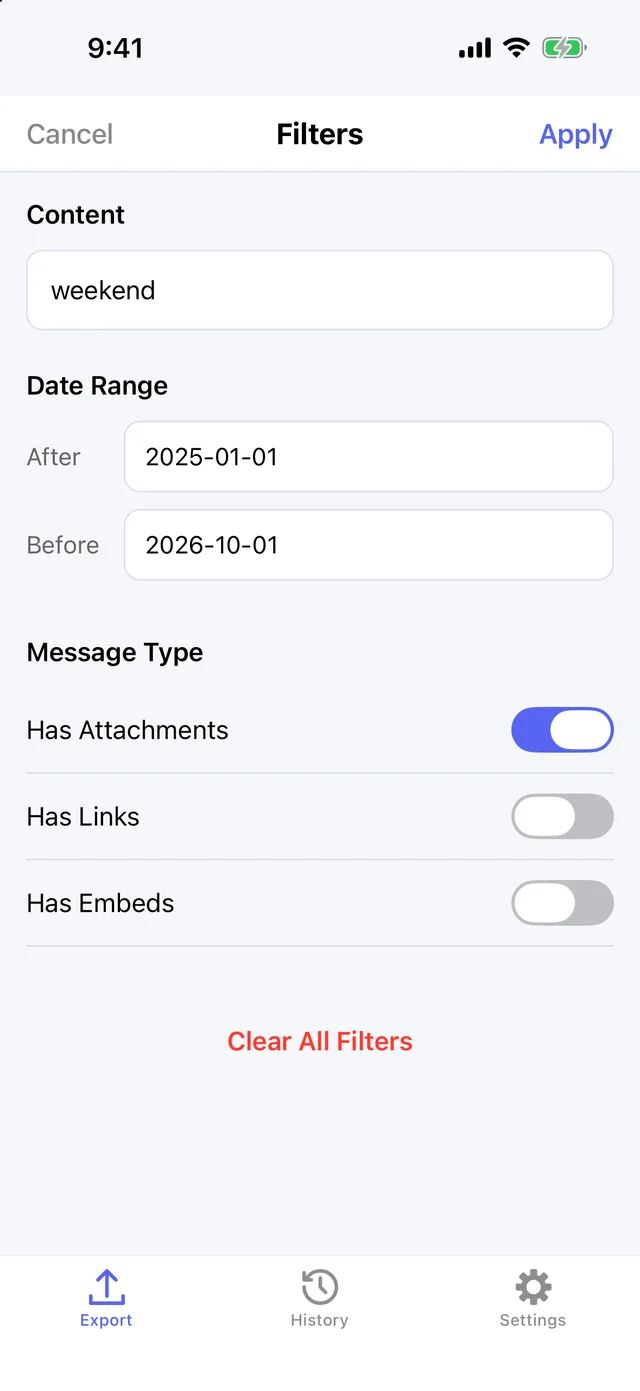
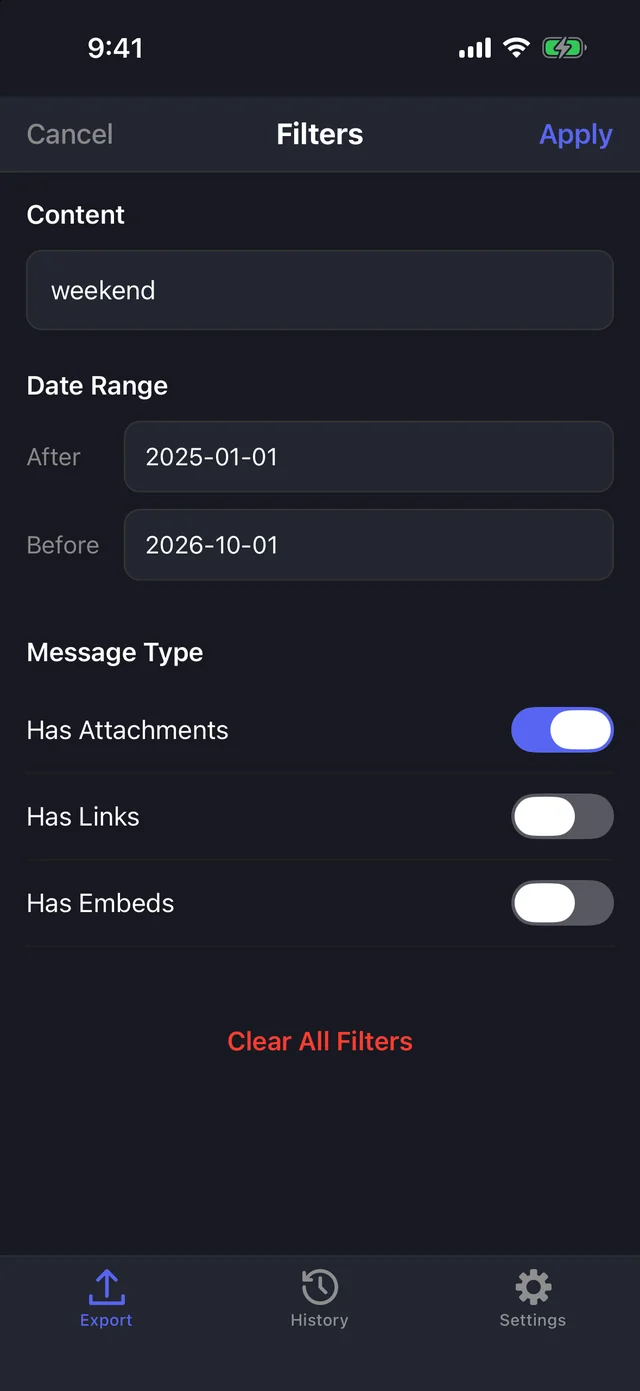
Step 4 Add filters (optional)
Tap Filters to export only messages containing a word, from a date range, or with attachments, links, or embeds.
Step 5 Export
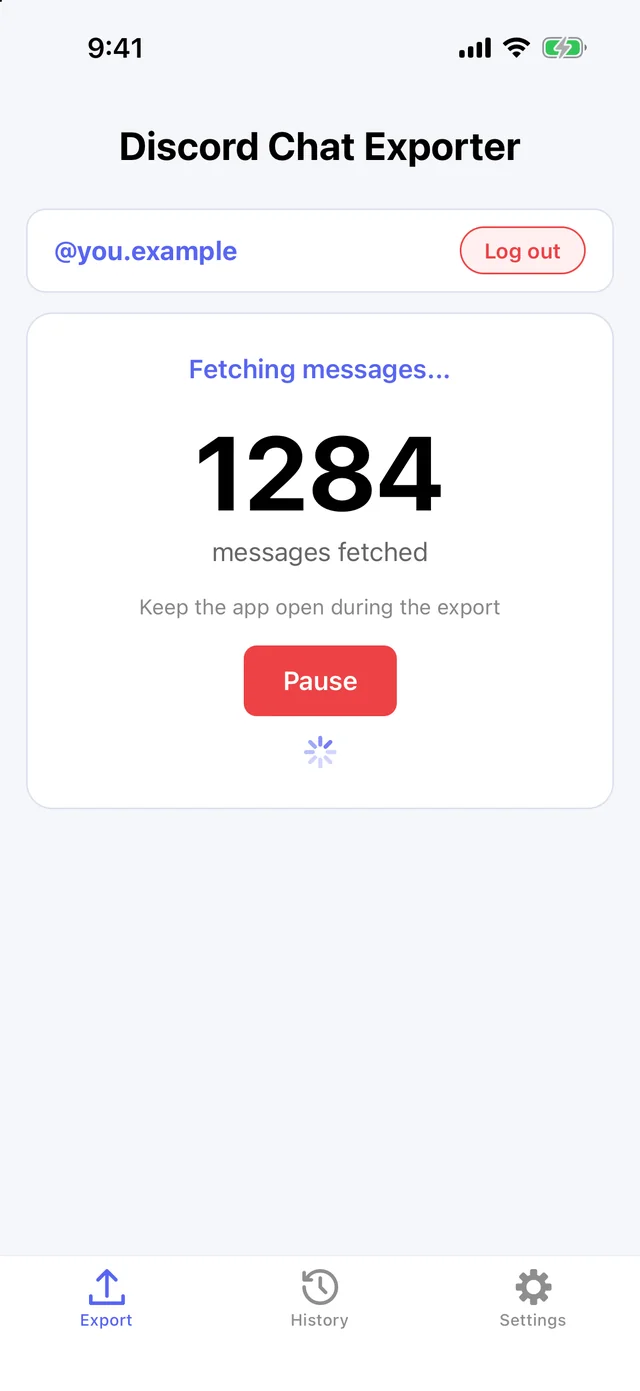
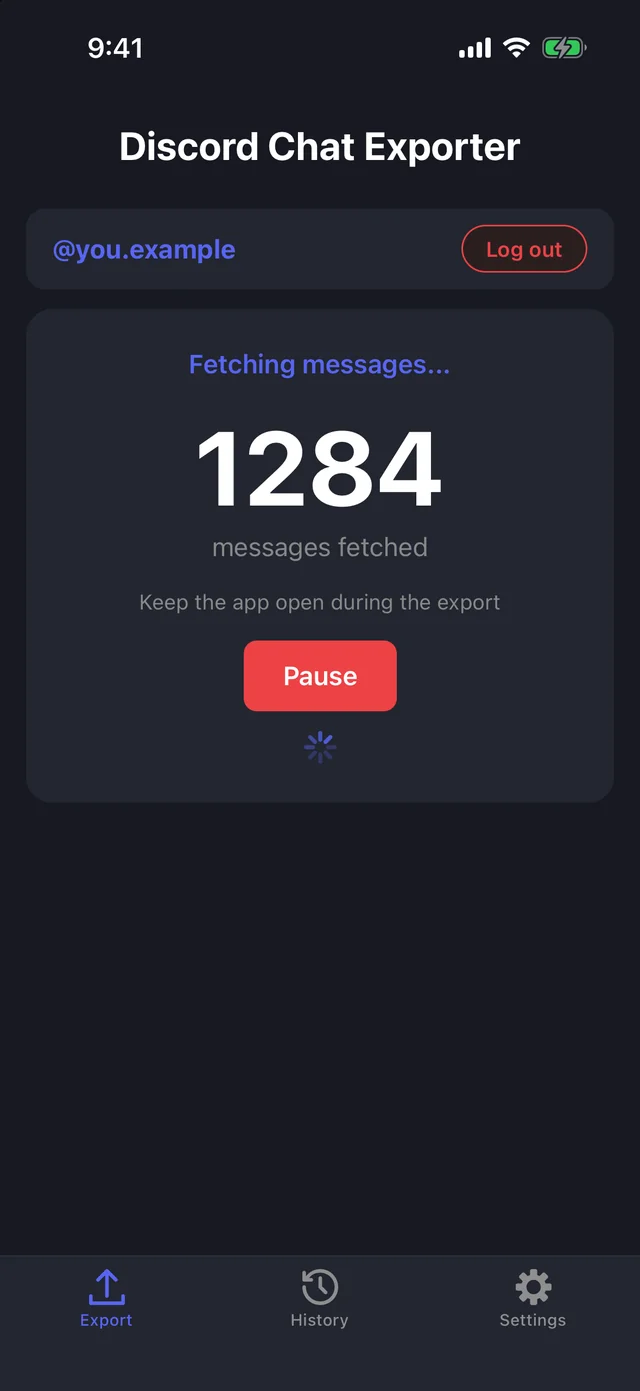
Tap Export. Keep the app open while it fetches every message from every person in the chat. Pause any time.
Step 6 Share or preview it
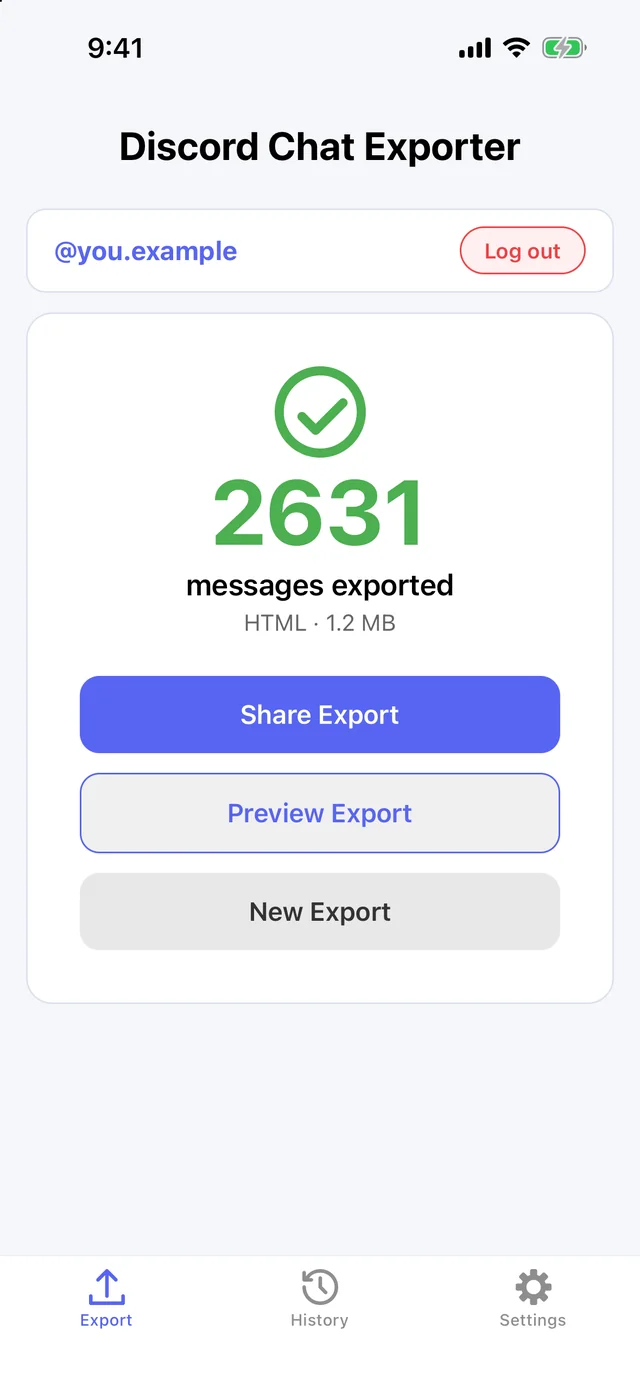
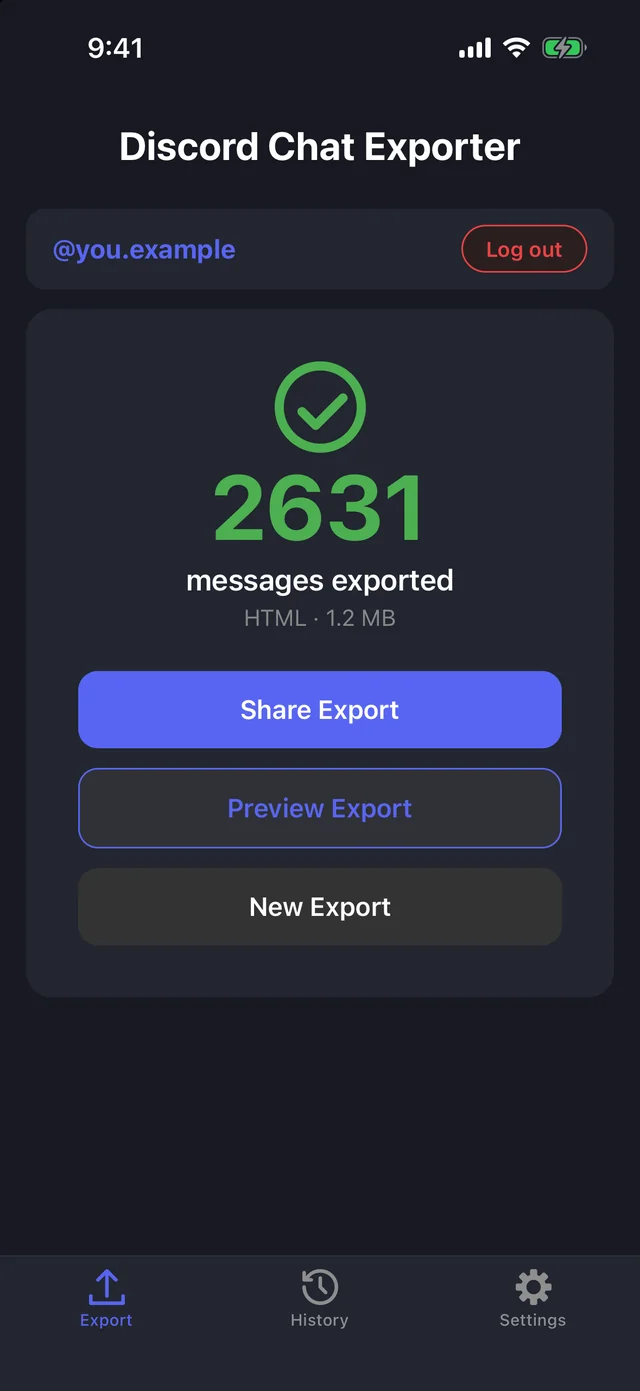
When it’s done, share the file or preview it. Every export is also saved in History.
On Mac & Windows
Step 1 Open Discord Chat Exporter
Get Discord Chat Exporter Desktop for Mac or Windows, open it, and enter the license key from your purchase email.
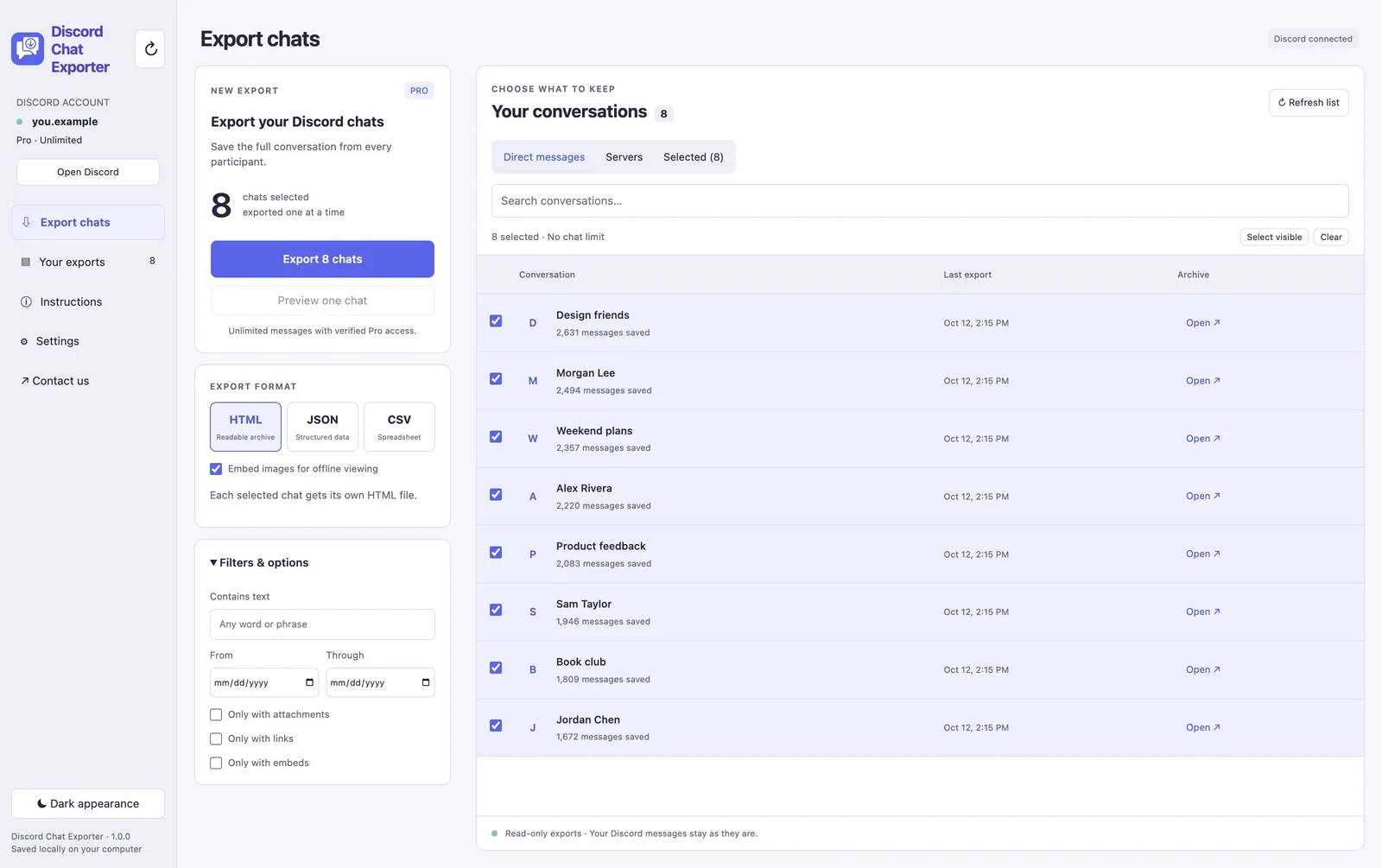
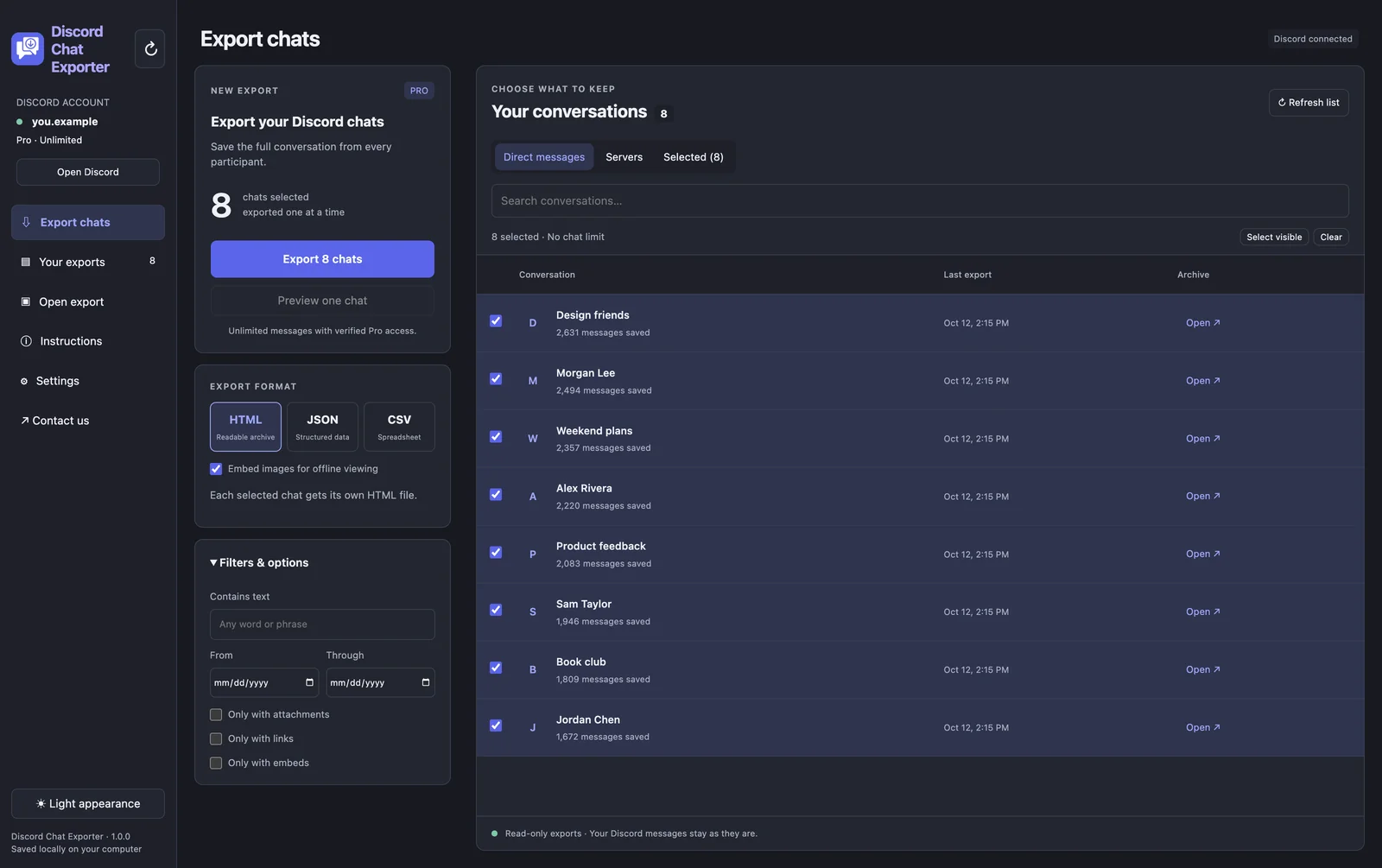
Step 2 Choose your chats
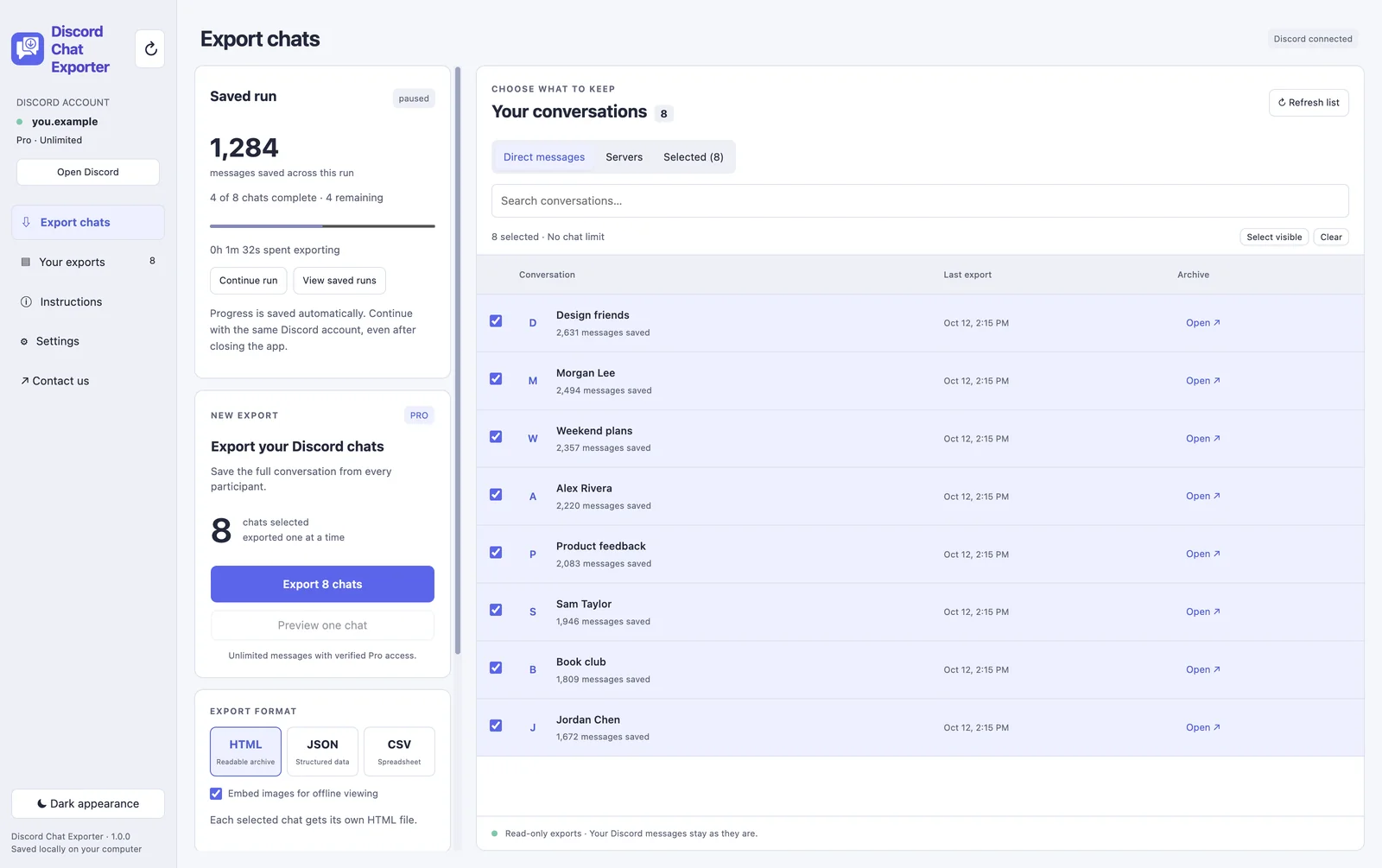
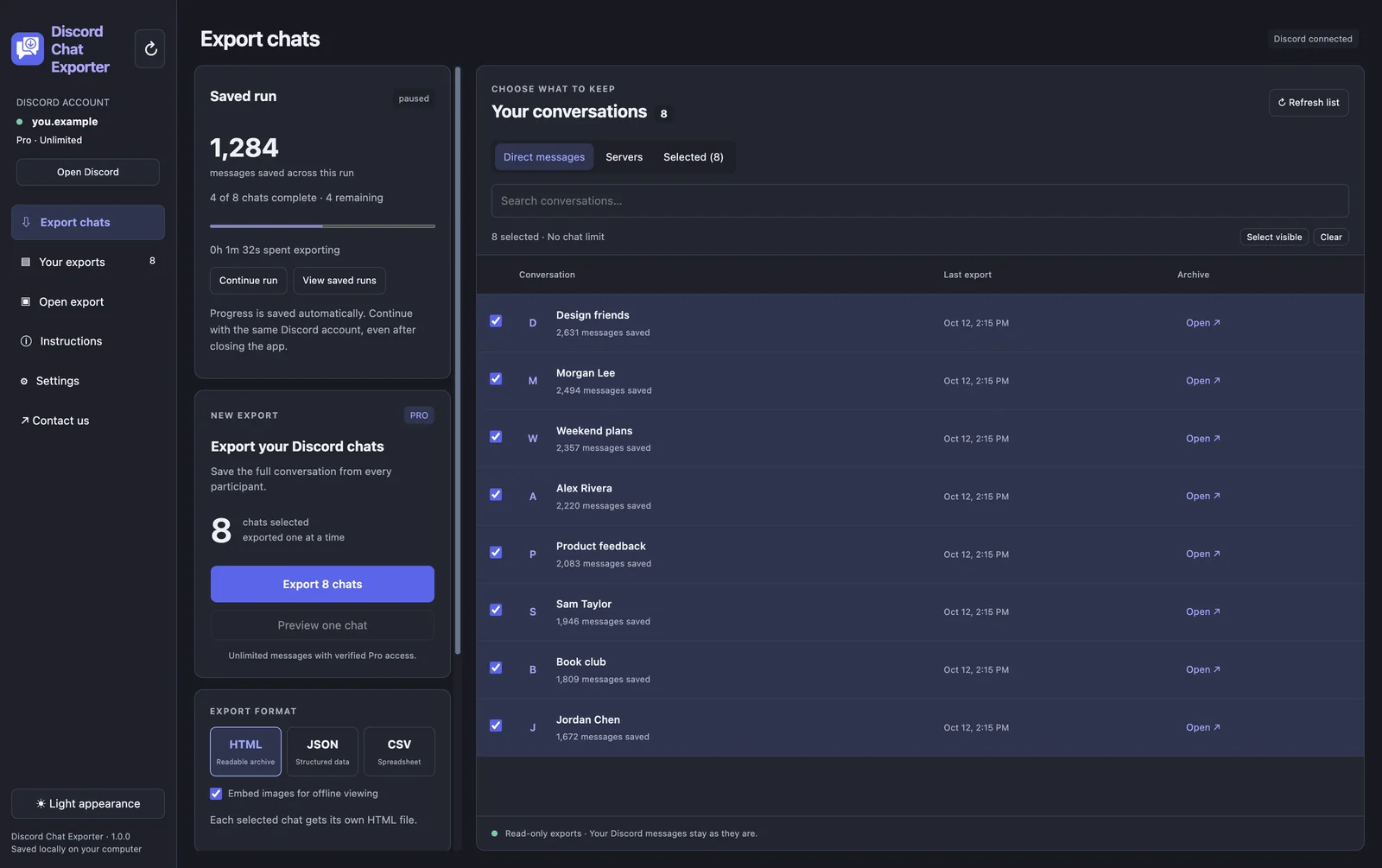
Under Direct messages or Servers, tick the chats you want. To export everything, click Select visible to select every chat in the list.
Step 3 Choose a format and filters
Pick HTML, JSON, or CSV. Under Filters & options, optionally keep only messages containing a word, from a date range, or with attachments, links, or embeds.
Step 4 Click Export
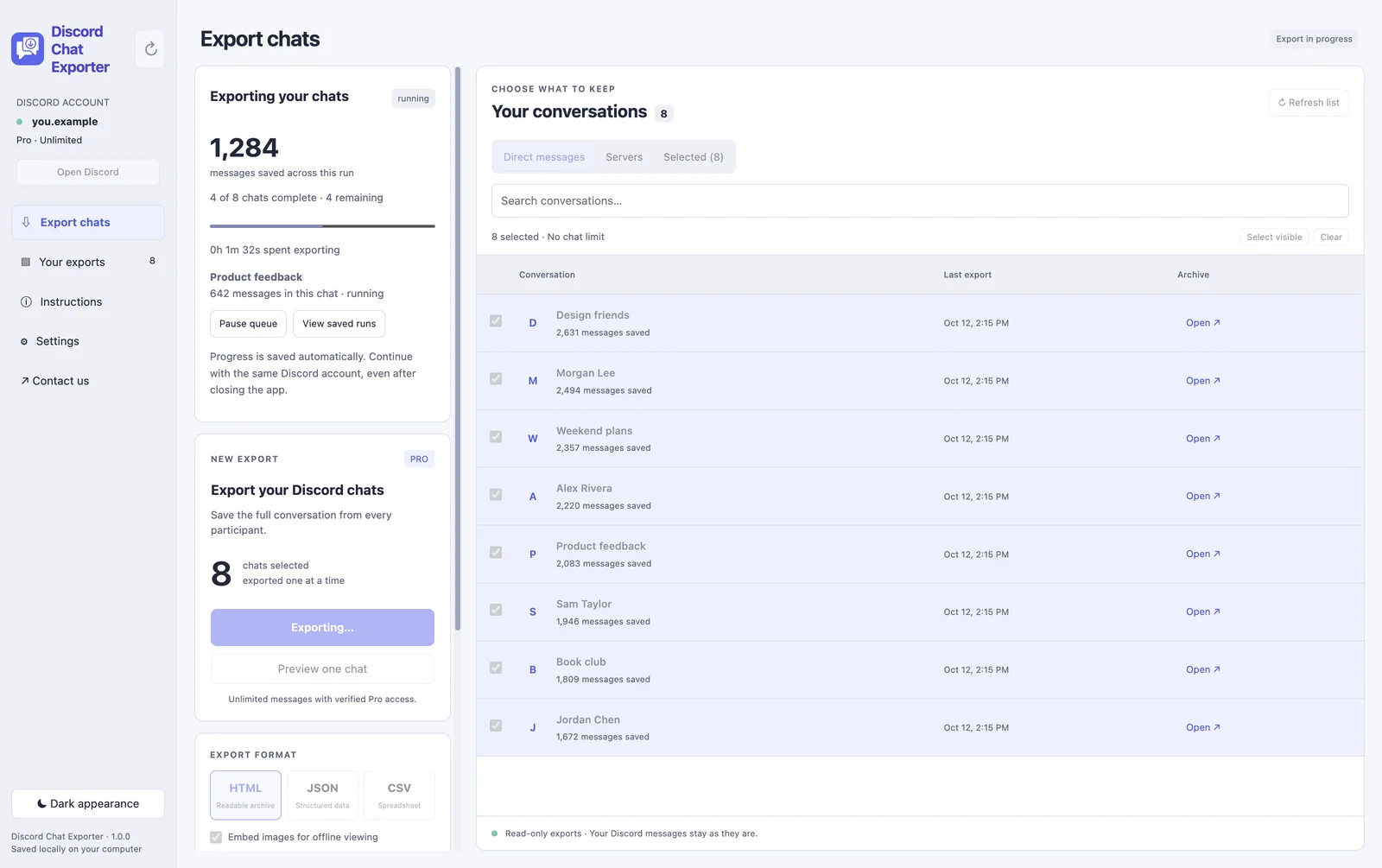
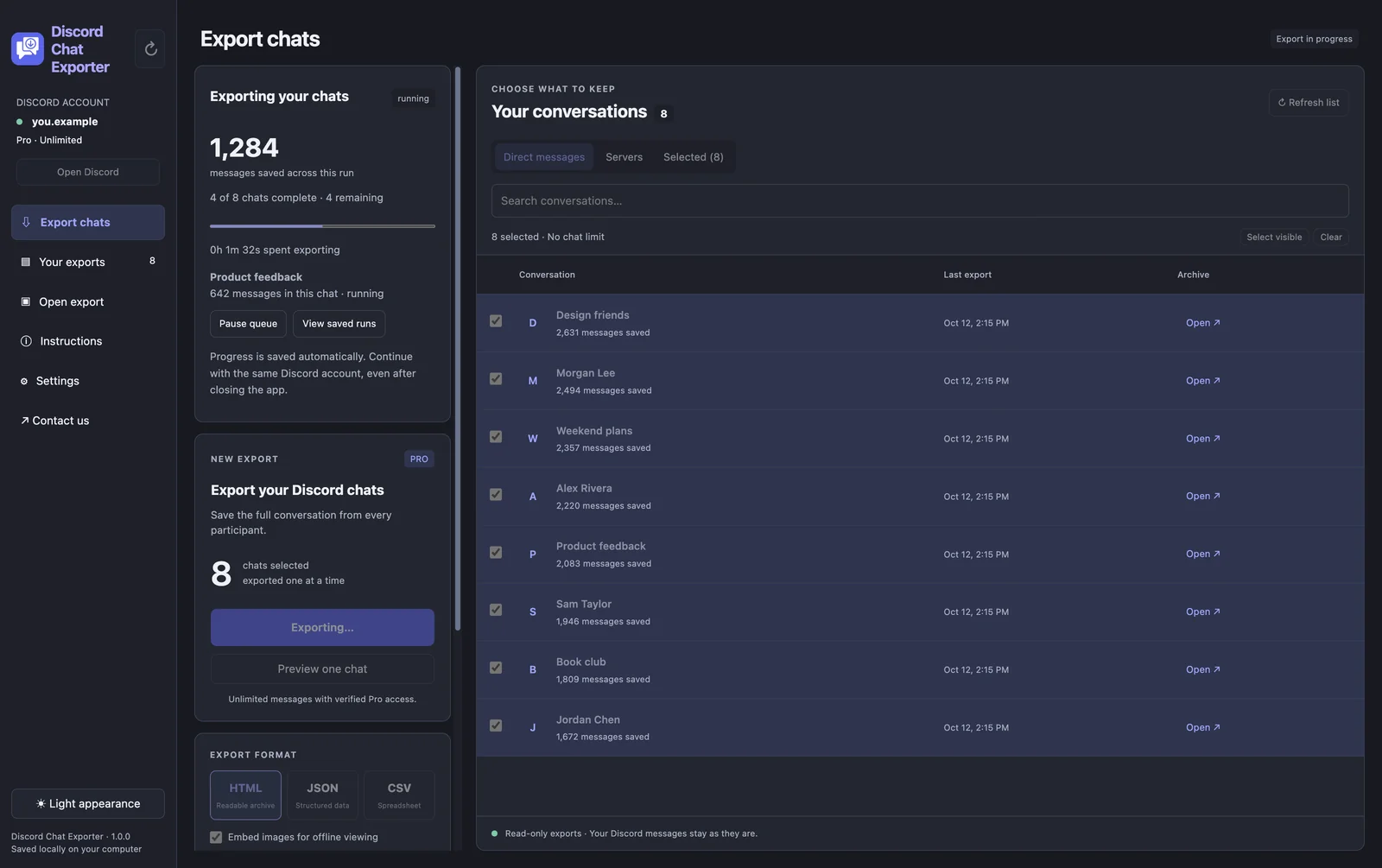
Click Export. Each chat is exported one after another, with a live message count. Pause the queue any time; progress is saved, even if you close the app.
Step 5 Open your exports
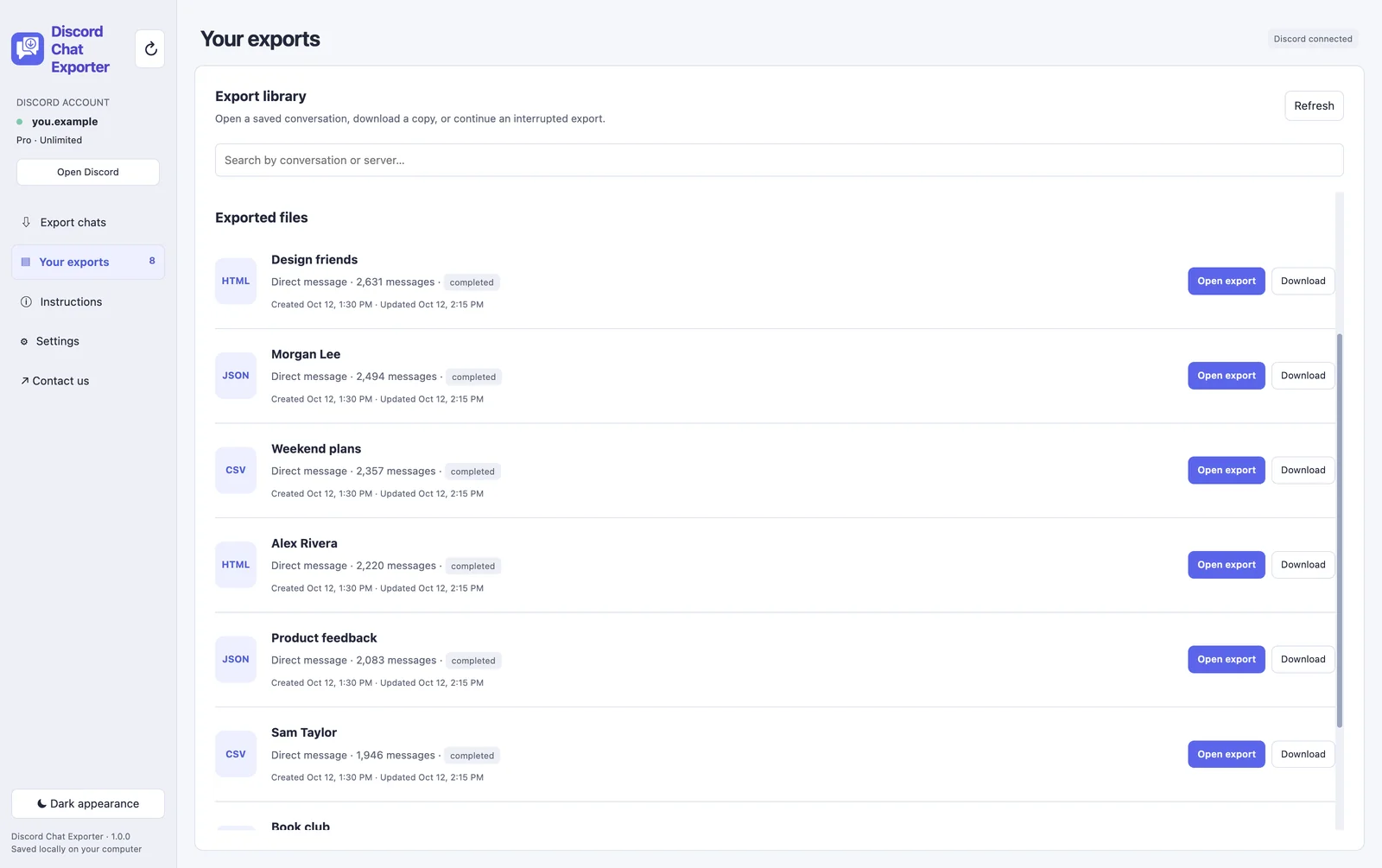
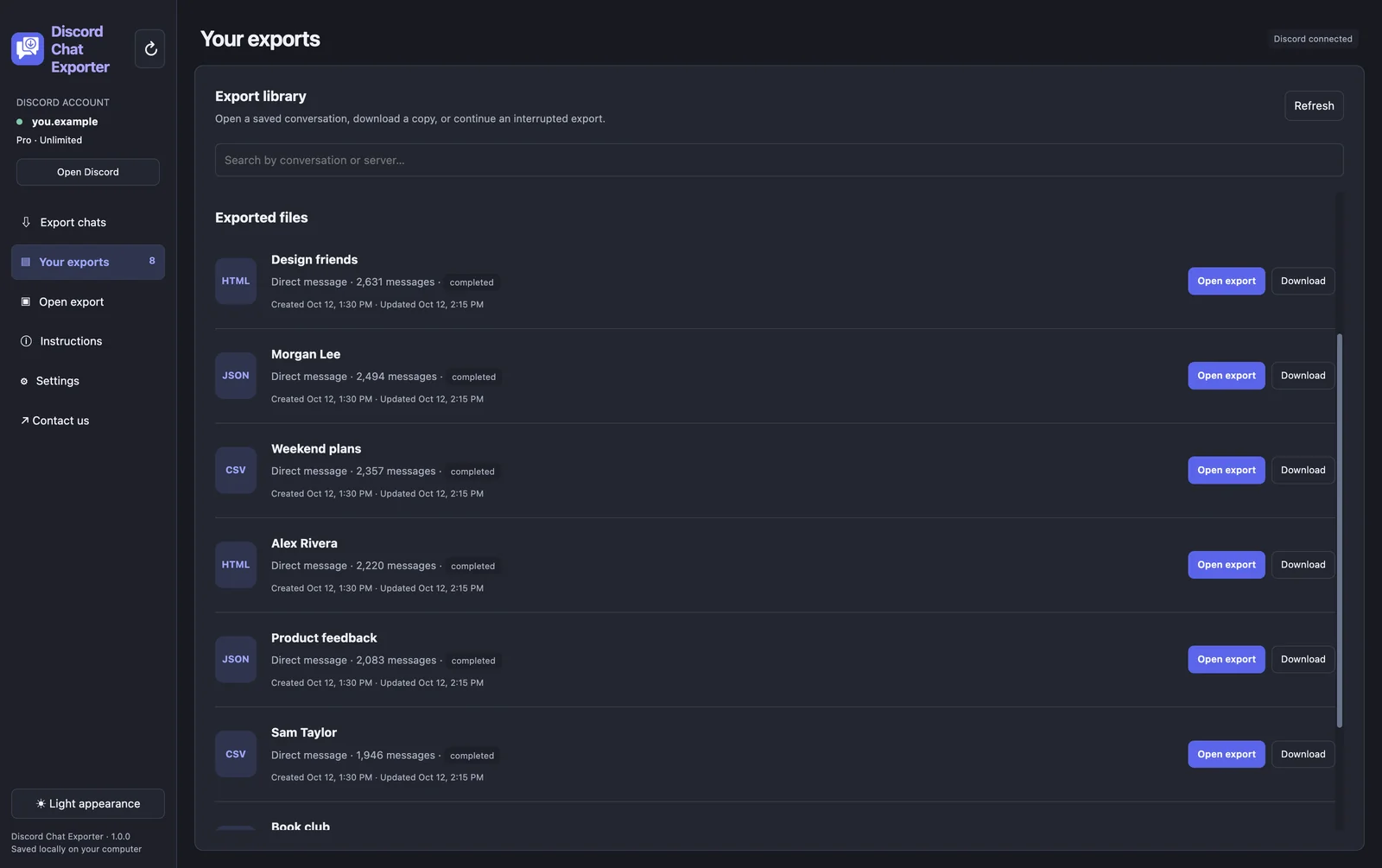
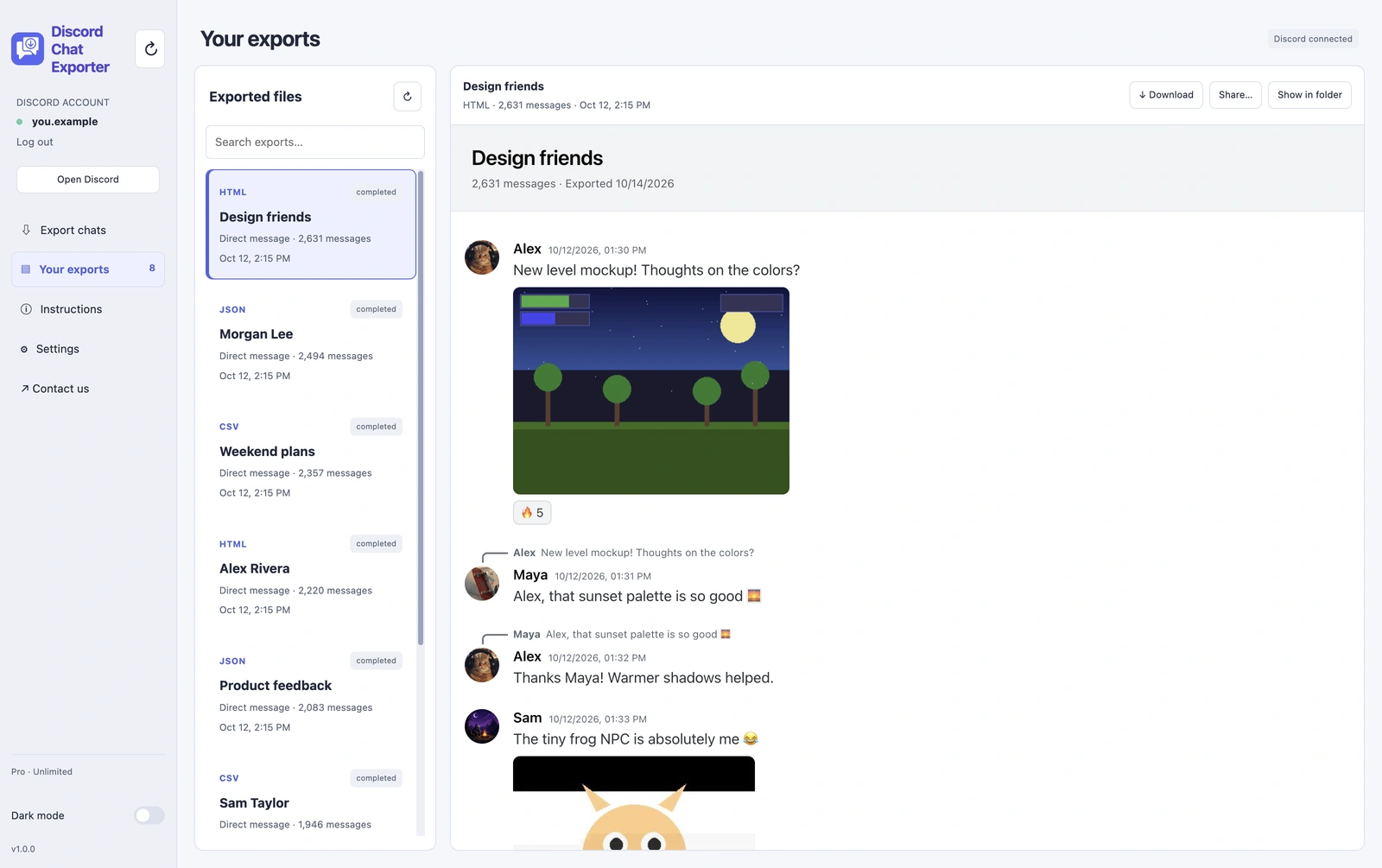
Every finished chat is listed under Your exports. Open it in the built-in viewer or download a copy.
Export all your chats at once
On Mac and Windows, Discord Chat Exporter can export every DM, group chat, and channel in one click, so you don’t have to pick chats one by one. It’s the quickest way to back up your whole Discord history.
Click Select visible to select every chat, then Export. If you stop partway, the run is saved, so you can continue later with the same Discord account.
Which format should you choose?
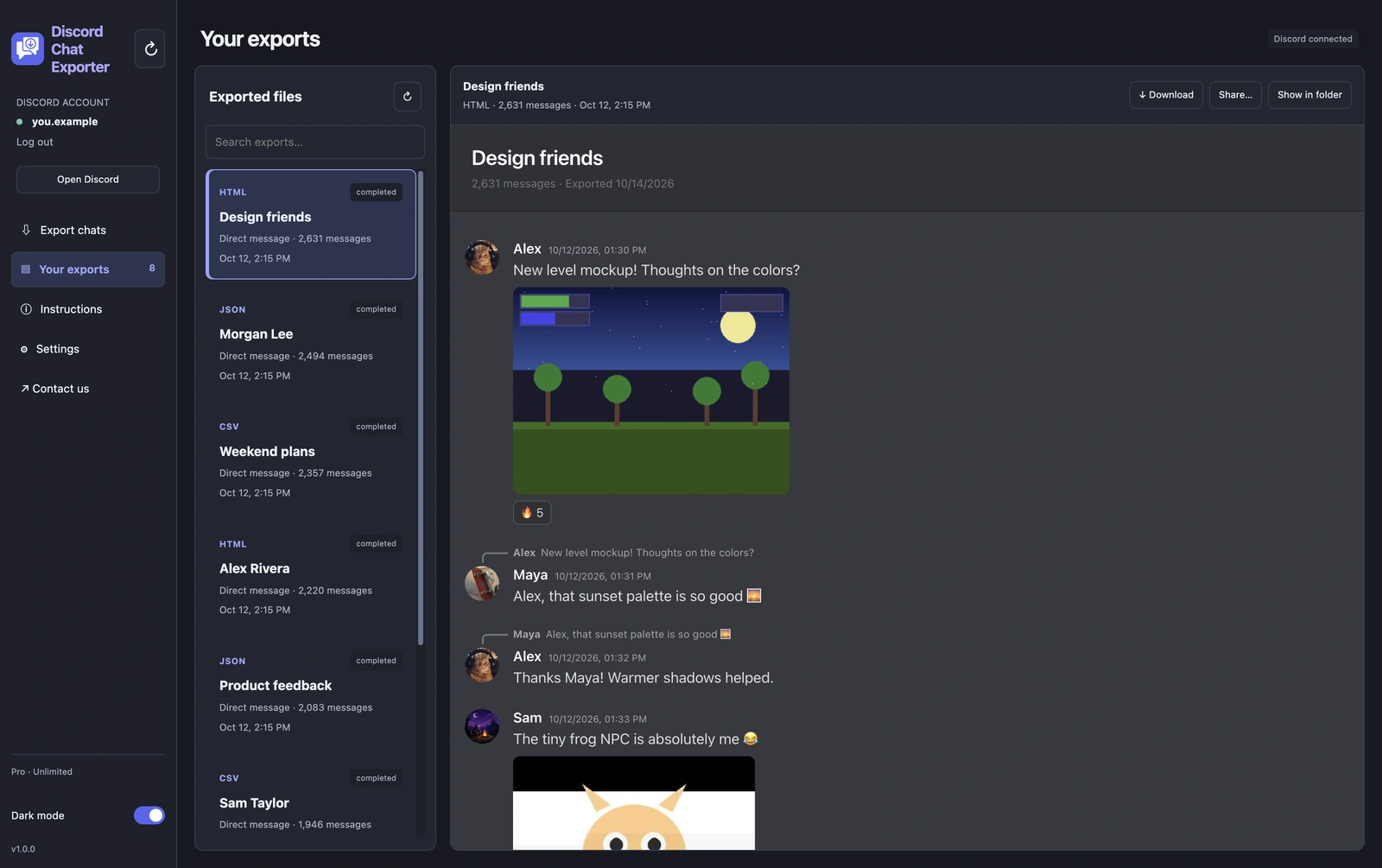
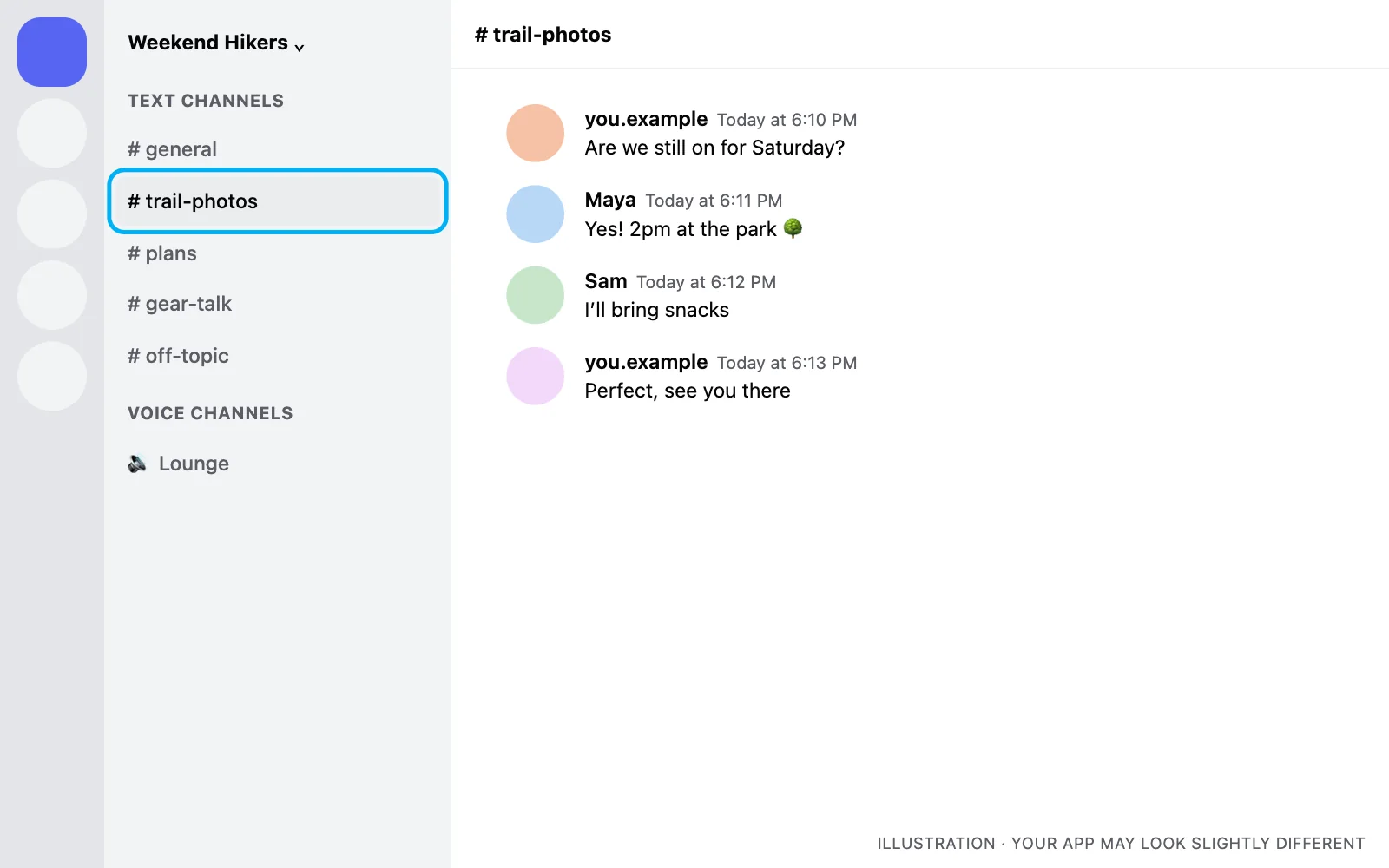
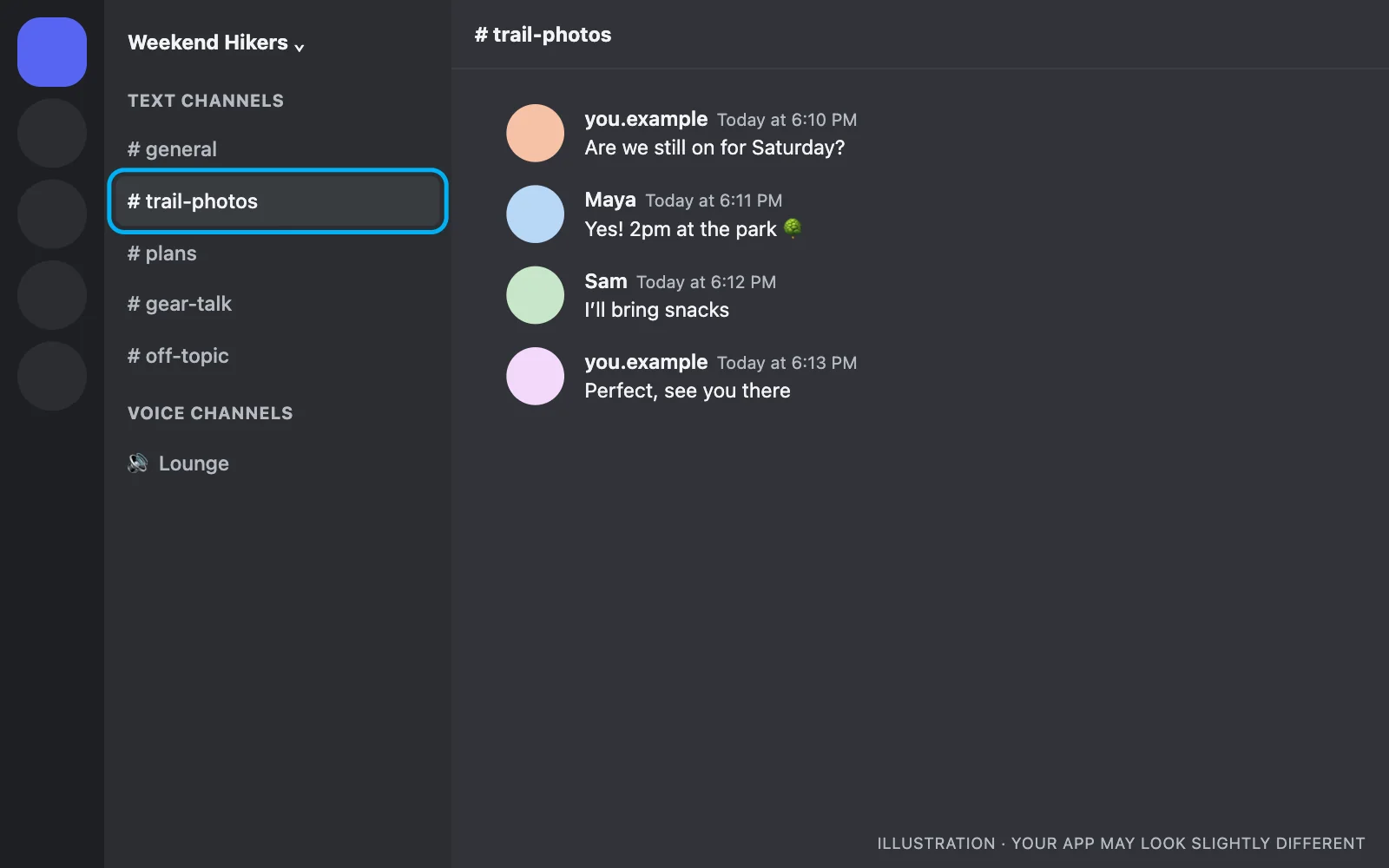
HTML is the one to pick if you want to read it again. It opens in any browser and looks just like Discord, with avatars, images, link previews, and reactions. You can also open it right inside the app.
| Format | Best for | What you get |
|---|---|---|
| HTML | Reading and sharing | Looks like Discord: avatars, images, embeds, reactions, timestamps. One self-contained file that opens in any browser, offline. |
| JSON | Developers and backups | Every message with full details, ready for scripts or other tools. |
| CSV | Spreadsheets | One row per message: author, time, content. Opens in Excel, Numbers, or Google Sheets. |
| Printing or evidence | Open the HTML export in a browser and choose Print → Save as PDF. |
Exporting DMs and group chats
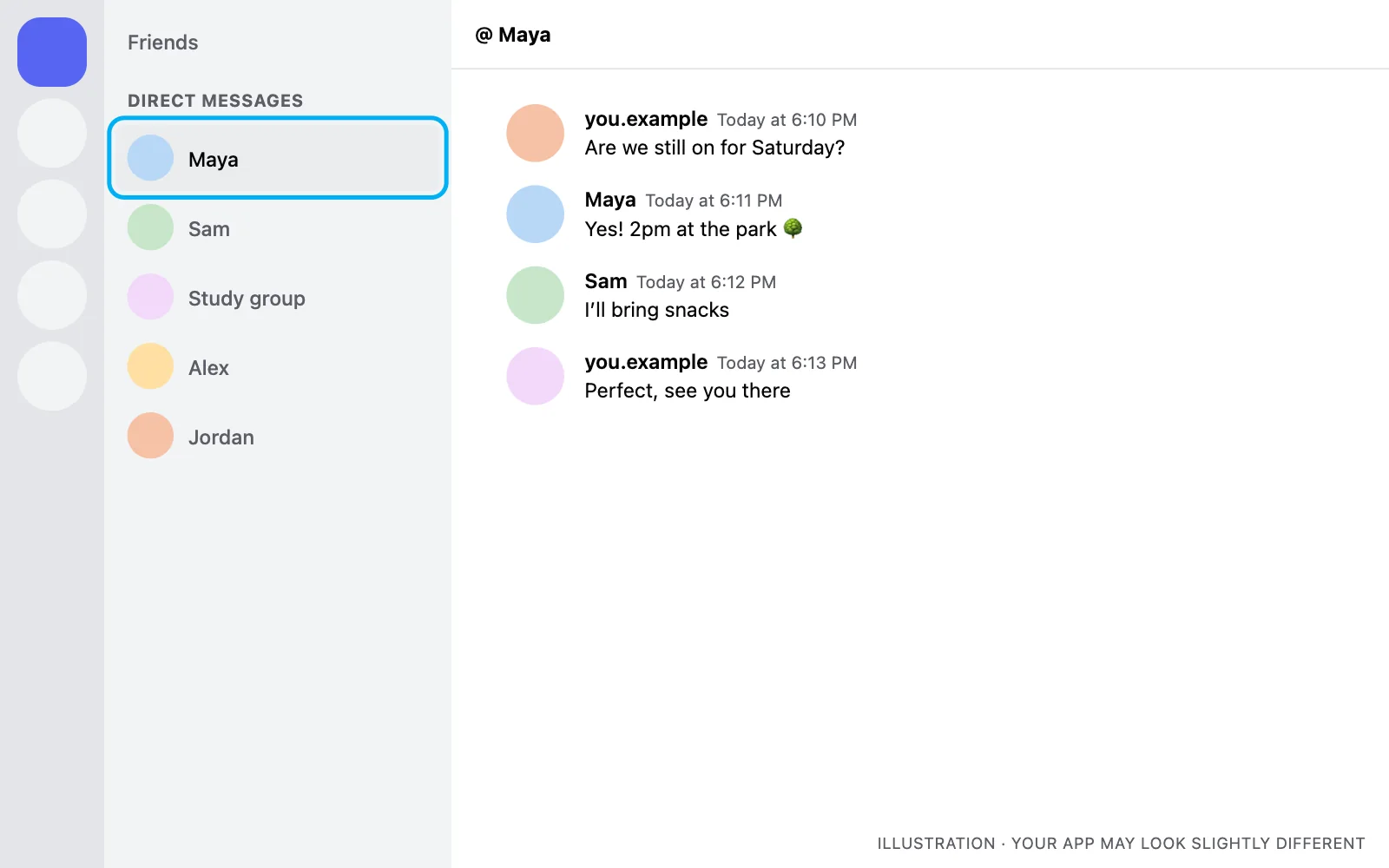
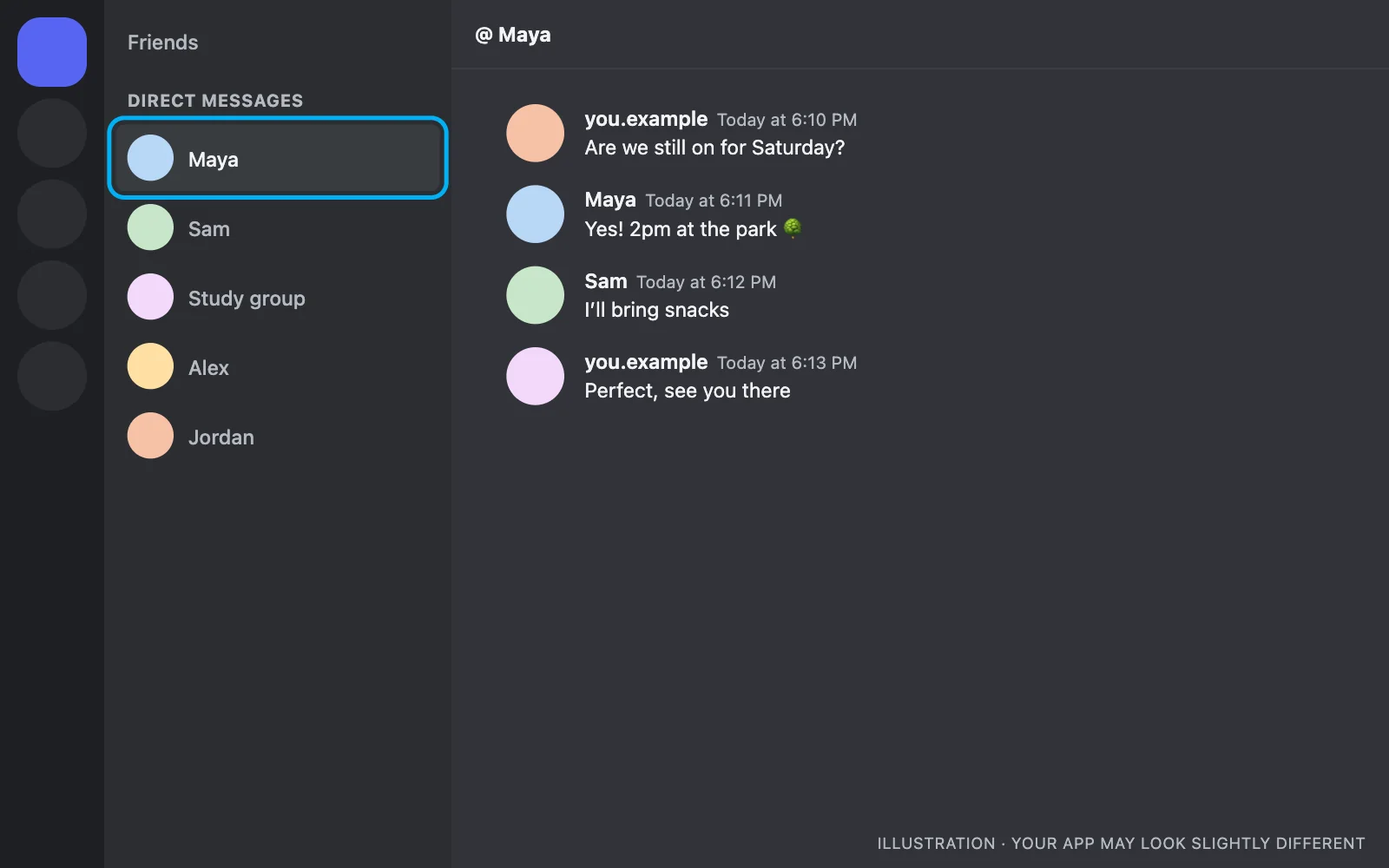
Choose the DM or group chat from your list. The export includes both sides of the conversation, so you get the full history, not just your messages.
Exporting server channels
Open a server and choose a text channel. You can export any channel you can read. For a full server, export each channel you want to keep. More in how to archive a Discord server or channel.
Exporting only part of a chat
- Date range: only messages from a set period, like a trip or a school year.
- Keyword: only messages mentioning a name or topic.
- Attachments, links, or embeds: pull out the photos and links people shared.
Phone or computer: which should you use?
| iPhone & Android | Mac & Windows | |
|---|---|---|
| Export all your chats in one click | No, one chat at a time | Yes |
| DMs, group chats, and channels | Yes | Yes |
| HTML, JSON, CSV | Yes | Yes |
| Date, keyword, and media filters | Yes | Yes |
| Images and avatars downloaded | Yes | Yes |
The iPhone and Android app is free to download. Discord Chat Exporter Desktop is a monthly subscription.
After you export
Want to clean up the chat now that you have a copy? DMDeleter, also by Yerbapps, bulk deletes your own messages. See how to delete all your Discord messages.
Export your Discord chats with Discord Chat Exporter
Export all your Discord chats in one click, to HTML, JSON, or CSV with images. On iPhone, Android, Mac, and Windows.


Frequently asked questions
Can you export a Discord chat?
Not with Discord’s own tools. Discord Chat Exporter exports whole DMs, group chats, and channels to HTML, JSON, or CSV.
Does it include the other person’s messages?
Yes. The export includes every message from everyone in the chat.
Are images included?
Yes. HTML exports download avatars and image attachments too, so the file works offline.
Can I export to PDF?
Export to HTML, open it in a browser, and choose Print → Save as PDF.
Does the other person know I exported the chat?
No. Exporting only reads messages. Nothing is posted or changed, and nobody is notified.
Is Discord Chat Exporter free?
Discord Chat Exporter is free to download on iPhone and Android. Discord Chat Exporter Desktop for Mac and Windows is $20 a month.