 Discord Chat Exporter
“Discord Chat Exporter” can mean a few different tools: this app for phone and desktop, a free open-source program for computers, or browser extensions. This guide shows how to use the app and how it compares to the others.
In this guide
How to use the Discord Chat Exporter app
On iPhone & Android
Step 1 Open Discord Chat Exporter
Install Discord Chat Exporter from the App Store or Google Play and open it. The app guides you through setup.
Step 2 Choose a chat
Tap Direct Messages or Servers and pick a DM, group chat, or server channel.
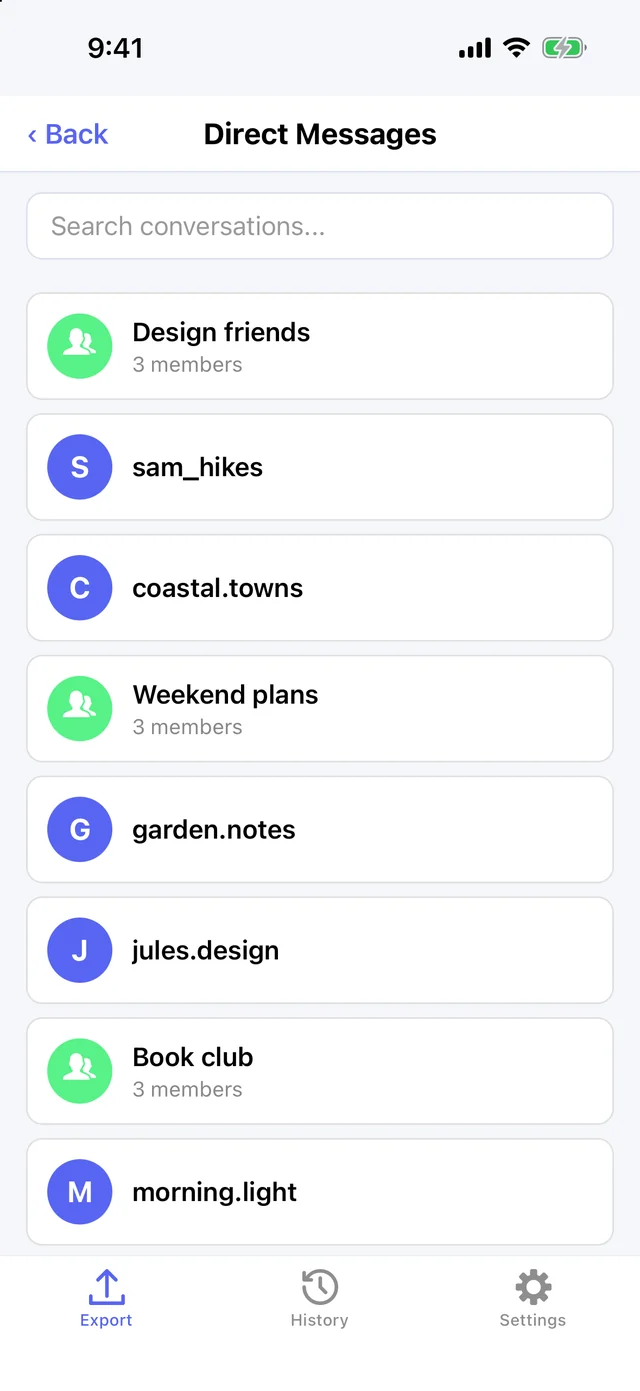
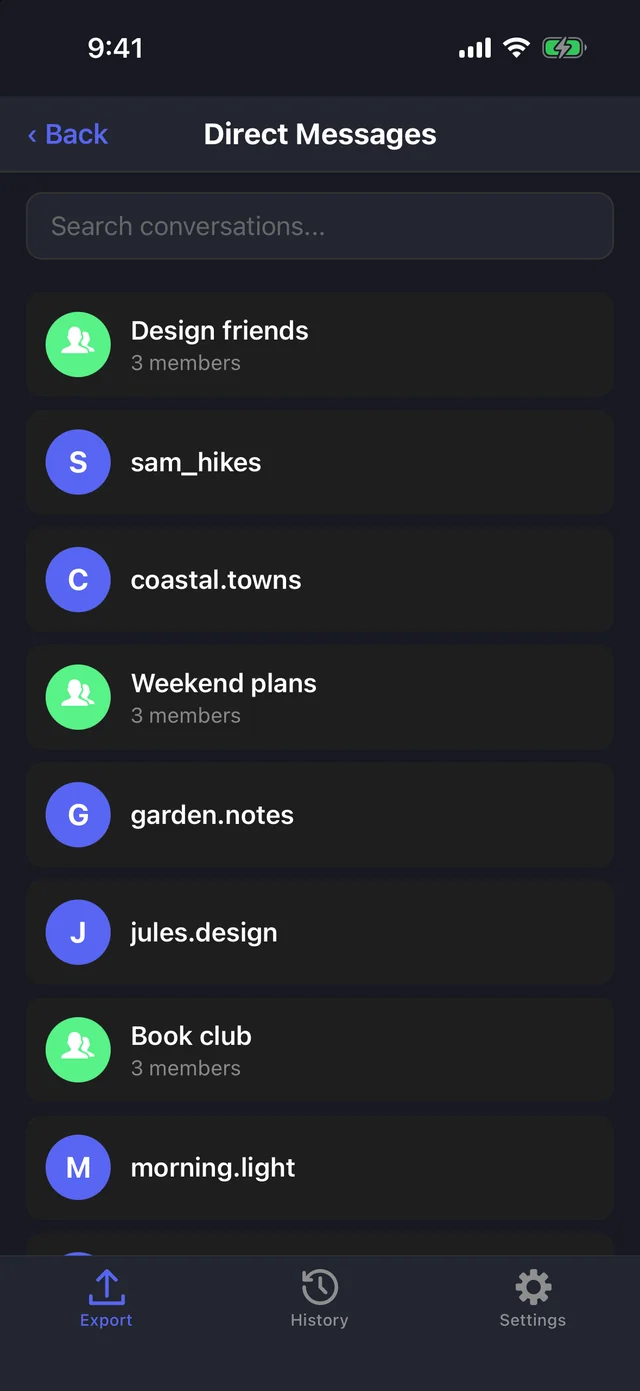
Step 3 Choose a format
Pick HTML, JSON, or CSV.
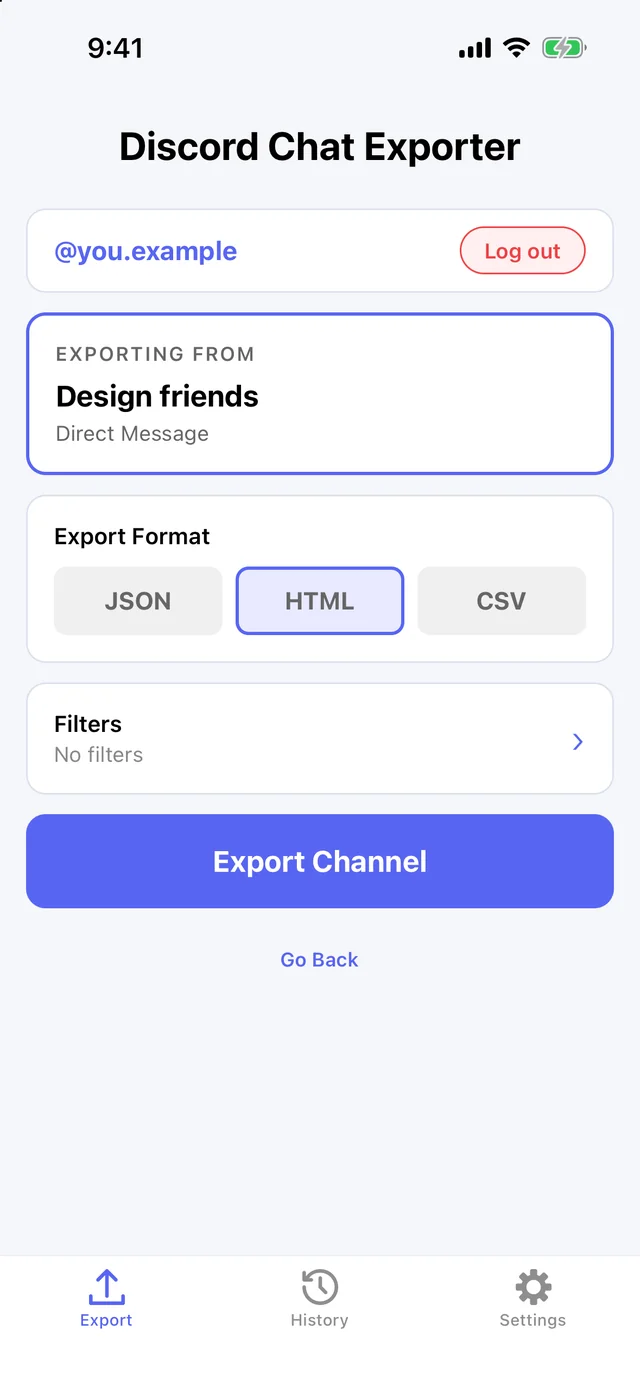
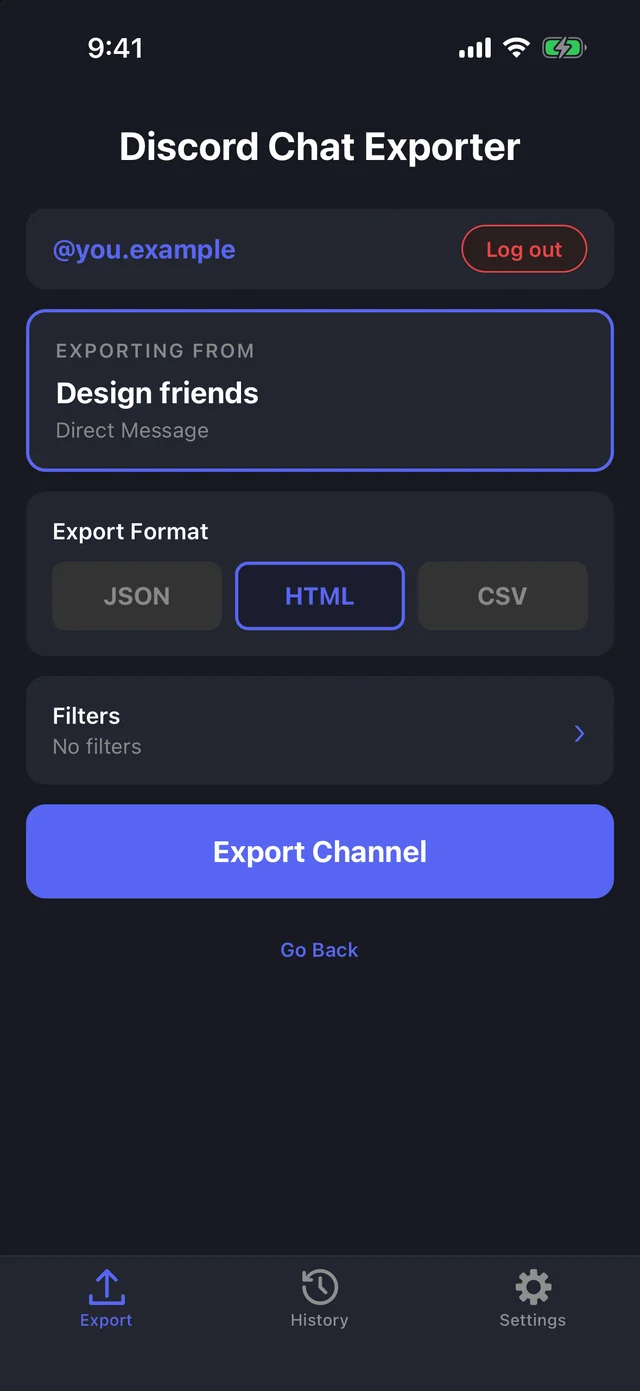
Step 4 Add filters (optional)
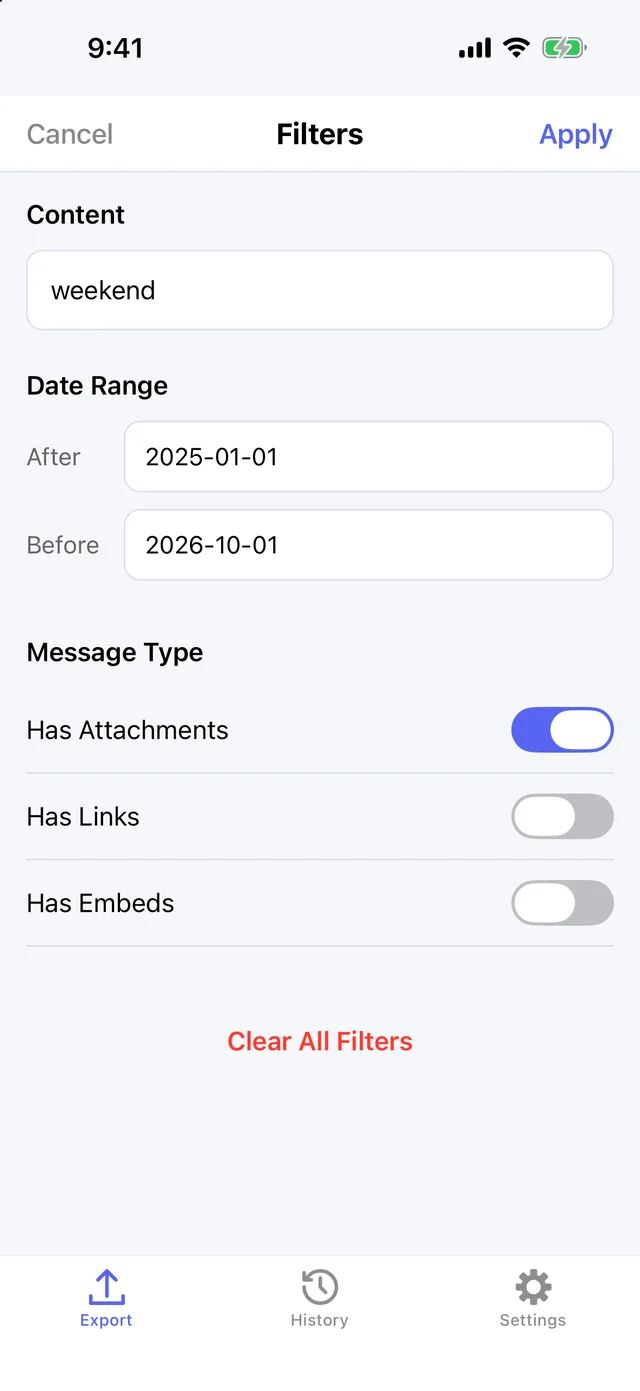
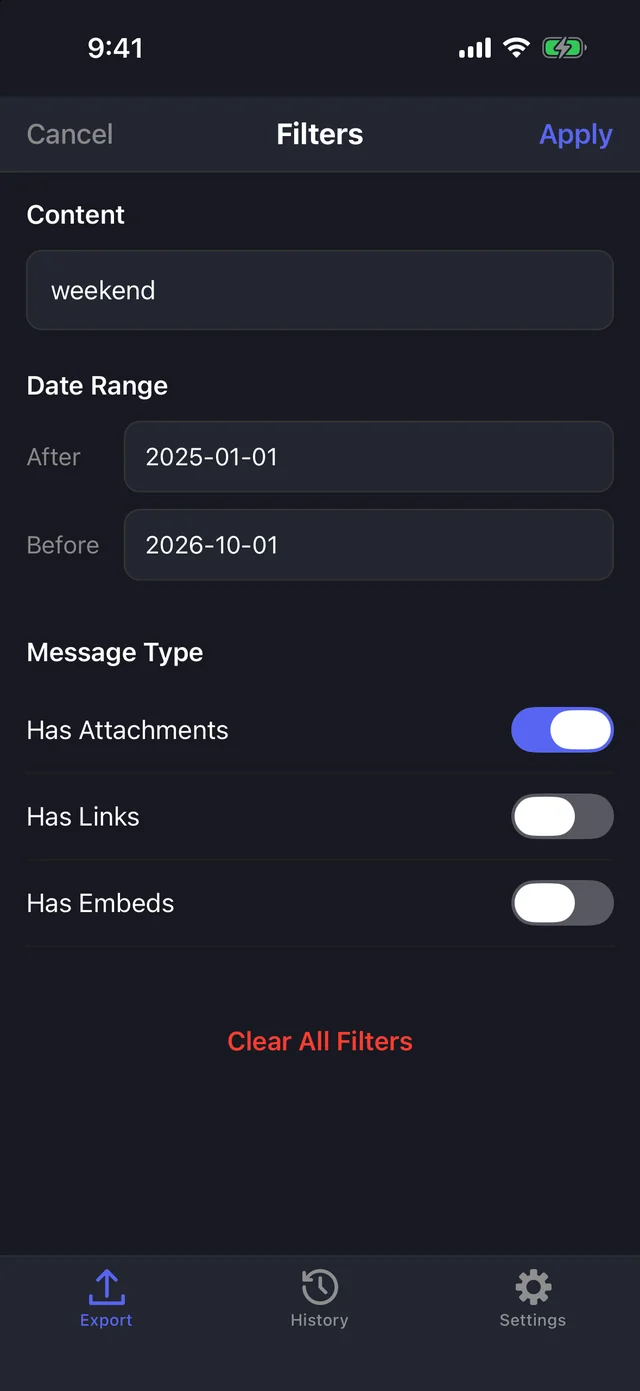
Tap Filters to export only messages containing a word, from a date range, or with attachments, links, or embeds.
Step 5 Export
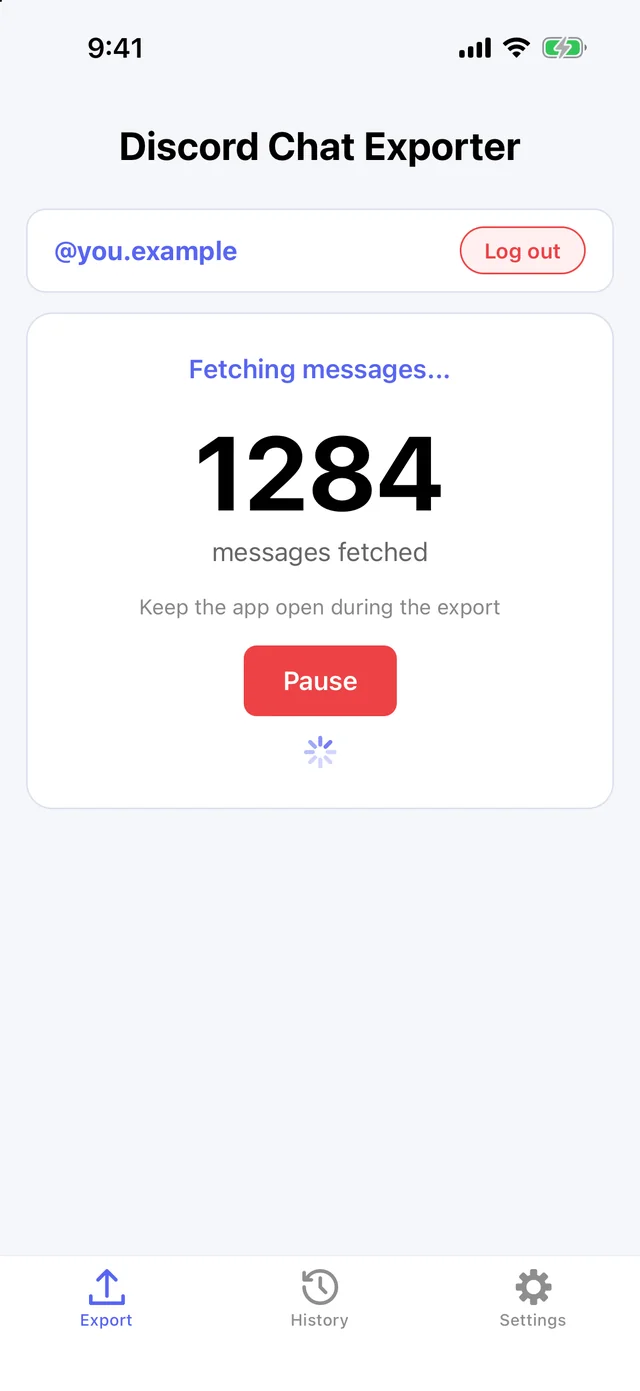
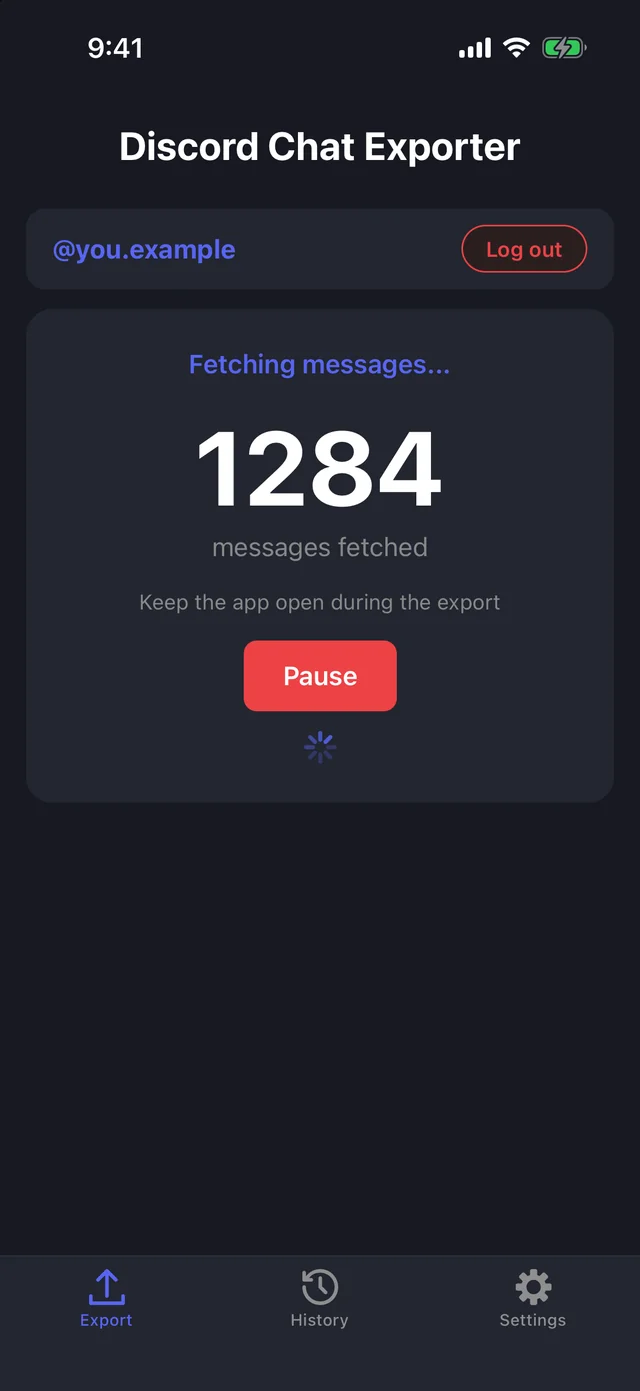
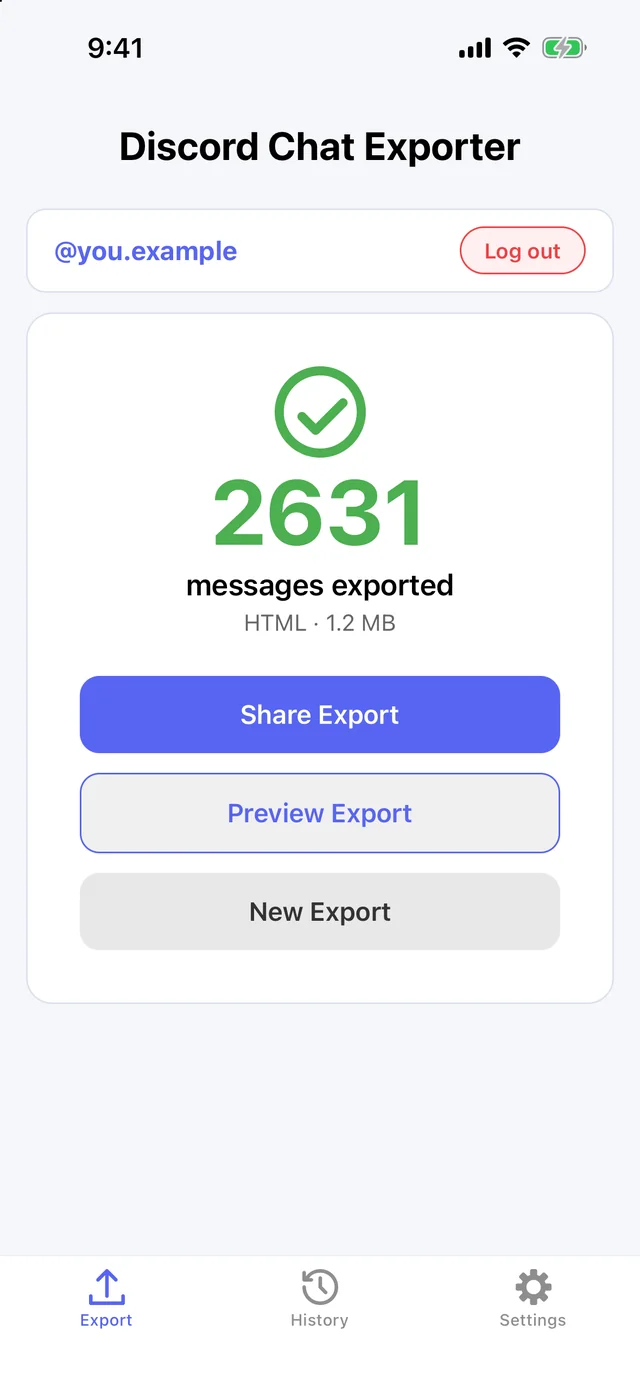
Tap Export. Keep the app open while it fetches every message from every person in the chat. Pause any time.
Step 6 Share or preview it
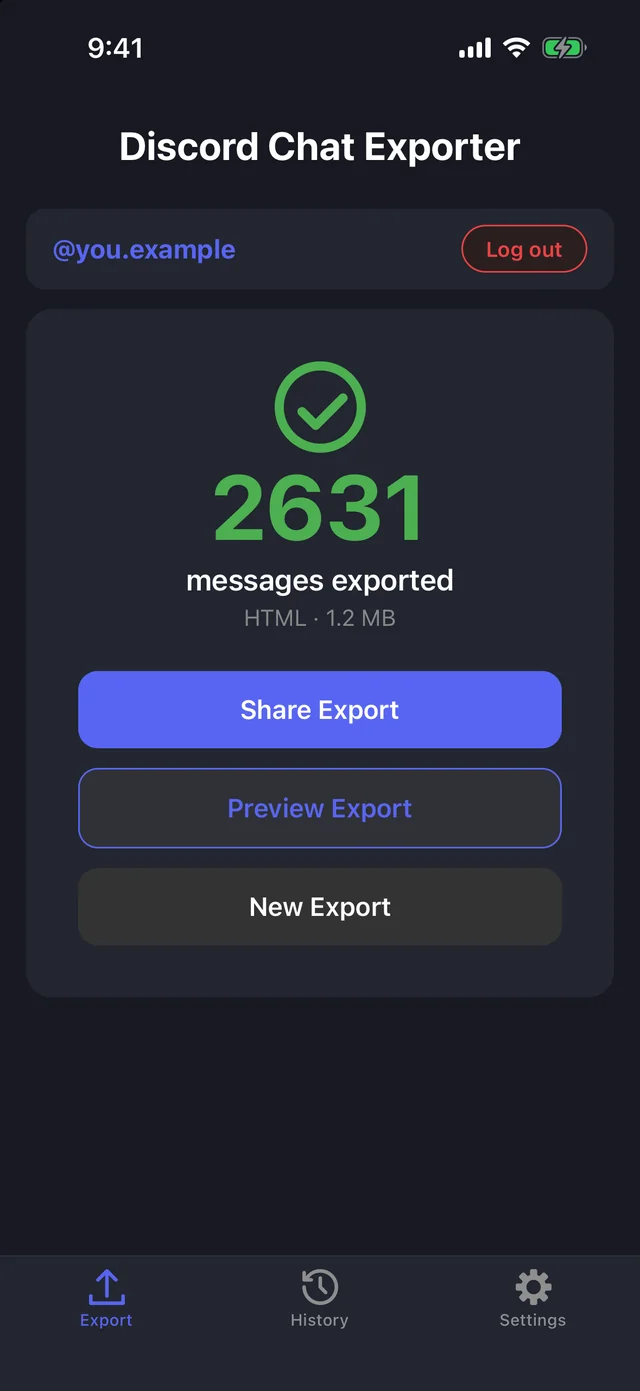
When it’s done, share the file or preview it. Every export is also saved in History.
On Mac & Windows
Step 1 Open Discord Chat Exporter
Get Discord Chat Exporter Desktop for Mac or Windows, open it, and enter the license key from your purchase email.
Step 2 Choose your chats
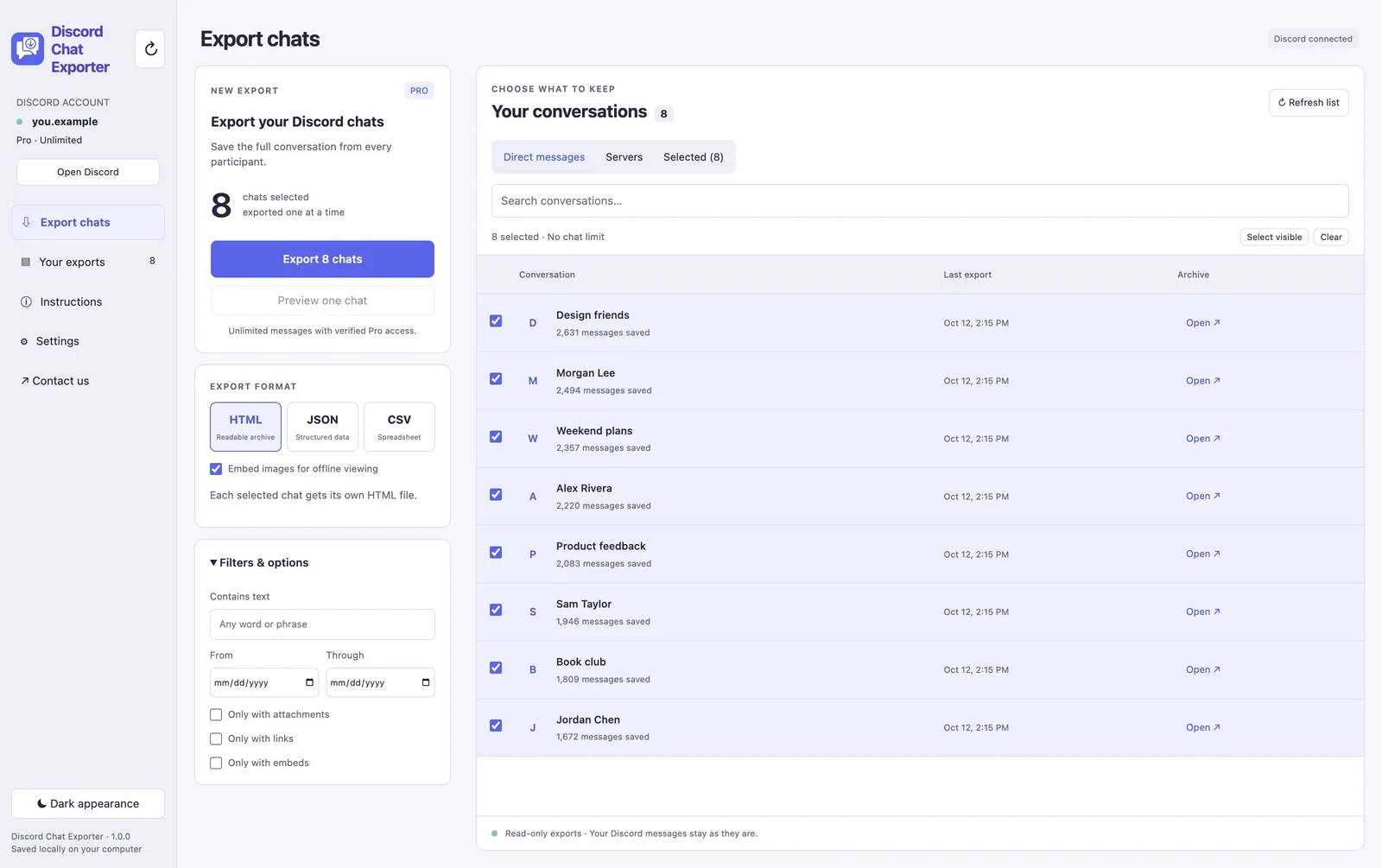
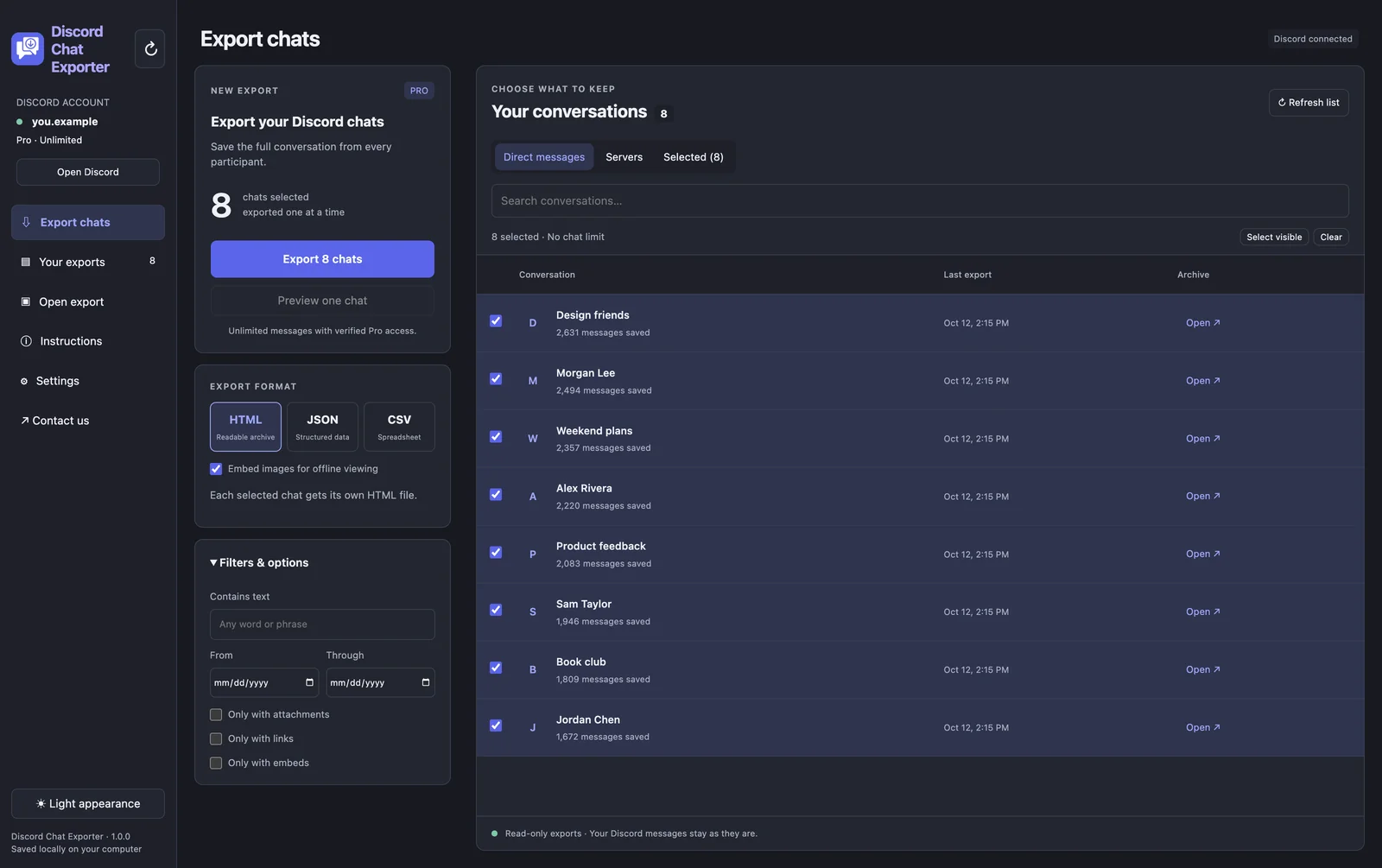
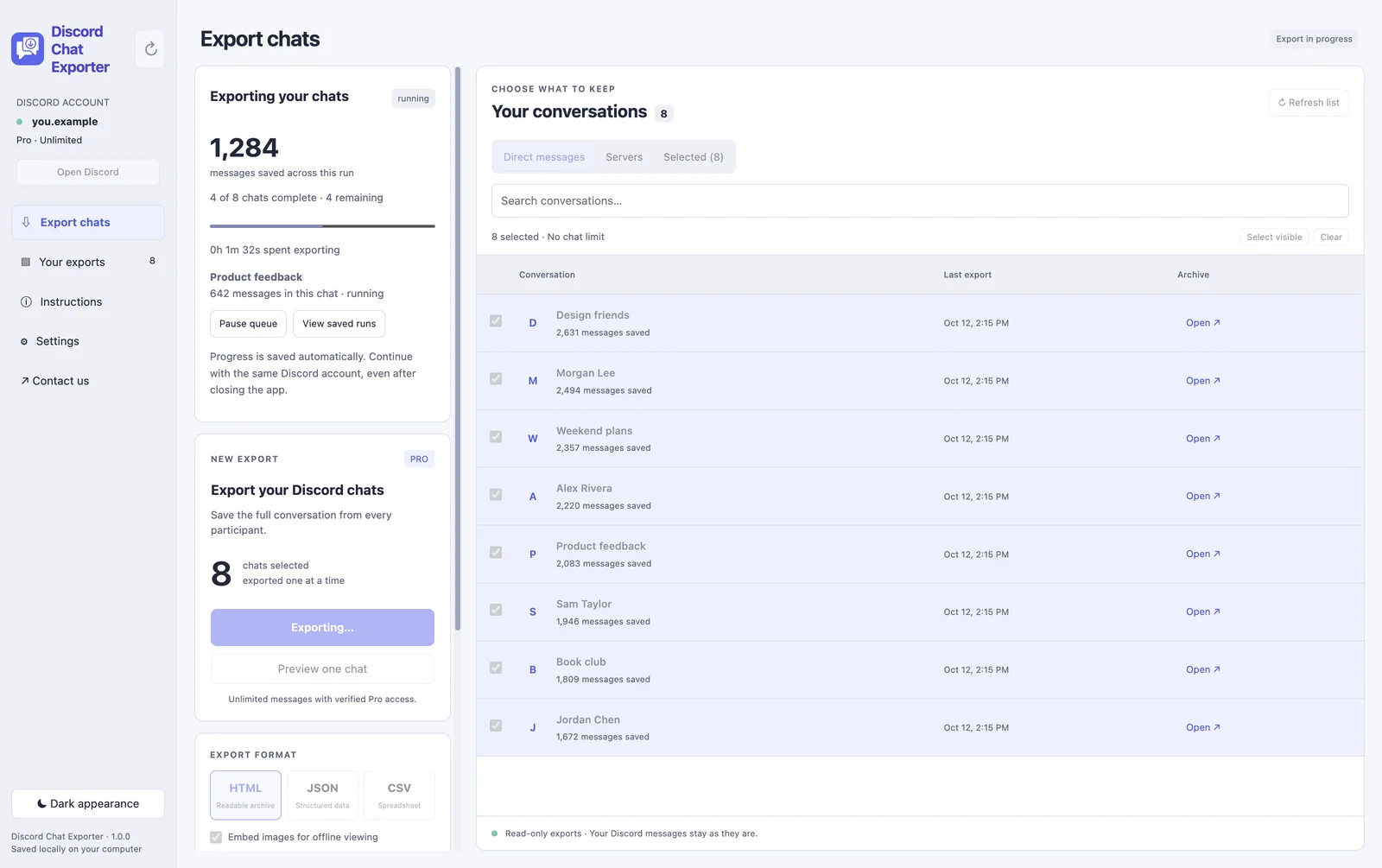
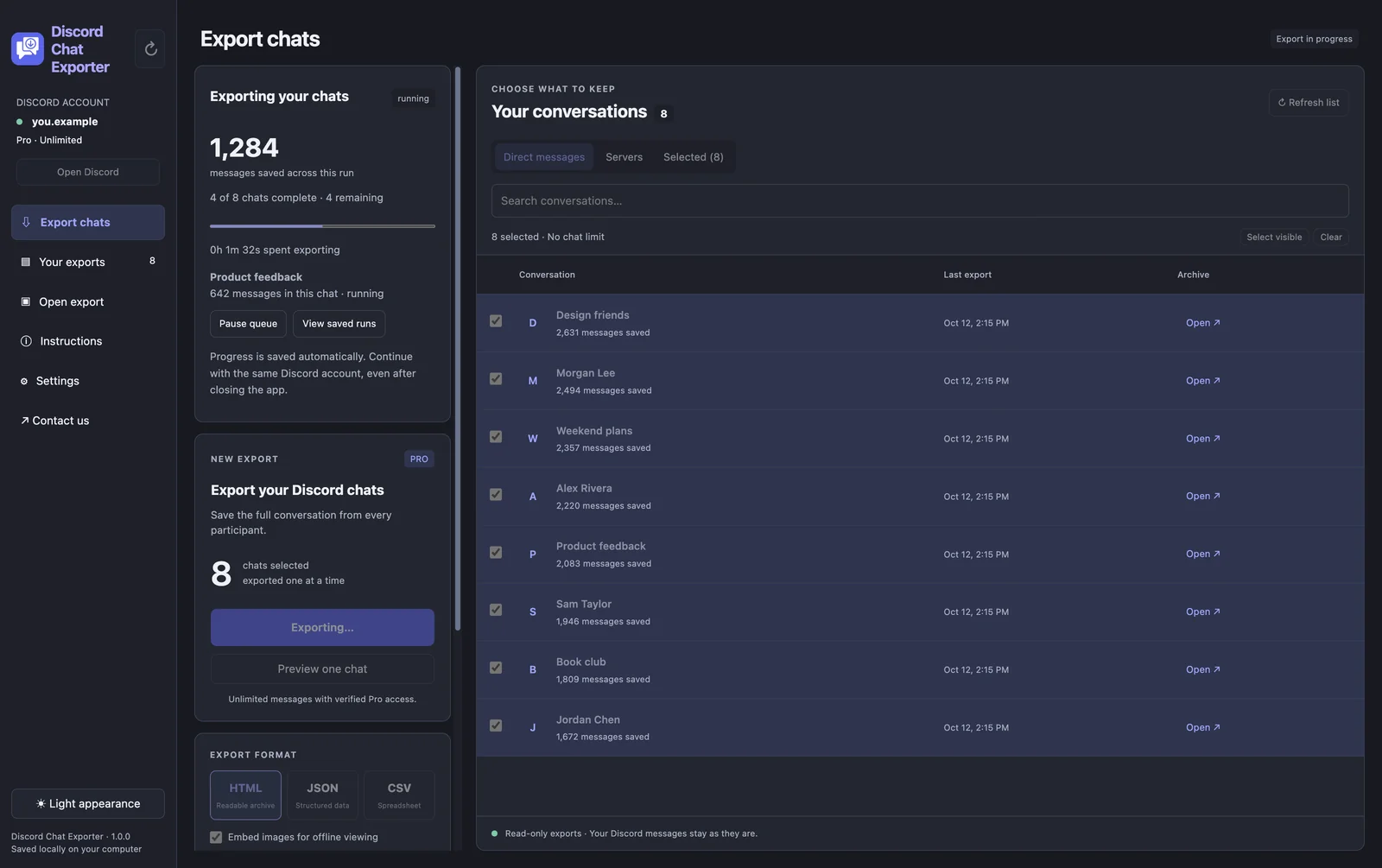
Under Direct messages or Servers, tick the chats you want. To export everything, click Select visible to select every chat in the list.
Step 3 Choose a format and filters
Pick HTML, JSON, or CSV. Under Filters & options, optionally keep only messages containing a word, from a date range, or with attachments, links, or embeds.
Step 4 Click Export
Click Export. Each chat is exported one after another, with a live message count. Pause the queue any time; progress is saved, even if you close the app.
Step 5 Open your exports
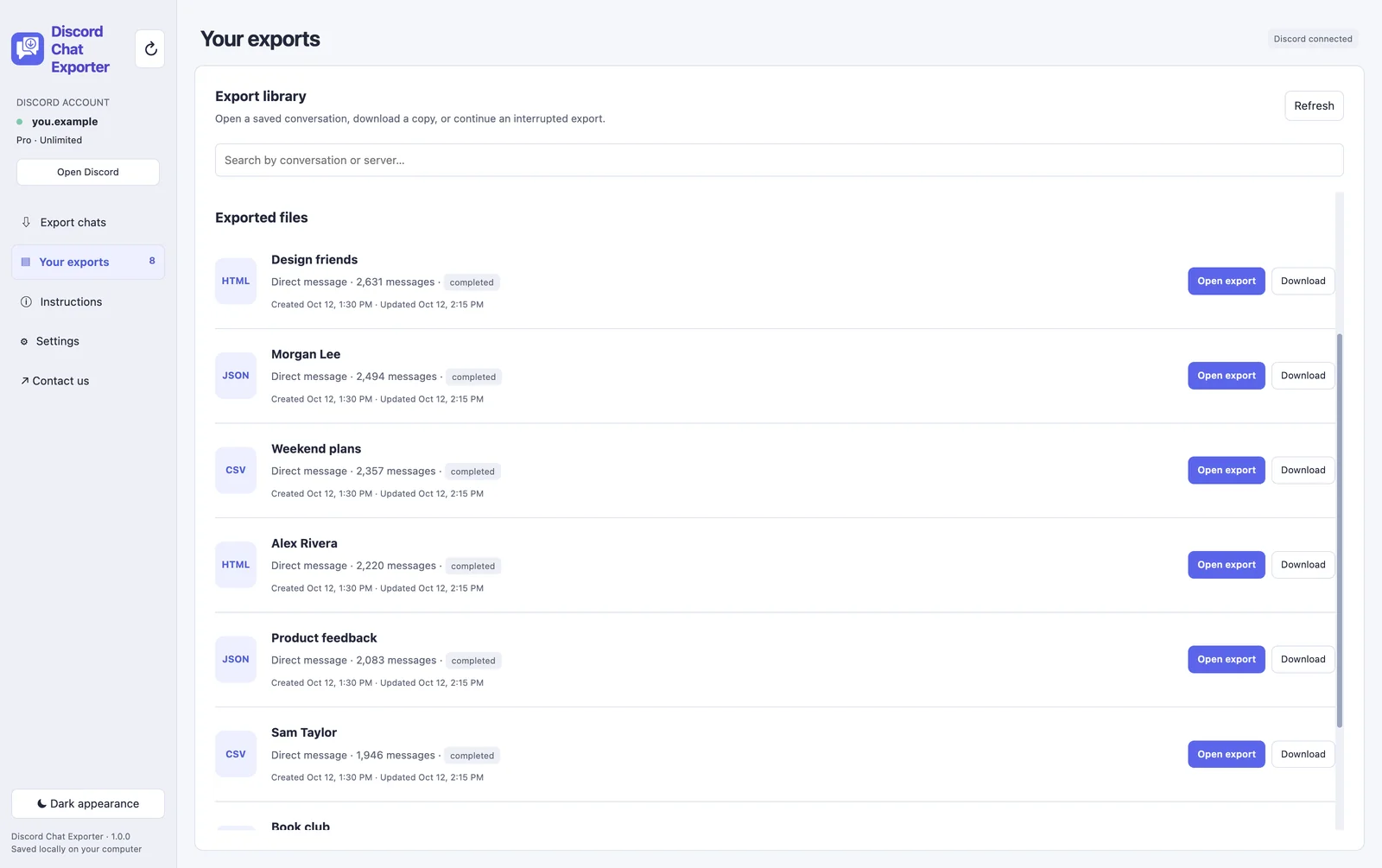
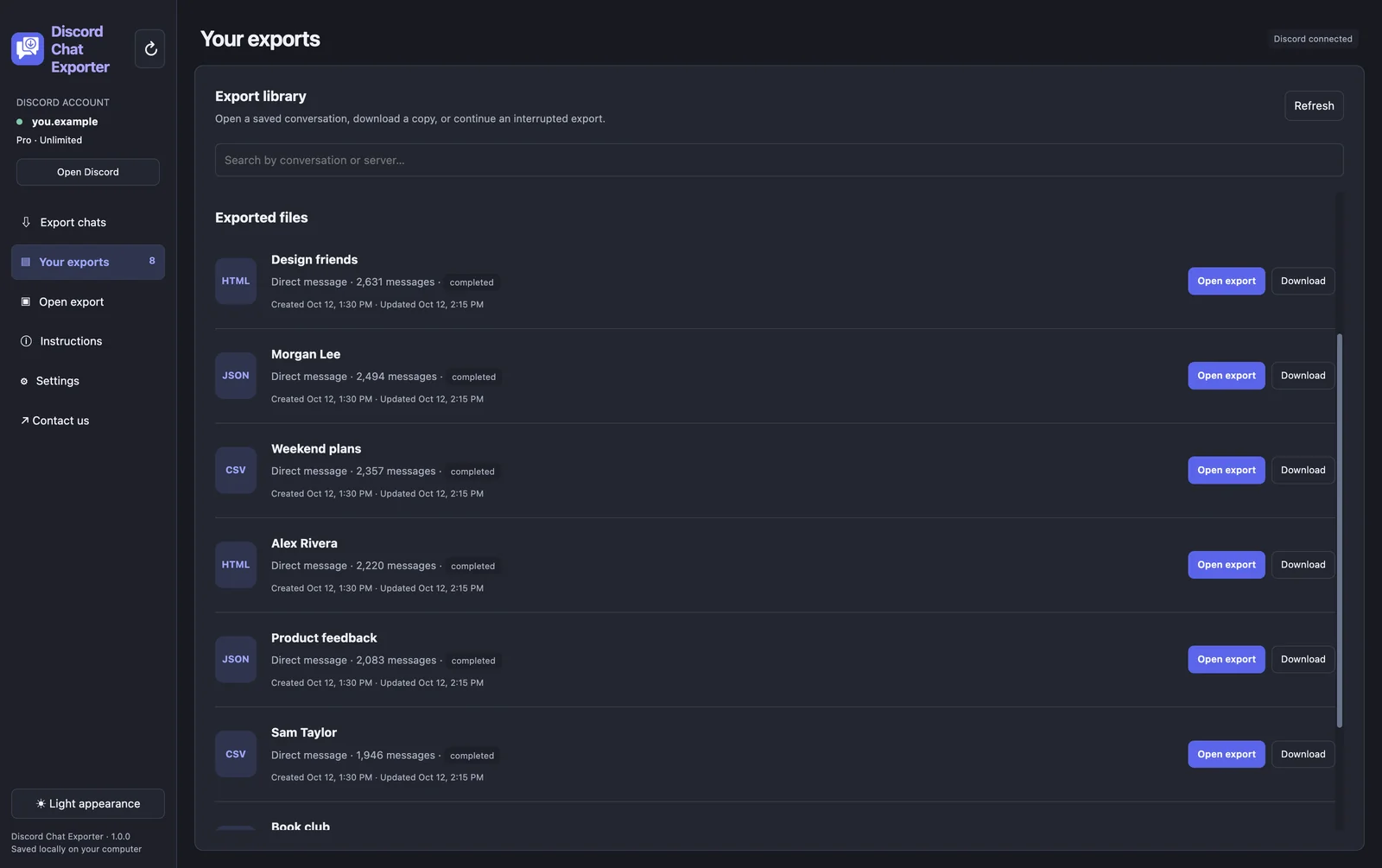
Every finished chat is listed under Your exports. Open it in the built-in viewer or download a copy.
The kinds of Discord export tools
| Tool | Runs on | How it gets your messages | Watch out for |
|---|---|---|---|
| Discord Chat Exporter app | iPhone, Android, Mac, Windows | No token to copy or paste | Large chats take time because of Discord’s limits |
| Open-source desktop tool | Computer | You paste your Discord account token into it | Your token gives full access to your account; never share it |
| Browser extensions | Chrome or Firefox on a computer | Read the chat open in your browser | Broad permissions over the sites you visit |
| Bots | A server you manage | A bot account in the server | Server admins only; can’t export your DMs |
Is it safe to export Discord chats?
- Never share your account token. Anyone with it can log in as you. Only paste it into software you trust.
- Exporting only reads messages. It doesn’t post, delete, or notify anyone.
- Discord’s terms don’t allow automating user accounts, so tools that act on your account always carry some risk. Export at a reasonable pace and don’t run many exports at once.
- Keep your exports private. They contain other people’s messages.
Which format to choose
| Format | Best for | What you get |
|---|---|---|
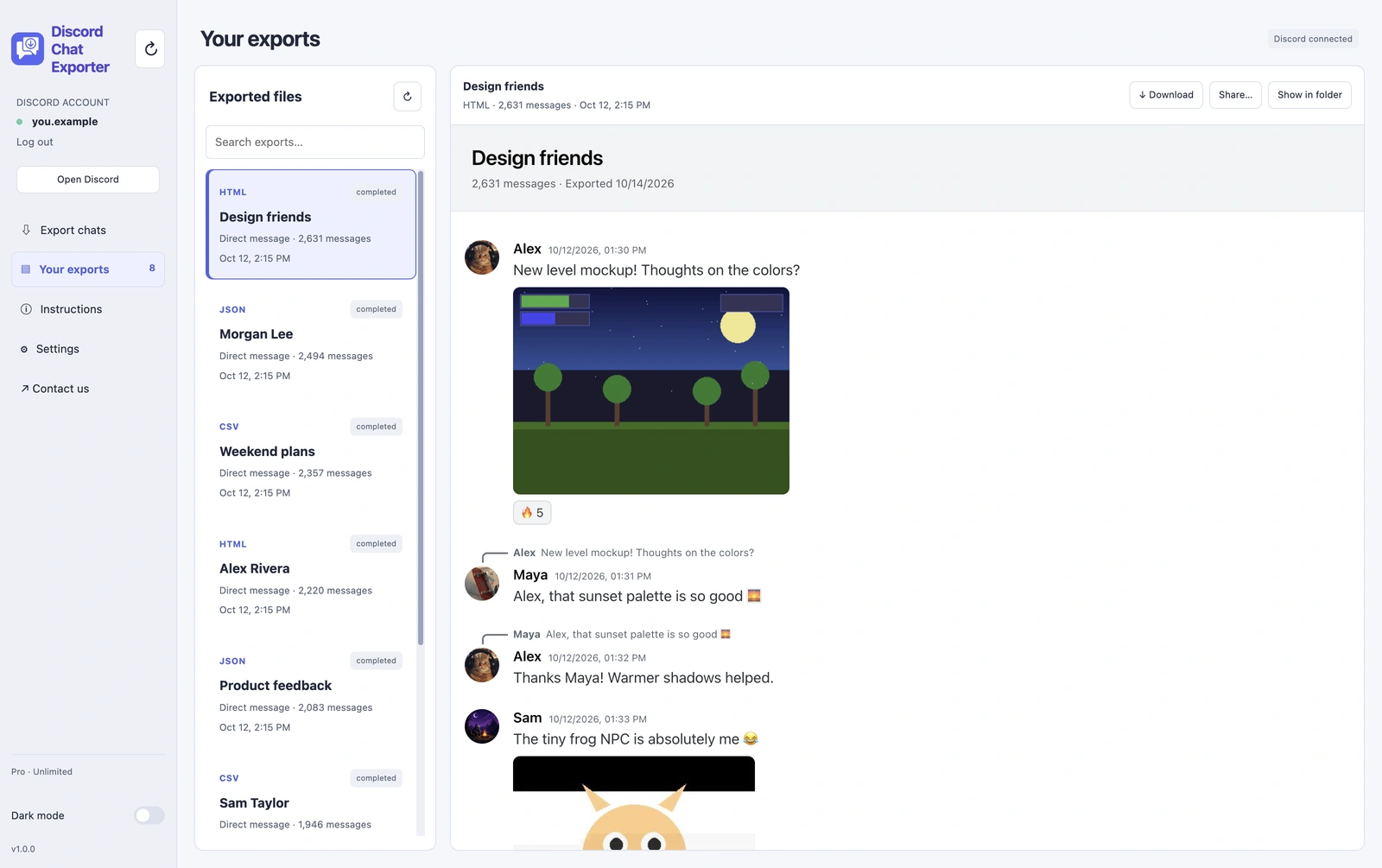
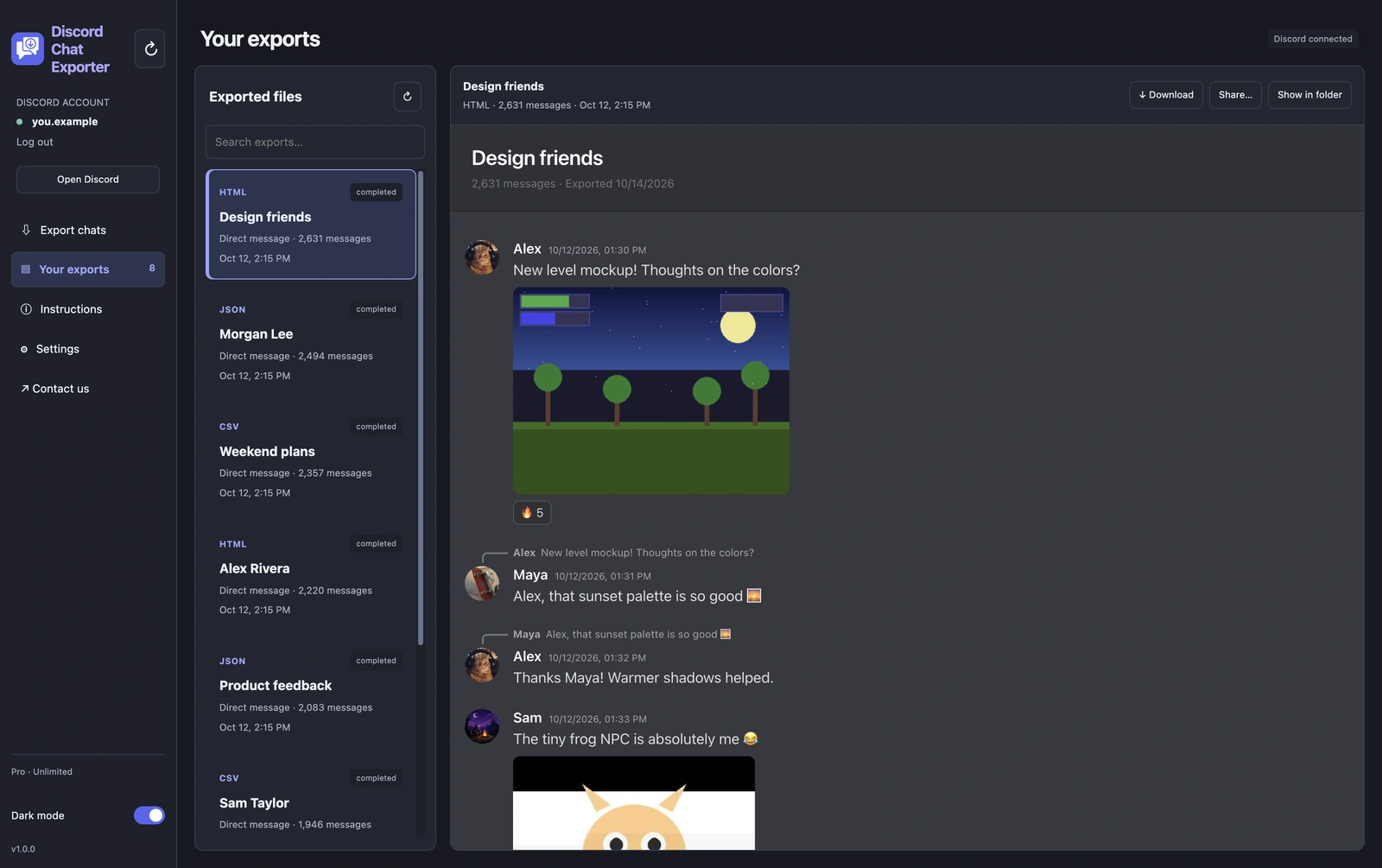
| HTML | Reading and sharing | Looks like Discord: avatars, images, embeds, reactions, timestamps. One self-contained file that opens in any browser, offline. |
| JSON | Developers and backups | Every message with full details, ready for scripts or other tools. |
| CSV | Spreadsheets | One row per message: author, time, content. Opens in Excel, Numbers, or Google Sheets. |
| Printing or evidence | Open the HTML export in a browser and choose Print → Save as PDF. |
Here’s what an HTML export looks like:
Respect other people’s privacy
An export includes other people’s messages and photos. Keep it for your own records, and get permission before sharing it.
Export your Discord chats with Discord Chat Exporter
Export all your Discord chats in one click, to HTML, JSON, or CSV with images. On iPhone, Android, Mac, and Windows.


Frequently asked questions
Is Discord Chat Exporter safe?
Exporting only reads messages. The biggest risk is sharing your account token with untrusted software, so don’t.
Can I get banned for exporting chats?
Discord’s terms don’t allow automating user accounts, so there’s some risk with any export tool. Reading at a reasonable pace keeps it low.
Does Discord Chat Exporter work on iPhone?
Yes. Get it on the App Store, or on Google Play for Android.
Can it export DMs?
Yes: DMs, group chats, and server channels.